
REQUIREMENT
- VirtualBox
- Ubuntu Server Image. You can download the Ubuntu server iso from the official Ubuntu website.
NOTE: WE ARE USING UBUNTU SERVER 22.04 FOR THIS INSTALLATION PROCESS.
SETTING UP UBUNTU DESKTOP VM
- Launch VirtualBox and click NEW

- Fill in the requirements
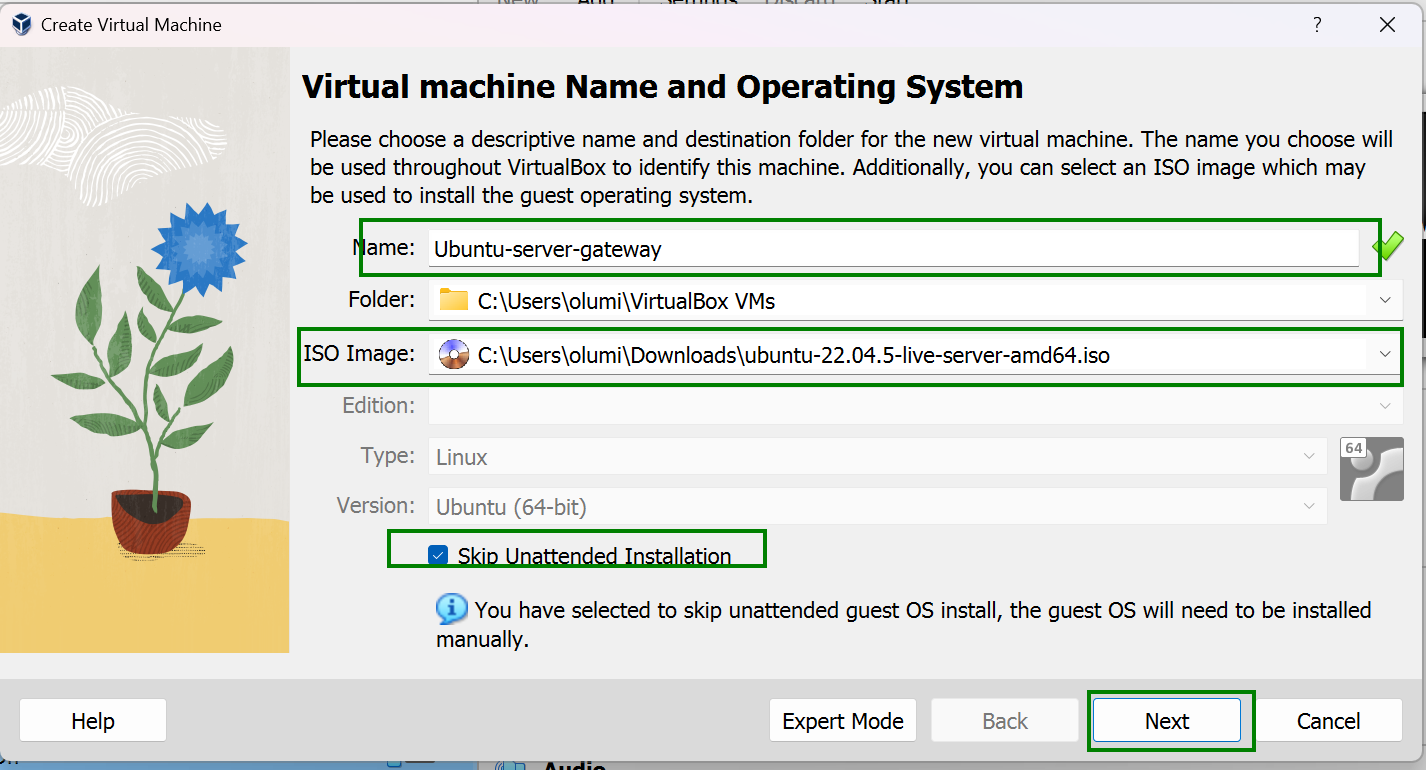
- Enter a desired name. Here we used Ubuntu-server-gateway
- Select the Ubuntu Server image from the stored folder. Here it is in the Download Folder
- Check Skip Unattended Installation
- Click Next
- Memory Allocation
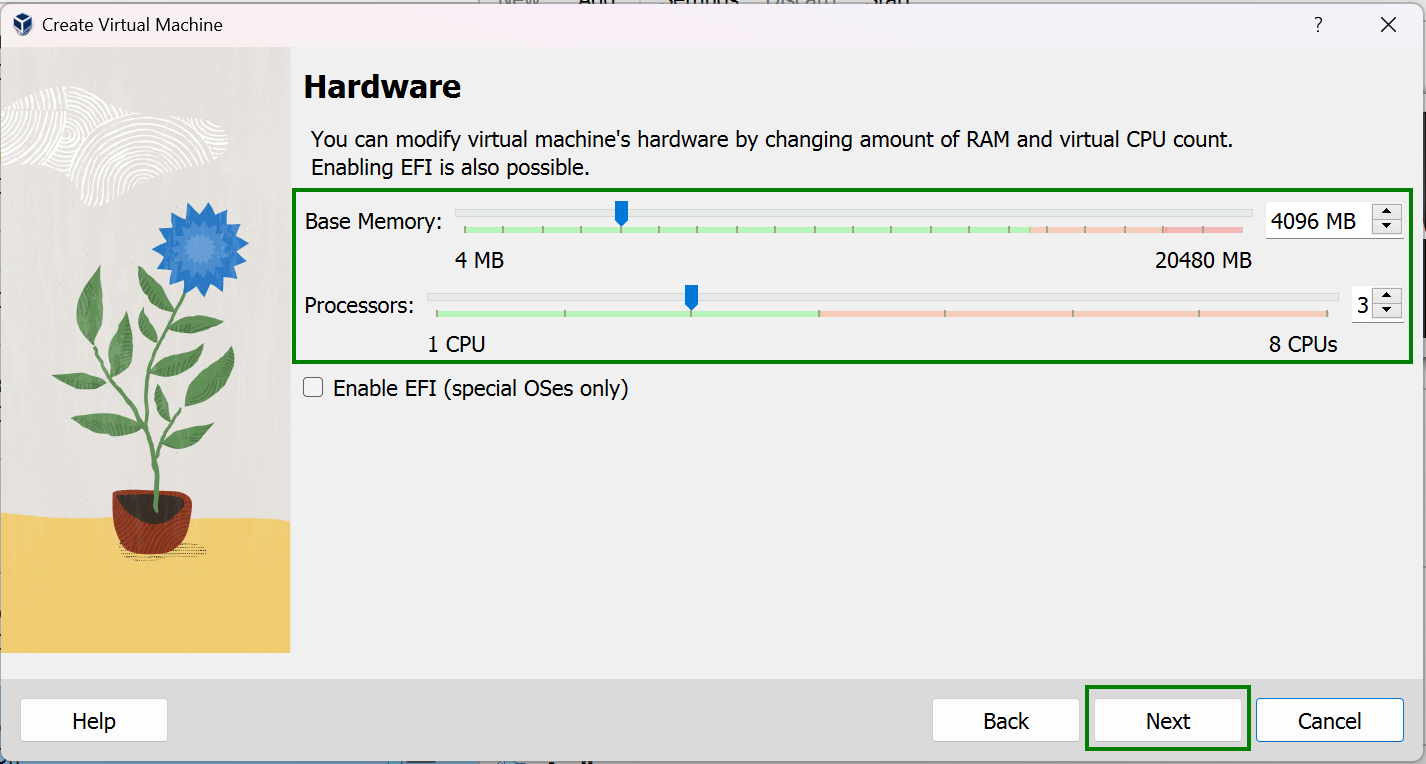
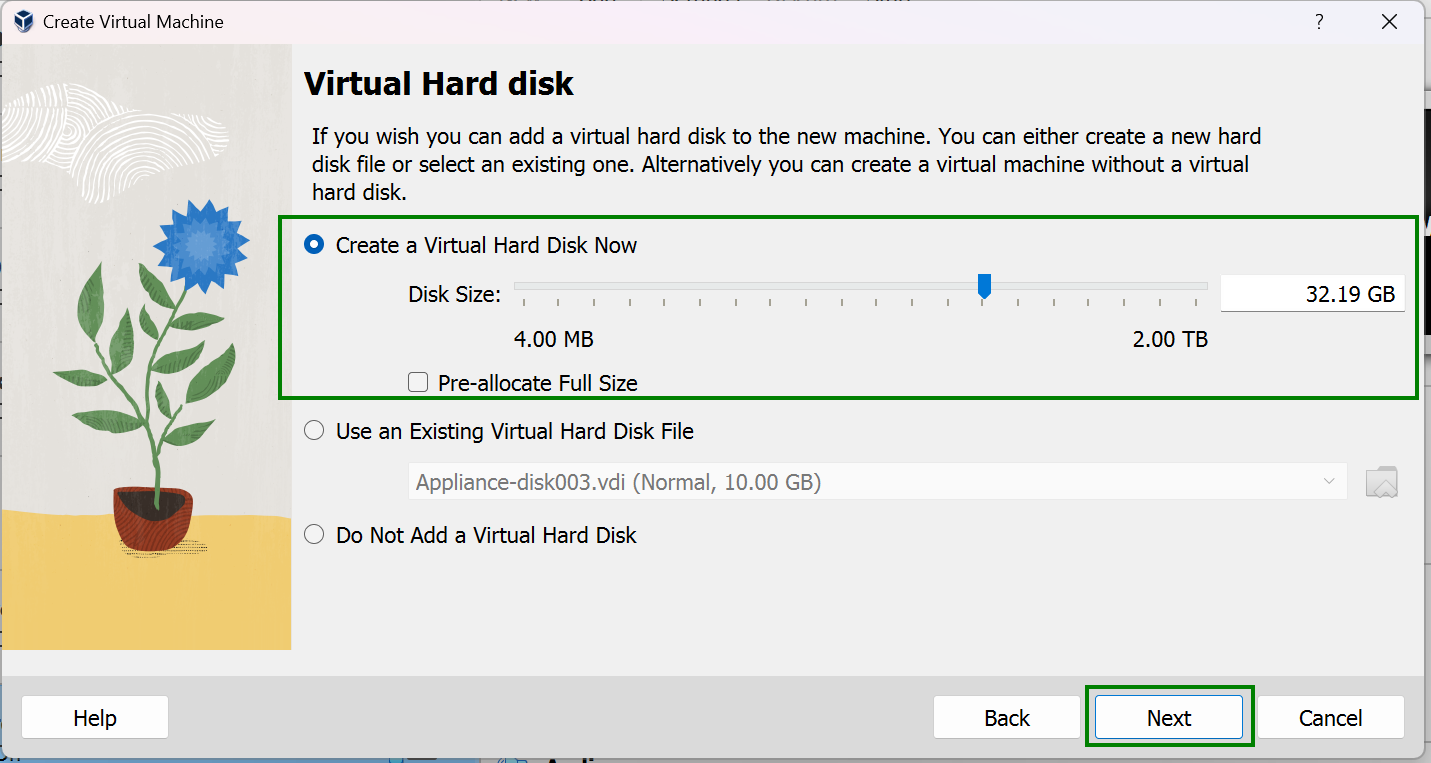
-
Finalization
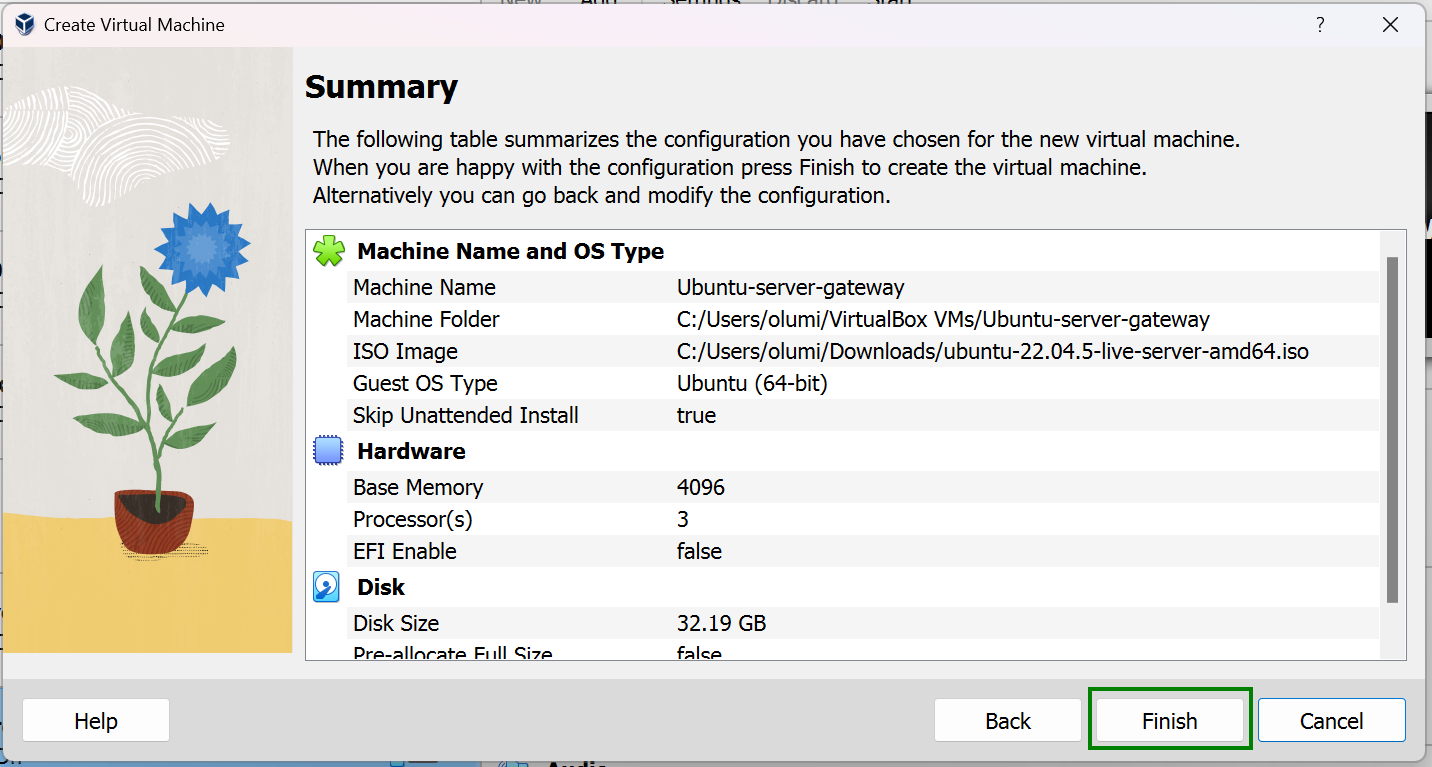 Confirm the setup and click Finish to complete the process.
INSTALLING UBUNTU SERVER
On your VirtualBox click on the Ubuntu Server VM and click start to begin the Ubuntu Server installation process.

-
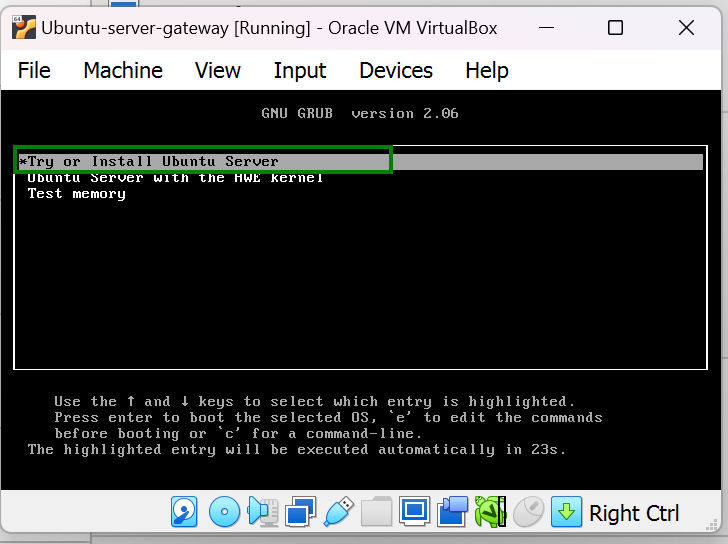
Select the option to try and install ubuntu server
-
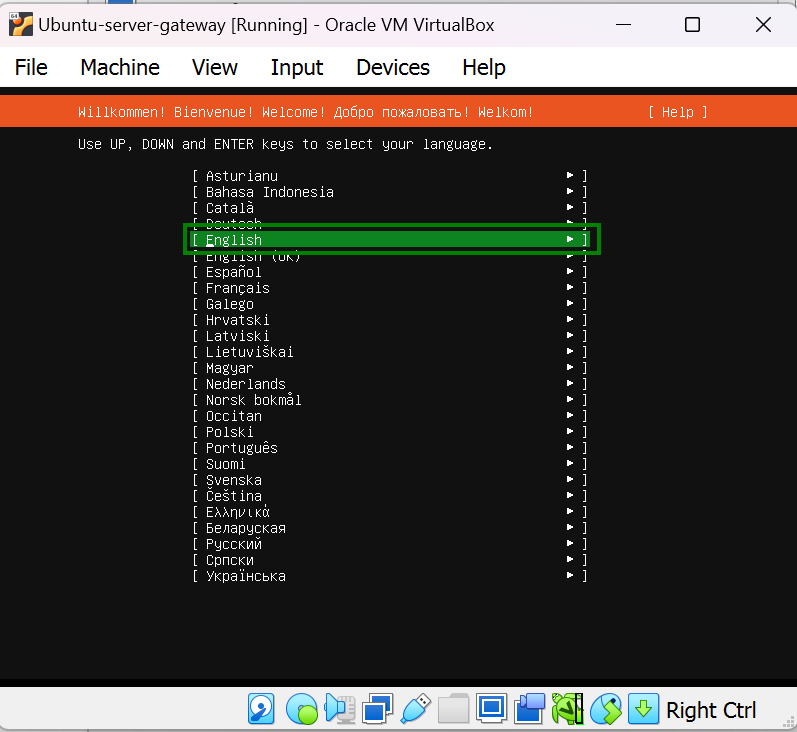
Select a preferred language and press Enter
-
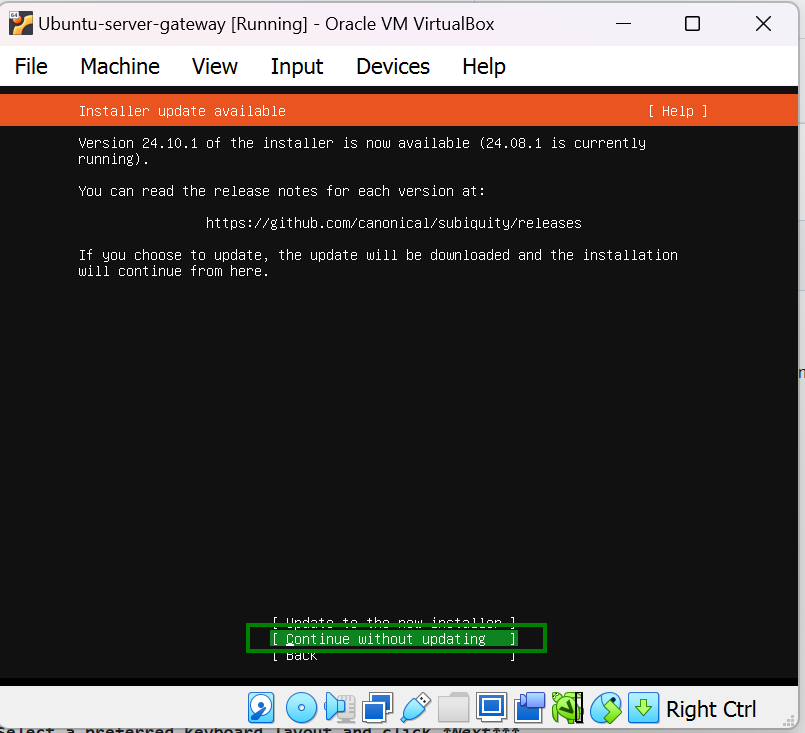
You have the option to continue without updating to a new installer or update to a new install, always use the update option except you have a need to use an older version like in this situation. Select the right option and press ENTER
-
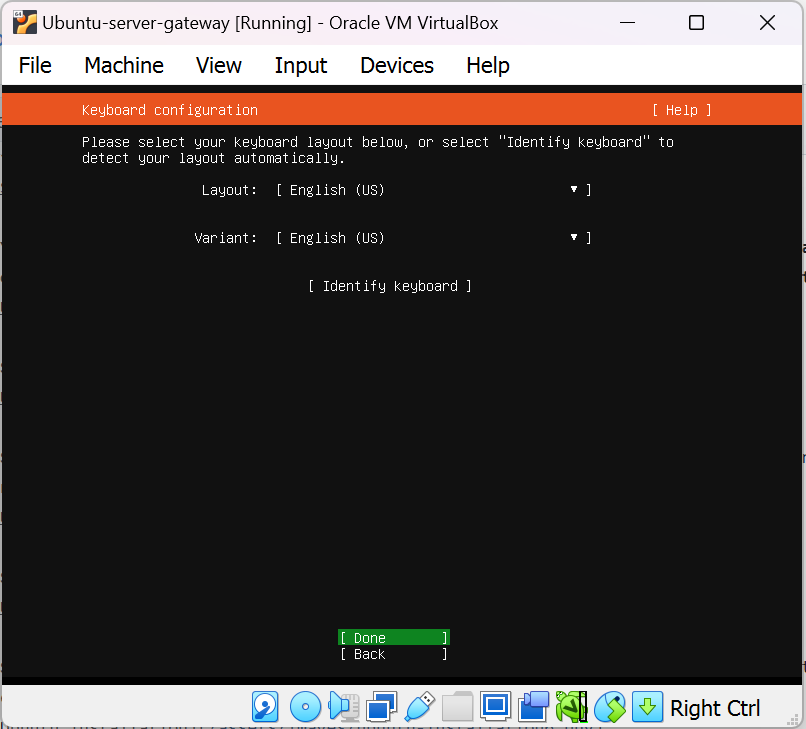
Select a preferred keyboard layout, navigate to Done and press Enter to proceed.
-
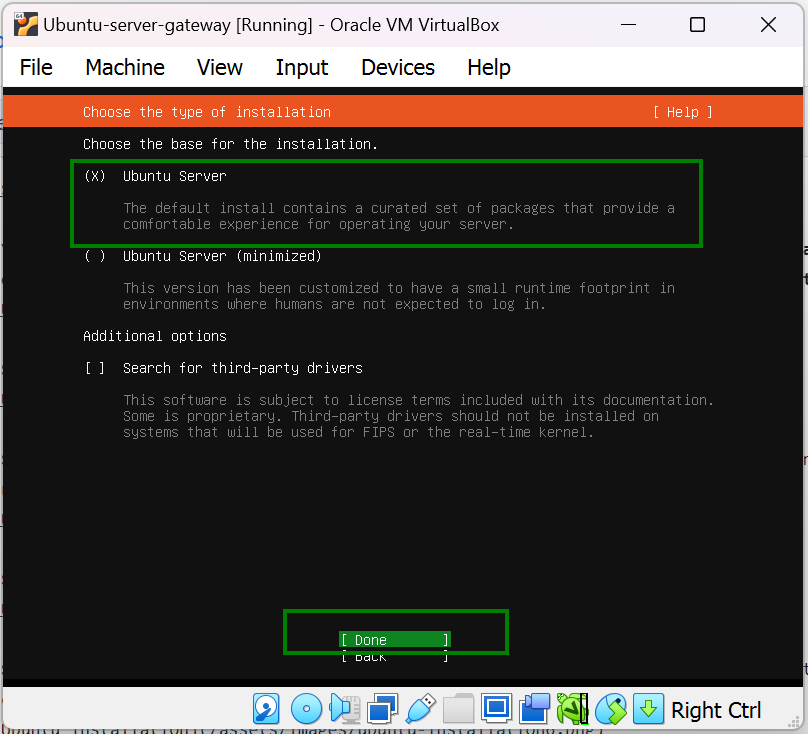
Select ubuntu server as the base for the installation. Select Done and press Enter
-
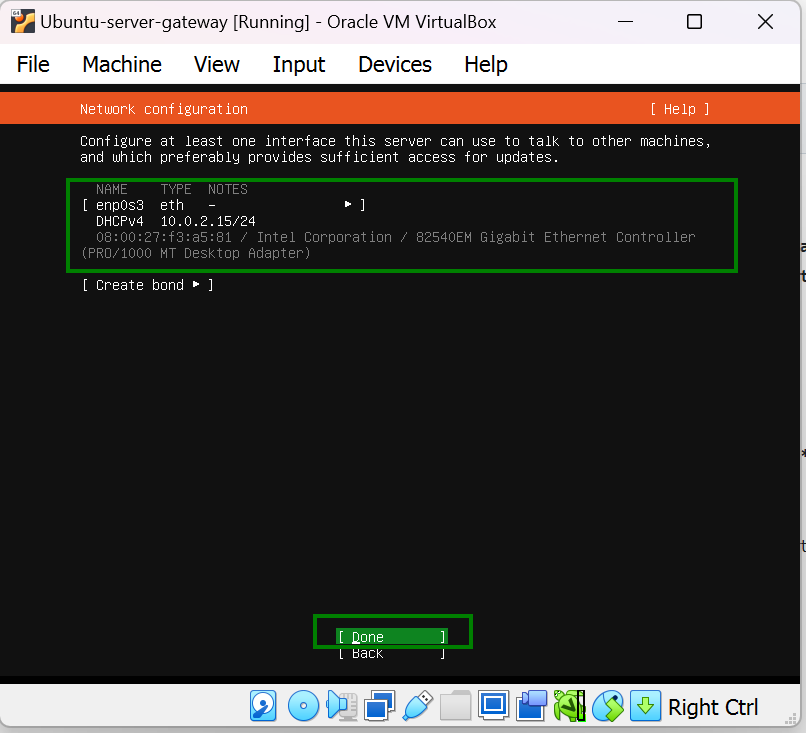
There are two options to proceed from this step. We can either configure the network interface from the terminal or proceed and do the configuration later. Here we’ll proceed and configure it later. So, select Done and press Enter to proceed
-
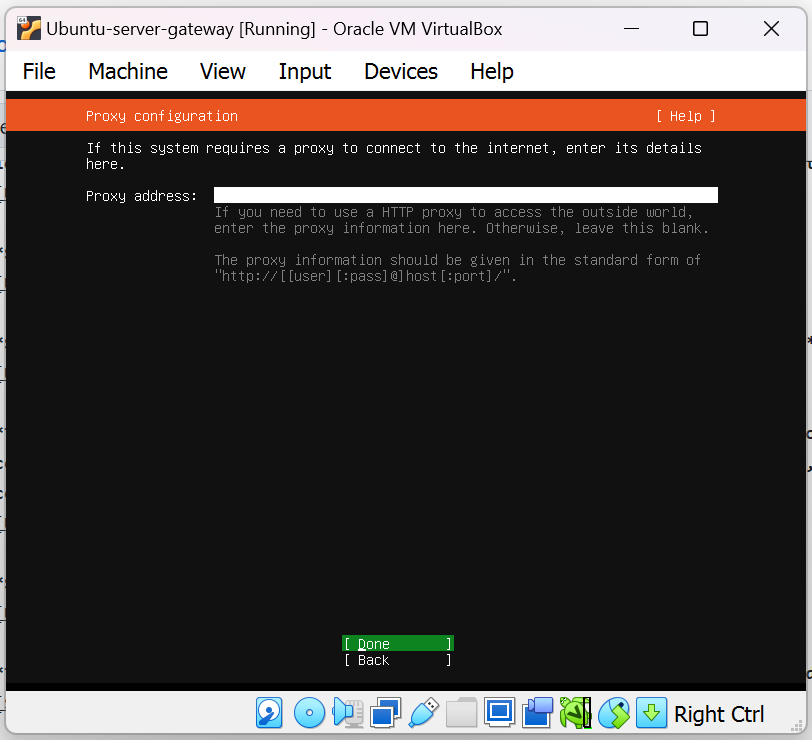
We do not require a proxy to continue this installation navigate to Done and press Enter to proceed
-
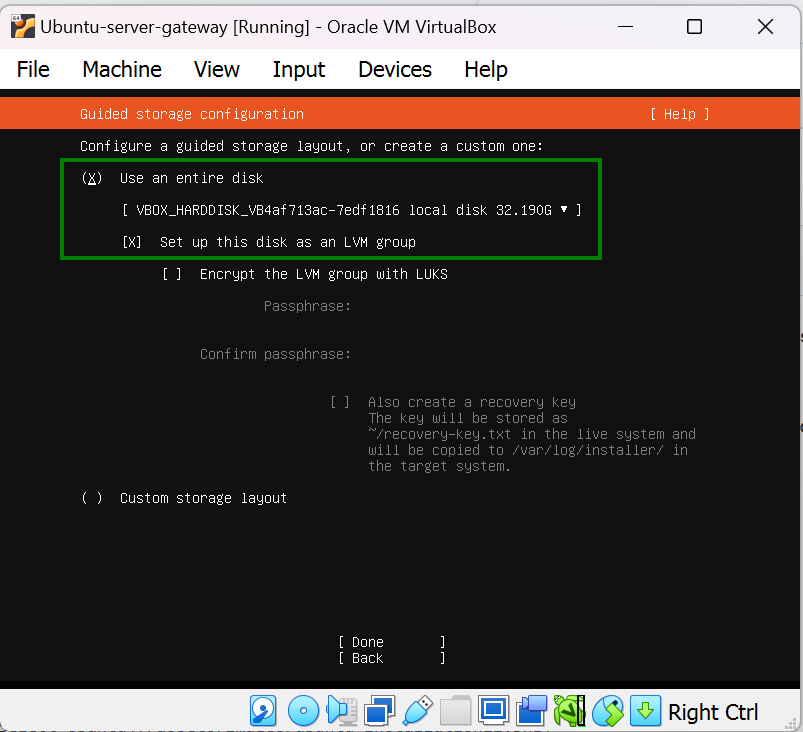
Check use the entire disk and set up this disk as LVM group then navigate to Done and press Enter to proceed. You have the option to encrypt your disk at this stage if you need an extra layer of security
-
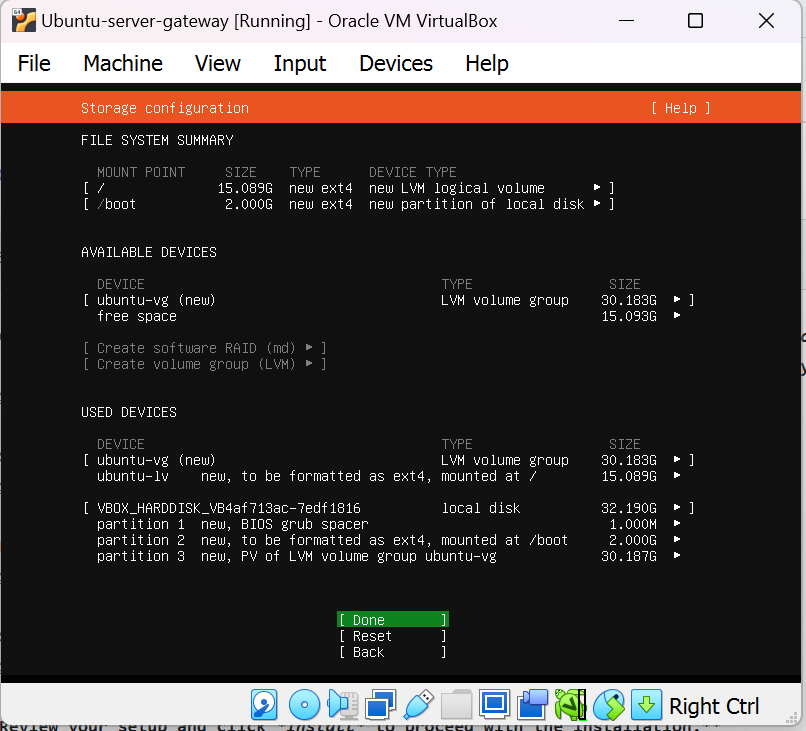
Review the setup then navigate to Done and press Enter to proceed
-
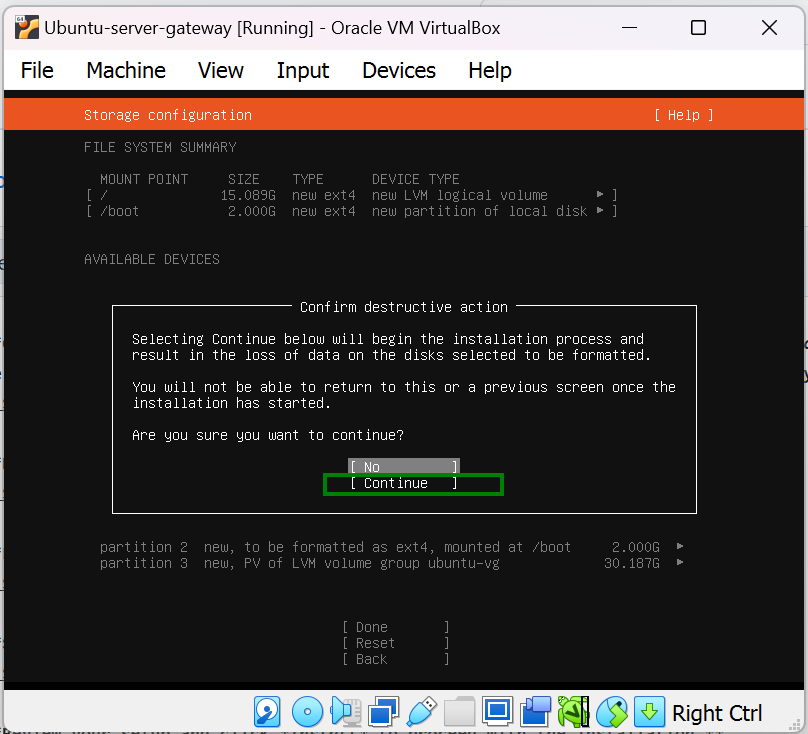
When prompted, select Continue then press Enter
-
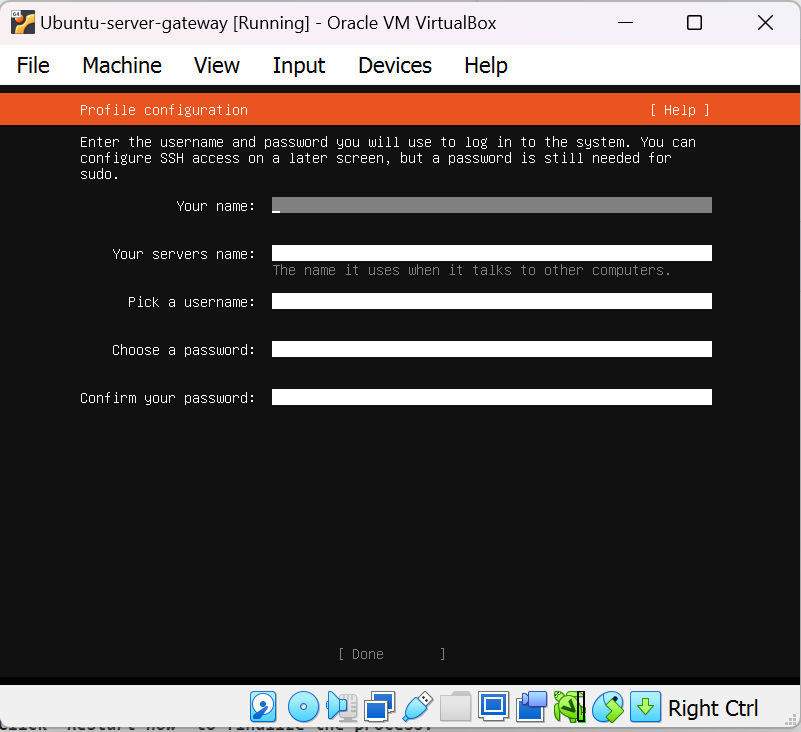
Fill in the required information, navigate to Done and press Enter to proceed
-
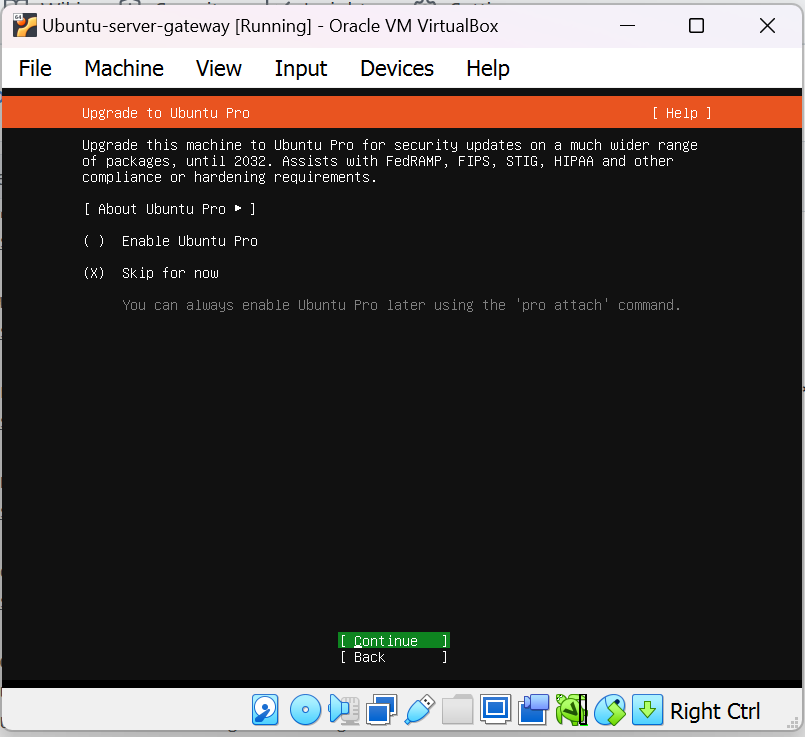
The upgrade step is optional. We are skipping it for this installation. Navigate to Continue and press Enter to proceed with the installation.
-
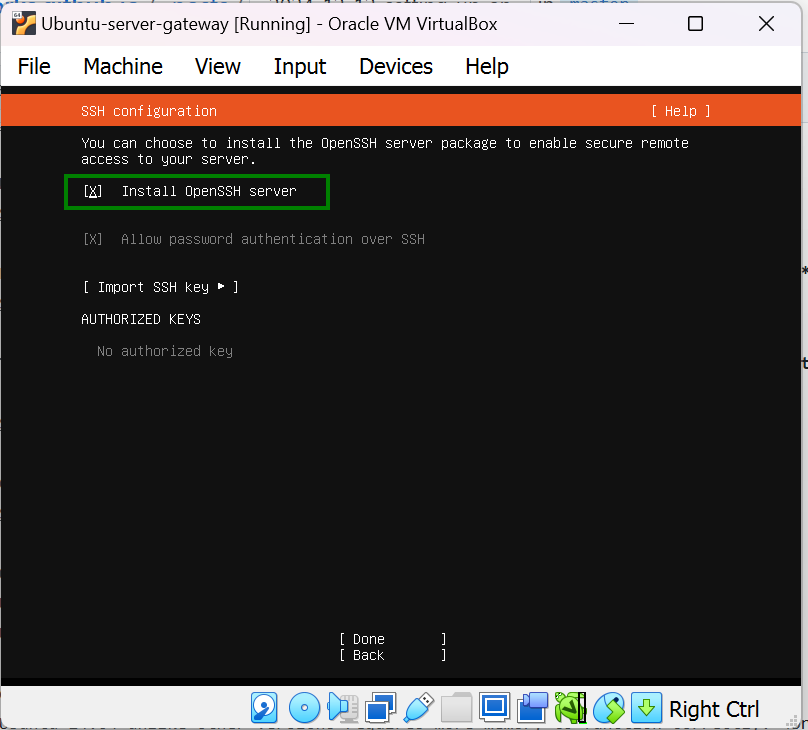
Check Install openSSH server to be able to use SSH when needed. Navigate to Done Press Enter to proceed.
-
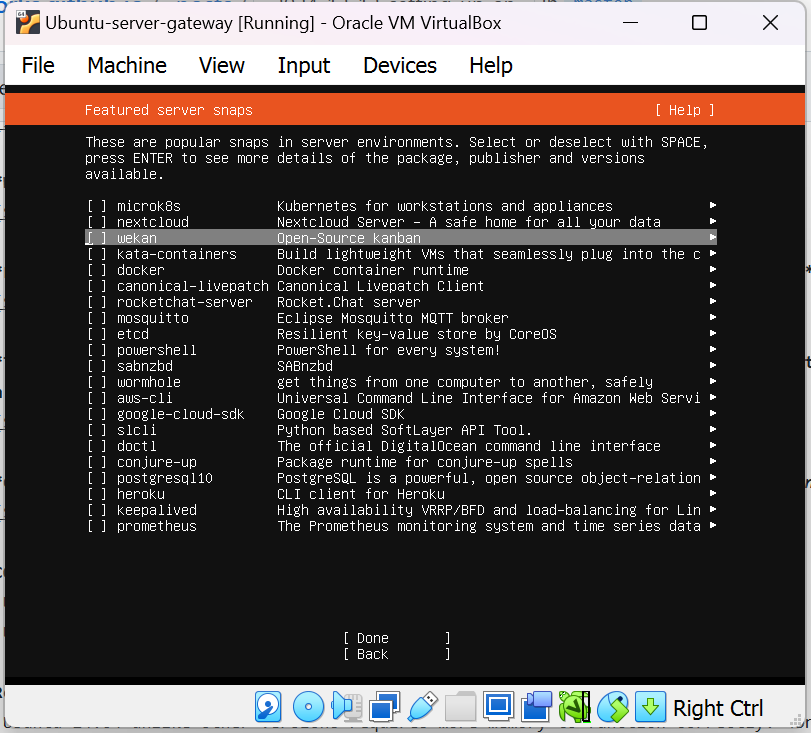
Check the needed service. This depends on the intended use of the server. Navigate to Done and Press Enter to proceed.
-
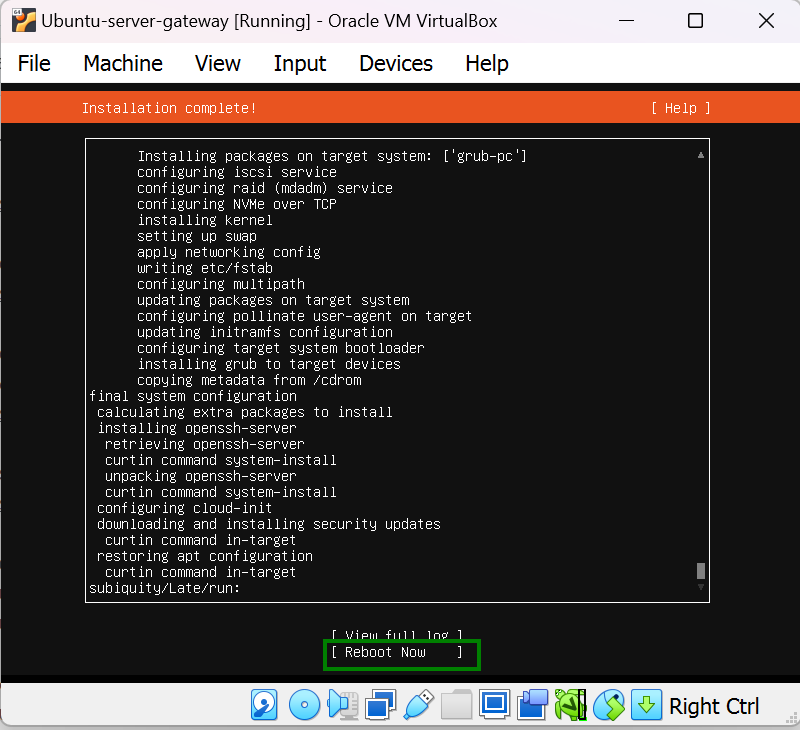
Select Reboot now and press Enter to finalise the installation.
-
Manually unmount the virtual disk (Click on Devices> optical drive to do so) if the automatic unmounting process fails.
-
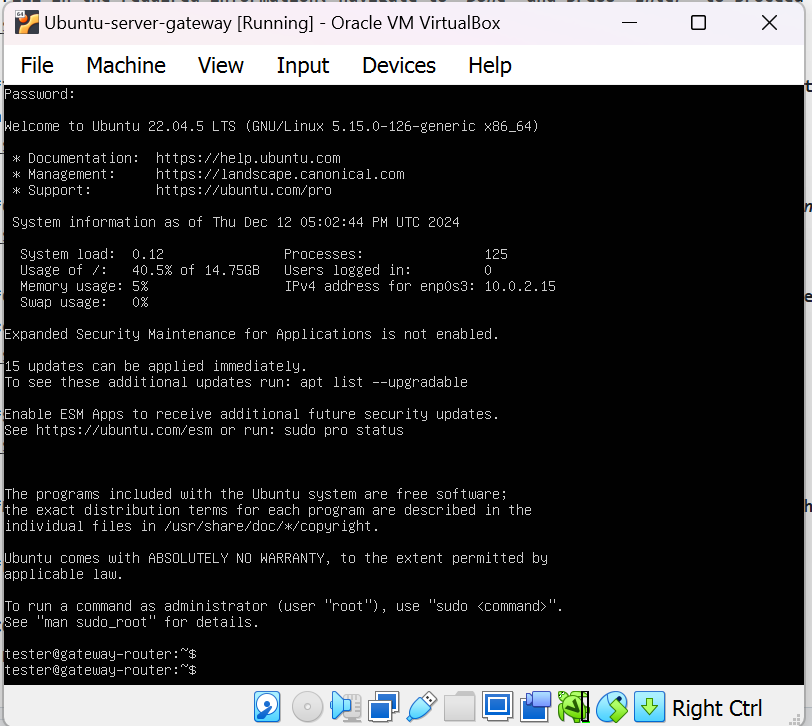
Enter the username and password when prompted to login.
-
COMMON PROBLEMS/ERROR
- Not selecting the needed services during installation.
 Uploading a Website with Filezilla