We now had eight standard employees, their security-group memberships, and Microsoft 365 E5 licences. We had also separated our intended privileged administrators from everyday accounts.
But Olivia Carter’s first laptop deployment raised a practical question: how should her first sign-in work?
I initially considered signing in to a browser as Olivia before starting Windows Autopilot, just to clear any password-change prompts. We decided not to do that. The whole point of our first pilot was to observe a genuine first-time employee onboarding experience, not one we had quietly completed on another machine.
So I prepared Olivia’s account for its first interactive sign-in and left the actual sign-in for Windows OOBE.
1. The authentication approach for our pilot
We used the temporary-password model for our initial cloud-only workforce accounts.
| Decision | Wire Finance pilot approach |
|---|---|
| Identity | An enabled Microsoft Entra Member account |
| Sign-in name | The existing tenant-domain UPN, e.g. olivia.carter@<tenant>.onmicrosoft.com |
| Initial credential | Administrator-generated temporary password |
| Password change | Required when the user first signs in |
| First intended interactive sign-in | Windows Autopilot out-of-box experience (OOBE) |
| Passwordless / Temporary Access Pass | Not implemented as part of this pilot |
| Self-service password reset (SSPR) | Discussed, then deferred |
| Pilot-wide MFA / Conditional Access enforcement | Not yet implemented or validated in this phase |
The eight accounts were originally created in Microsoft Entra admin center → Identity → Users → All users → New user → Create new user. At creation, we used generated passwords and the employee identity settings described in User Creation.
But Olivia’s account had been created before the Autopilot build was ready. Rather than rely on an old onboarding credential, I generated a fresh temporary password immediately before deployment.
2. Reset Olivia’s password in the actual portal
This step was completed in the Microsoft 365 admin center, not in the Intune portal.
The navigation I used was:
Microsoft 365 admin center → Users → Active users → Olivia Carter → Reset password
In the Reset password panel, I selected both options:
| Option | Saved selection |
|---|---|
| Automatically create a password | Checked |
| Require this user to change their password when they first sign in | Checked |

I then selected Reset password. This is an administrative reset of one user’s existing credential; it doesn’t configure a new authentication policy for the whole tenant.
The page returned a successful confirmation:

The confirmation matters. Checking the two boxes isn’t proof that the operation was submitted. Here we have evidence of both the intended settings and the successful reset.
Microsoft documents this administrative workflow in Reset passwords in the Microsoft 365 admin center.
Handle the temporary credential carefully
The reset page can display the generated password. I did not record it in our project documentation or publish it in a screenshot.
In a real employee handover, IT should share this one-time credential through an approved, secure delivery method after confirming the user’s identity. Don’t put it into a public tutorial, an ordinary support ticket, a Git repository or an unprotected email.
The secure-delivery procedure is guidance for production, not an additional Wire Finance integration we claim to have built.
3. How we’ll handle the first organisational sign-in
After resetting Olivia’s password, I deliberately did not sign in as her in a browser just to complete the password-change prompts ahead of time. I want her first interactive sign-in to happen during our eventual Windows Autopilot deployment.
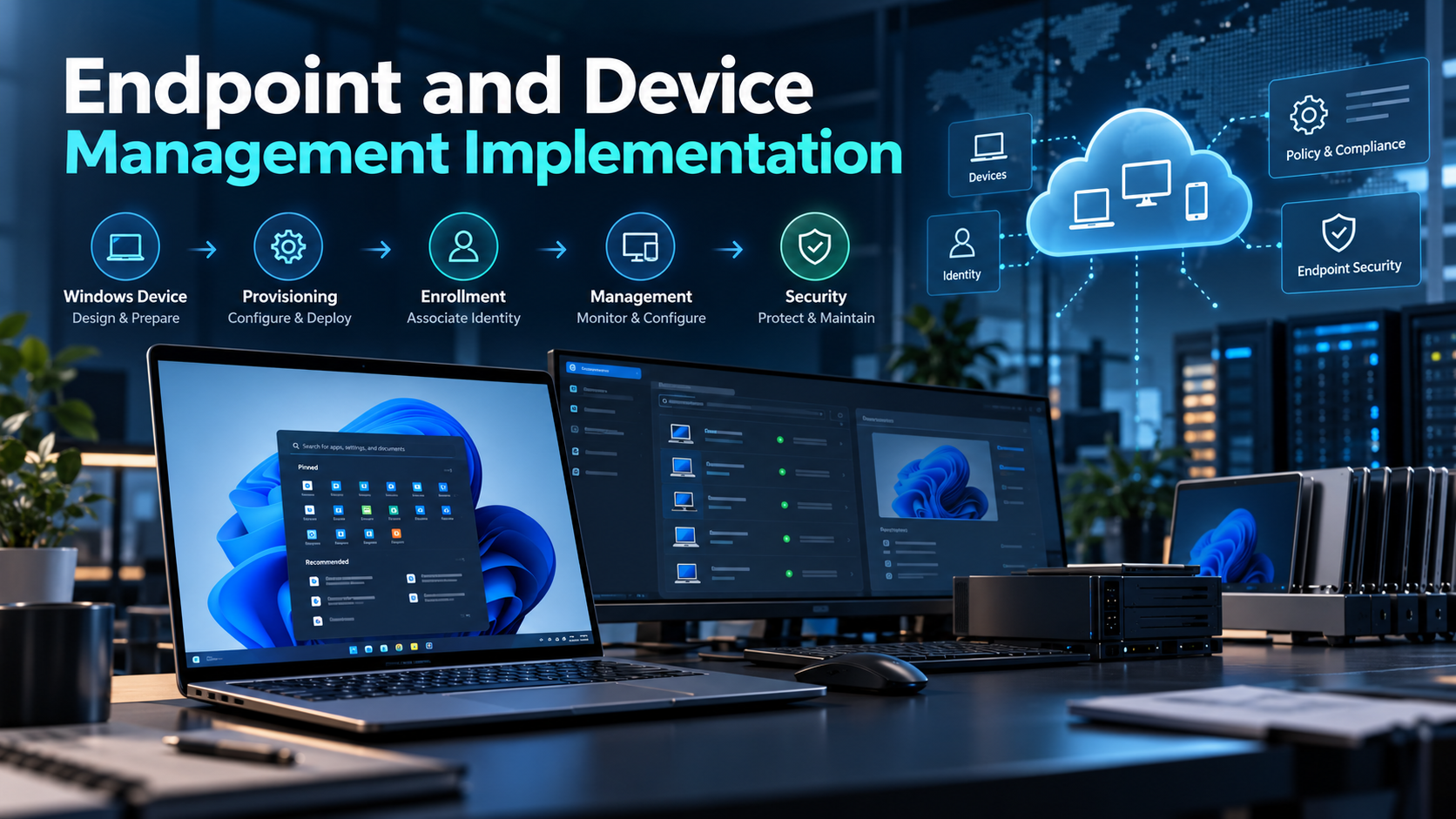
We have not reached device creation in this learning journey yet. In the upcoming endpoint implementation lessons, we’ll:
- Build a local VirtualBox VM running Windows 11 Pro to represent our planned corporate test asset, WF-LT-001.
- Register that VM with Windows Autopilot using the Group Tag CORPORATE.
- Configure and assign our user-driven Microsoft Entra Join deployment profile, automatic Intune enrollment, Enrollment Status Page and required applications.
- Start the Windows out-of-box experience (OOBE), where Olivia will use her work account for the first time.
Once we reach that stage, this is the expected sign-in and provisioning journey—not a sequence we are claiming to have already completed on this page:
Windows 11 OOBE on WF-LT-001
           ↓
Wire Finance organizational sign-in
           ↓
Olivia enters her work UPN
           ↓
Olivia enters the fresh temporary password
           ↓
First-sign-in password change / other prompts as required
           ↓
Microsoft Entra join and automatic Intune enrollment
           ↓
Enrollment Status Page and required applications
           ↓
Windows desktop
The actual screens, any errors, the VM restart steps and the resulting device state will be recorded when we reach the deployment walkthrough. We won’t treat this expected flow as validation evidence before testing it.
Microsoft’s Windows Autopilot user-driven process explains how organizational sign-in leads into device join, management enrollment and subsequent provisioning.
The actual VM screens and application results belong in our first Autopilot deployment lesson, where we’ll document them with their own screenshots.
4. Why the SSPR suggestion wasn’t a completed step
After resetting Olivia’s password, Microsoft 365 displayed a recommendation to allow users to reset their own passwords.
That was a suggestion, not a successful SSPR configuration. We discussed enabling self-service password reset for SG-PILOT-IDENTITY and requiring suitable authentication methods, but explicitly decided to defer implementation so we could focus first on core endpoint onboarding.
The two operations are different:
| Administrator reset — completed | Self-service password reset — deferred |
|---|---|
| An authorized administrator resets a user’s password | A user proves their identity through permitted recovery methods |
| We generated Olivia’s temporary password | We did not configure the pilot’s SSPR recovery-method requirements |
| The portal confirmed the reset | No pilot SSPR registration or reset test was performed |
When we return to SSPR, we will need to scope the correct users, configure recovery requirements, register test methods and perform a real reset test before claiming that it works.
Microsoft’s SSPR tutorial covers that separate implementation.
5. What this does not prove about MFA
A password reset and an enforced password change are not the same thing as multifactor authentication.
The tenant had Microsoft Entra ID P2 licensing, but during this phase we did not finish a Wire Finance authentication-method policy, deploy a Conditional Access MFA requirement to the pilot, or verify an MFA challenge against an enforced policy.
Microsoft sign-in experiences may display additional registration or security prompts depending on tenant configuration. We must not infer that our own MFA design was active simply because a prompt might appear.
MFA, authentication-method registration, Conditional Access and stronger authentication requirements will be handled as separate controls in the next lesson and later security implementation, with their own assignments and evidence.
What we actually proved
At this checkpoint, Olivia had an enabled, licensed pilot identity and a newly generated temporary password with the first-sign-in change requirement selected. The Microsoft 365 admin center confirmed the password reset succeeded.
We have deliberately left her first interactive organizational sign-in for a future Windows Autopilot lesson. We have not yet built or registered the VM in this website sequence, and this page makes no claim about device enrollment, application installation or successful OOBE.
We preserved the first real organizational login for the Windows Autopilot pilot, which subsequently reached a usable desktop with corporate applications appearing.
Still outstanding: building and registering the VM, performing Olivia’s first device sign-in, validating the enrollment result, SSPR enablement and testing, pilot-wide MFA enforcement, and privileged-account authentication controls.
That gives us a truthful handoff to the next page: MFA—where we distinguish the protection we intend to enforce from the configuration we have actually deployed.
 Endpoint and Device Management Implementation