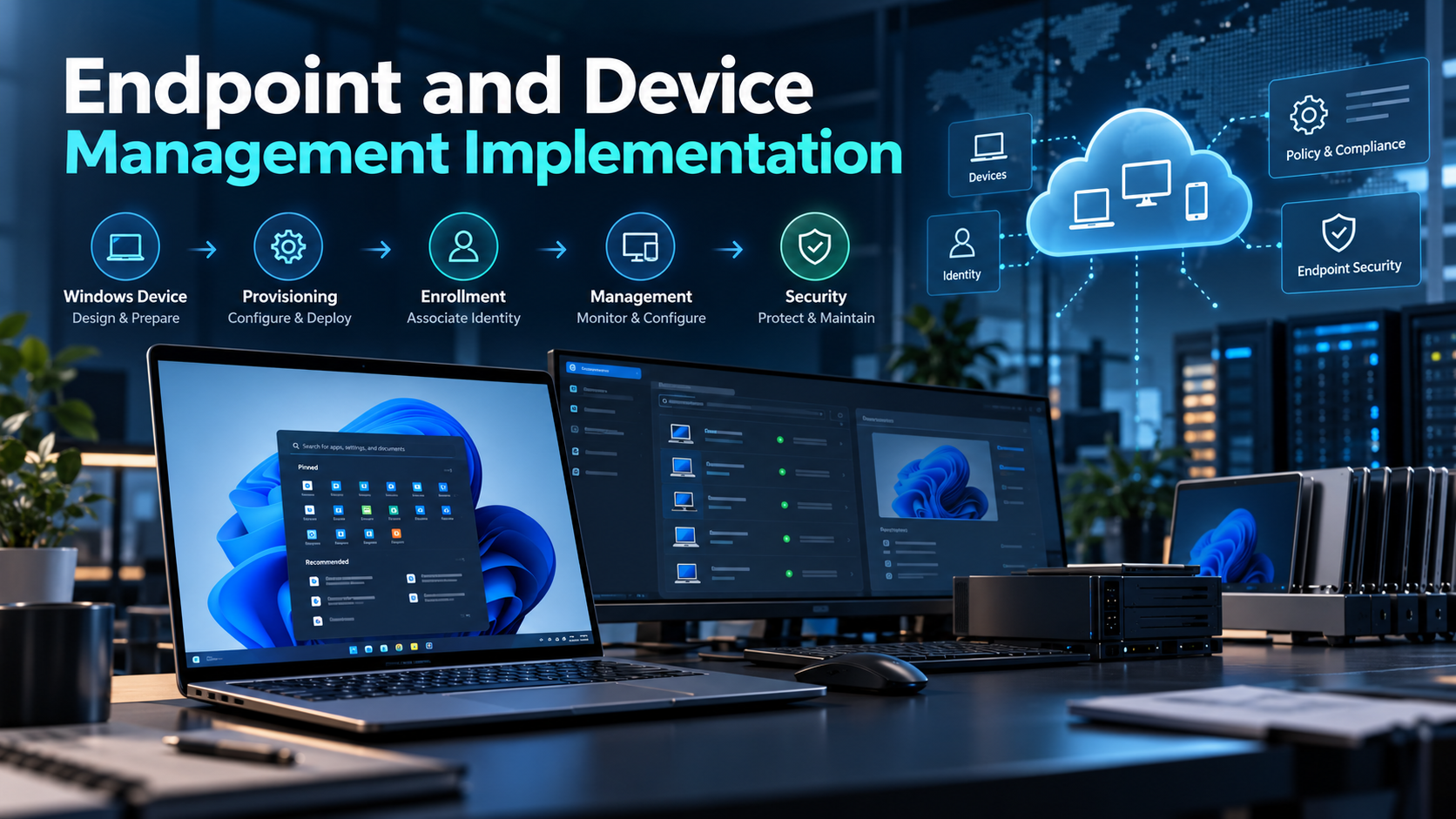
Our identity foundation is in place.
We’ve created our first Wire Finance employees, assigned their group memberships and licences, and introduced the authentication process they’ll use when they sign in.
But having an account doesn’t give Olivia Carter a company workstation.
Now we need to turn an ordinary Windows computer into a Wire Finance-managed endpoint.
Earlier, in our Device Identity and Provisioning Model, we decided how devices should be owned, classified, joined, managed, and secured. This chapter is where we put those decisions into practice.
Prepare the Cloud, Then Build the Device
Three Microsoft services will work together:
- Microsoft Entra ID gives the device an organisational identity.
- Microsoft Intune manages its configuration and applications.
- Windows Autopilot guides the corporate provisioning experience.
Rather than creating the VM first and stopping repeatedly to configure cloud services, we’ll prepare the management environment before starting Windows setup.
Prepare the Microsoft environment
   Intune RBAC → Entra join + MDM enrollment
   → Enrollment Status Page → Autopilot profile
   → Required applications
                    ↓
Prepare the Windows device
   Build Windows 11 VM → Register with Autopilot
                    ↓
Deploy and verify
   Olivia signs in → Provisioning → Device validation
This way, when we start the Windows onboarding journey, the policies and applications it needs will already be waiting in Intune.
Our First Pilot Endpoint
We’ll use a local Oracle VirtualBox VM running Windows 11 Pro, rather than purchasing hardware or consuming Azure VM compute resources for the first test.
The VM will represent asset WF-LT-001, intended for Olivia Carter, our Finance Analyst. WF-LT-001 is our asset identifier; we’ll verify the actual Windows computer name rather than assume it matches.
We’ll also preserve the normal Windows Out-of-Box Experience (OOBE). Olivia’s first organisational sign-in and Microsoft Authenticator setup will be documented when we reach the real deployment—not performed early to make the walkthrough look smoother.
The Nine Lessons
| Order | Implementation lesson | What we’ll do |
|---|---|---|
| 1 | Intune Administrative Access and RBAC | Establish the custom endpoint-administrator role and its pilot scope. |
| 2 | Automatic MDM Enrollment and Microsoft Entra Join | Configure who can join and automatically enroll Windows devices. |
| 3 | Enrollment Status Page Configuration | Create the provisioning progress and blocking experience. |
| 4 | Windows Autopilot Deployment Profile | Define the corporate user-driven deployment settings. |
| 5 | Company Portal and Microsoft 365 Apps Deployment | Create application assignments and finalise which app blocks completion. |
| 6 | Building Our First Windows 11 Virtual Machine | Build WF-LT-001 in VirtualBox and stop at OOBE. |
| 7 | Windows Autopilot Registration and Troubleshooting | Register the VM, apply CORPORATE classification, and investigate the issues we encounter. |
| 8 | First Windows Autopilot Deployment — Olivia Carter | Follow Olivia’s real first sign-in, authentication setup, and corporate provisioning. |
| 9 | Post-Deployment Validation | Verify Entra and Intune device records, management state, and application delivery. |
Some settings depend on objects created later in the chapter. For example, we’ll create the Enrollment Status Page in Lesson 3 and finalise its Company Portal blocking-app selection in Lesson 5, after that app exists. We’ll call out those handoffs so no one is asked to select an application they haven’t created yet.
What Success Means
We want to prove that our first device can be recognised by Autopilot, joined to Microsoft Entra, enrolled in Intune, configured with required applications, and inspected after deployment.
We’ll show the real portal settings, commands, screenshots, problems and fixes—not just the happy path.
And we’ll keep one principle in view:
Enrolled does not automatically mean secure, compliant, or trusted.
BitLocker, Defender for Endpoint, device compliance and Conditional Access enforcement still need their own configurations and validation. Those are later milestones, not conclusions we can draw simply because Windows reaches the desktop.
Let’s Begin
First, we’ll establish who can manage our endpoints and who is permitted to enroll them. Then we’ll configure the provisioning experience, build the VM, and follow Olivia’s deployment through to verification.
Next: Intune Administrative Access and RBAC.
Explore the Endpoint Implementation
Building Our First Windows 11 Virtual Machine
Building the first Wire Finance Windows 11 Pro virtual workstation in Oracle VirtualBox and preparing it for Windows Autopilot.
Intune Administrative Access and RBAC
Create and verify Wire Finance's custom Microsoft Intune endpoint-administrator role, document its limited permission set, and scope the pilot assignment before enrolling the first Windows device.
Automatic MDM Enrollment and Microsoft Entra Join
Configure the Wire Finance pilot's two enrollment prerequisites: permit selected employees to join Windows devices to Microsoft Entra ID, then automatically enroll those devices into Microsoft Intune.
Enrollment Status Page Configuration
Create Wire Finance's Windows Autopilot Enrollment Status Page, configure setup progress and blocking behaviour, and assign it to our corporate Autopilot device group.
Windows Autopilot Deployment Profile
Create Wire Finance's user-driven Windows Autopilot deployment profile, configure the Microsoft Entra join experience, and target corporate devices before building the first VM.
Company Portal and Microsoft 365 Apps Deployment
Create Wire Finance's required Company Portal and Microsoft 365 Apps deployments, target the correct pilot groups, and update the Enrollment Status Page to block on Company Portal only.
Building Our First Windows 11 Virtual Machine
Create our first Wire Finance Windows 11 Pro virtual machine in Oracle VirtualBox, document the exact hardware settings, and stop at Windows OOBE ready for Autopilot registration.
Windows Autopilot Registration and Troubleshooting
Use a clear, verified PowerShell procedure to register the Wire Finance Windows 11 VM with Autopilot, apply its CORPORATE Group Tag, verify dynamic membership and profile assignment, and resolve common registration errors.
First Windows Autopilot Deployment — Olivia Carter
Guide Olivia Carter through the first Wire Finance user-driven Autopilot sign-in, Microsoft Authenticator registration, Enrollment Status Page, and initial Company Portal and Microsoft 365 Apps checks.
Post-Deployment Validation
Verify the first Wire Finance Windows Autopilot pilot across Windows, Microsoft Entra ID, Intune and application reporting before moving from successful onboarding to endpoint security and compliance.