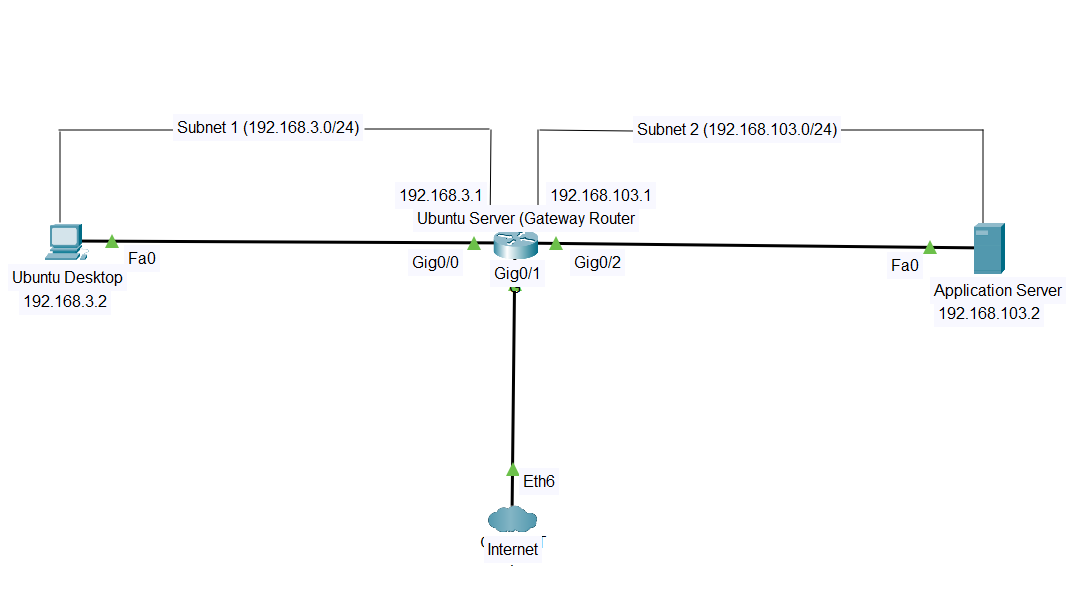
REQUIREMENT
- VirtualBox
- Ubuntu Desktop VM. Download the Ubuntu Desktop VM iso from the official Ubuntu website.
SETTING UP UBUNTU DESKTOP VM
- Launch VirtualBox and click NEW

- Fill in the requirements
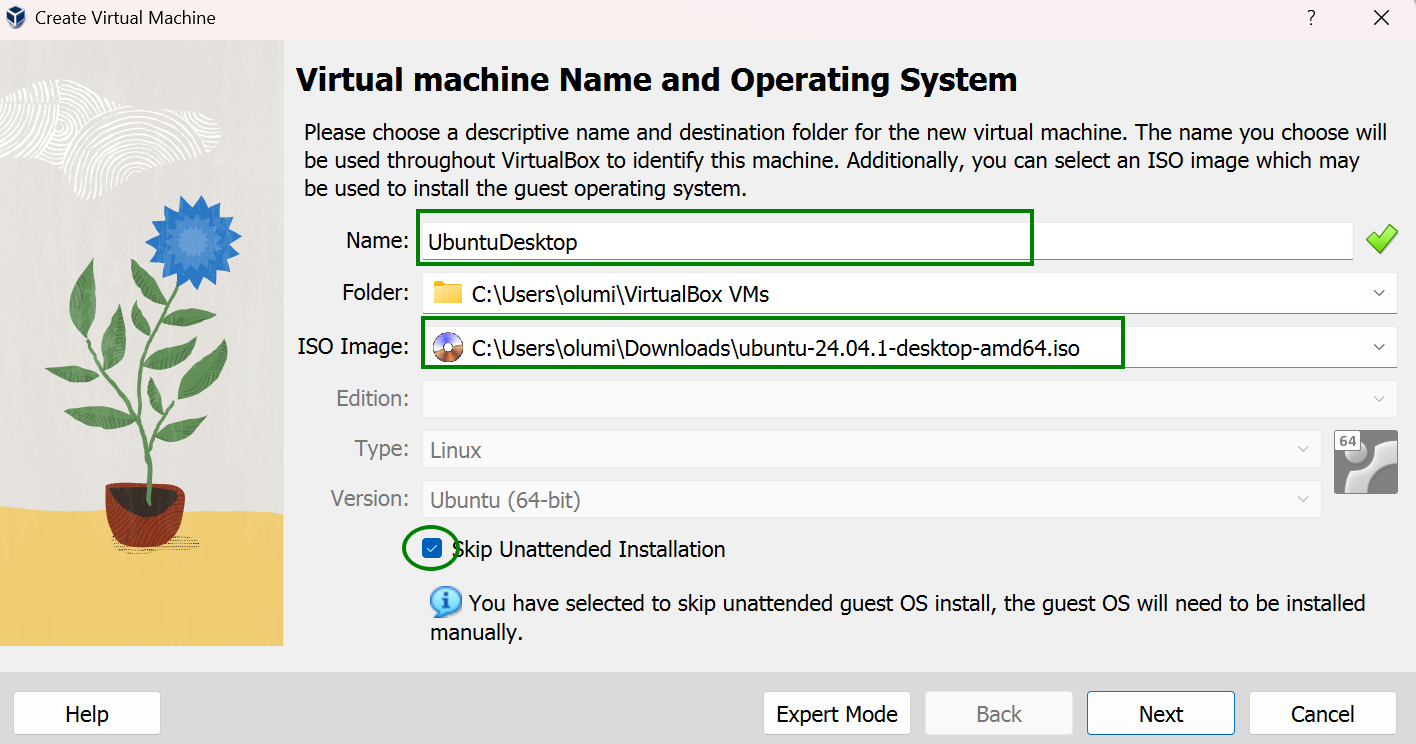
- Enter a desired name. Here we used UbuntuDesktop
- Select the Ubuntu Desktop image from the stored folder. Here it is in the Download Folder
- Check Skip Unattended Installation
- Click Next
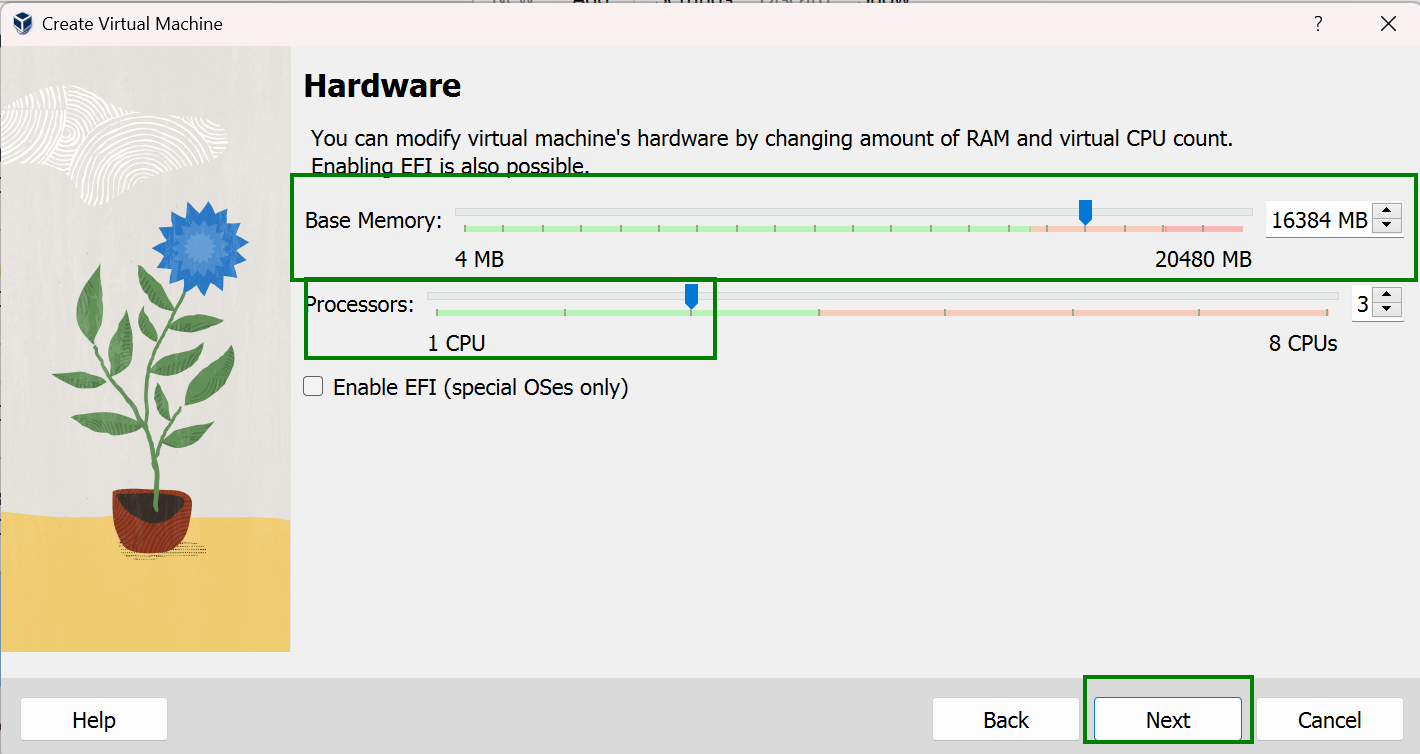
- Memory Allocation
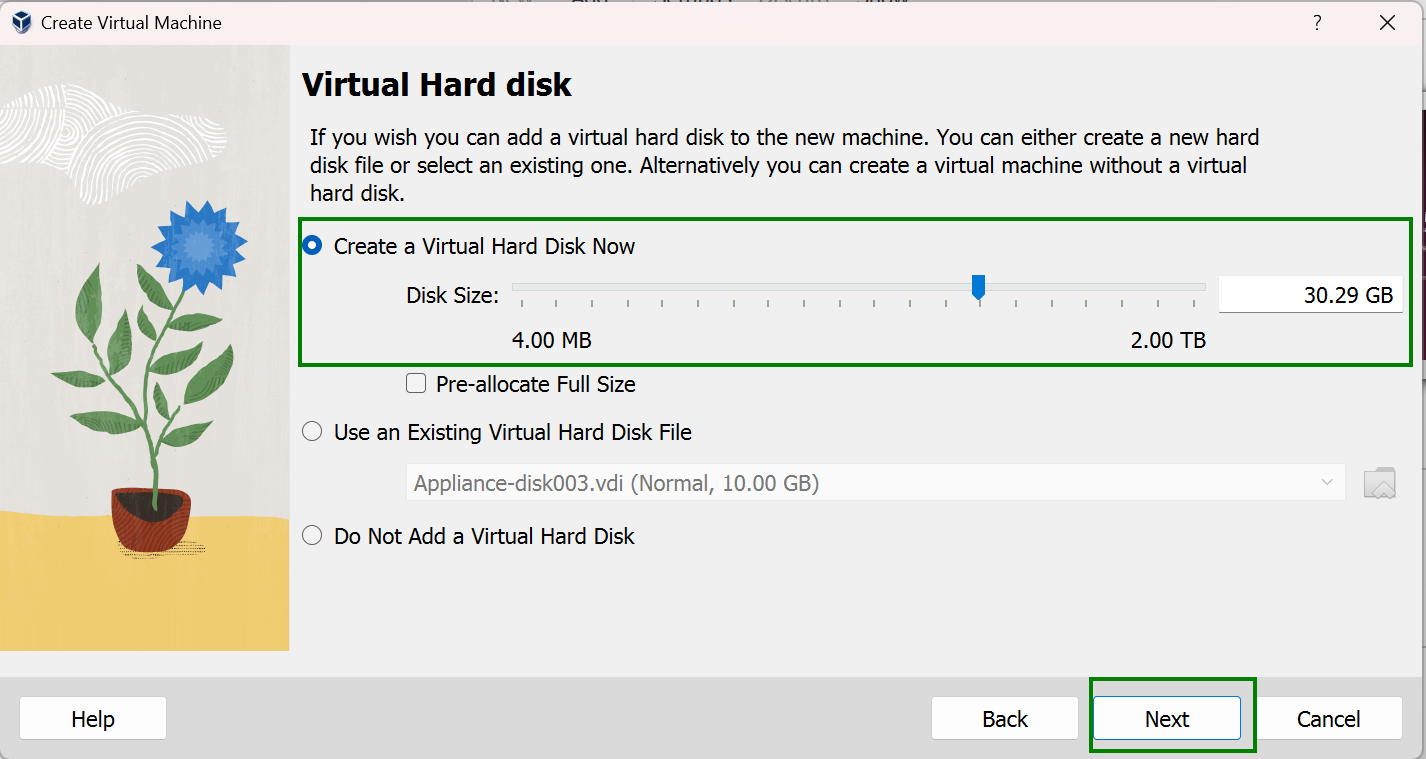
-
Finalization
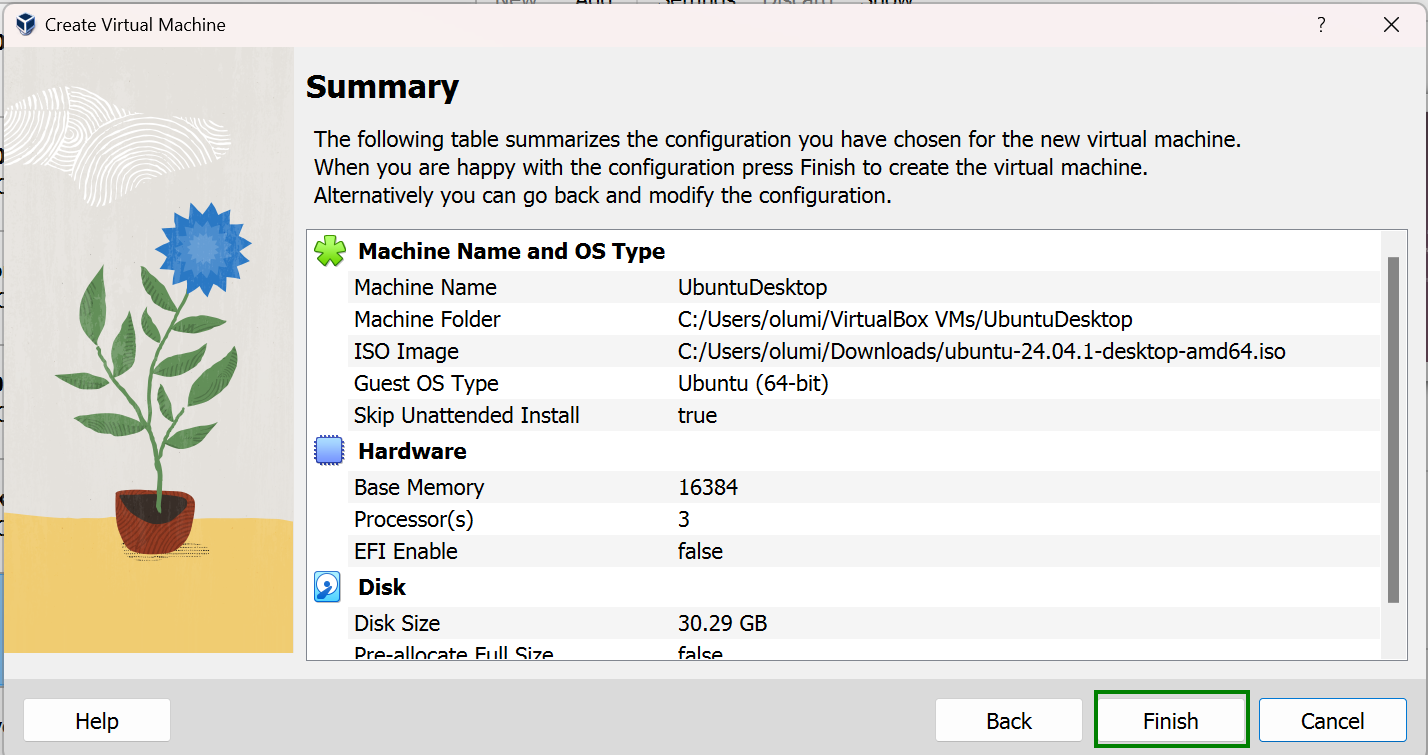 Confirm the setup and click Finish to complete the process.
INSTALLING UBUNTU DESKTOP
On your VirtualBox click on the Ubuntu Desktop VM and click start to begin the Ubuntu Desktop VM installation process.

-
Select a preferred language and click Next
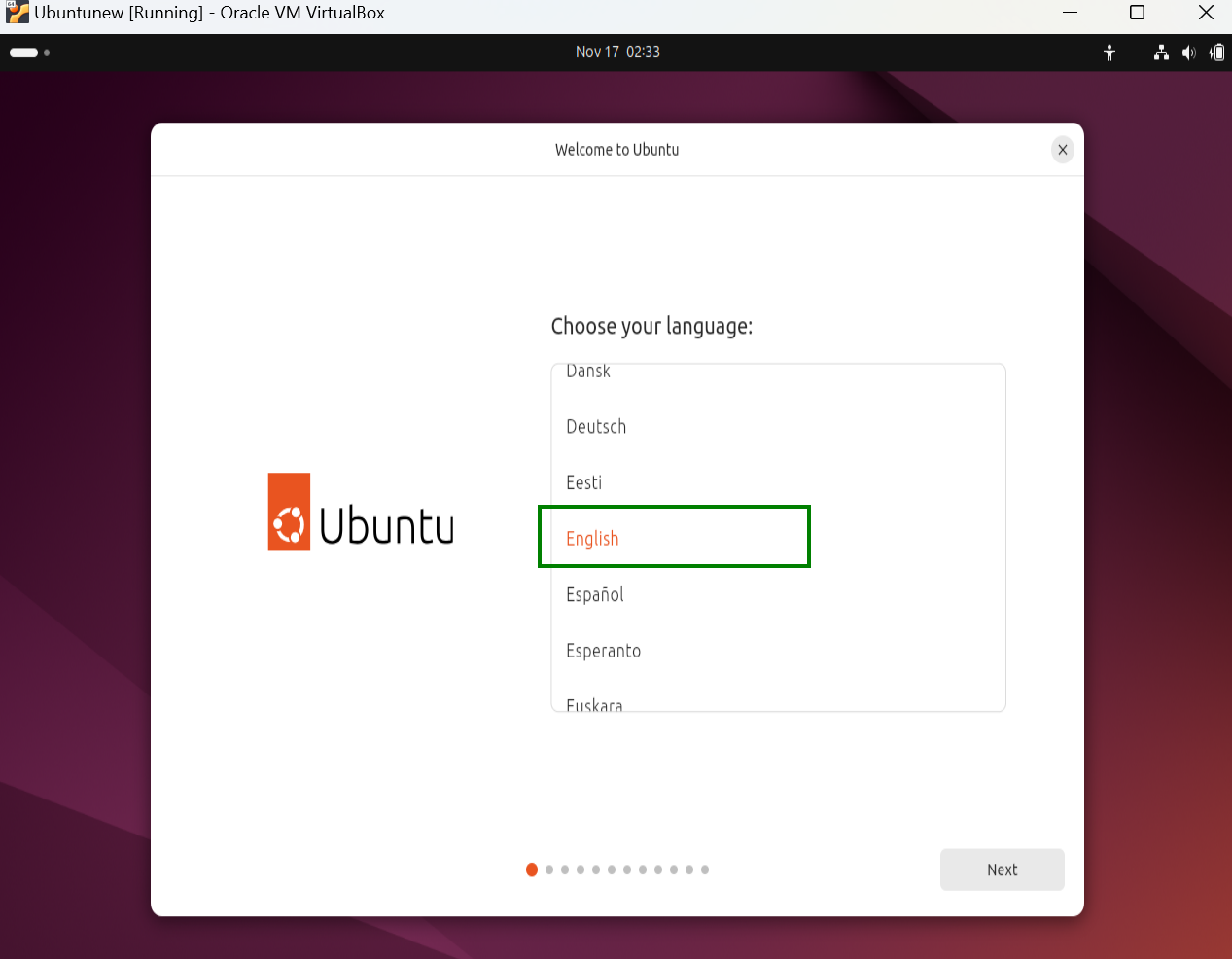
-
On the accessibility settings, Click Next
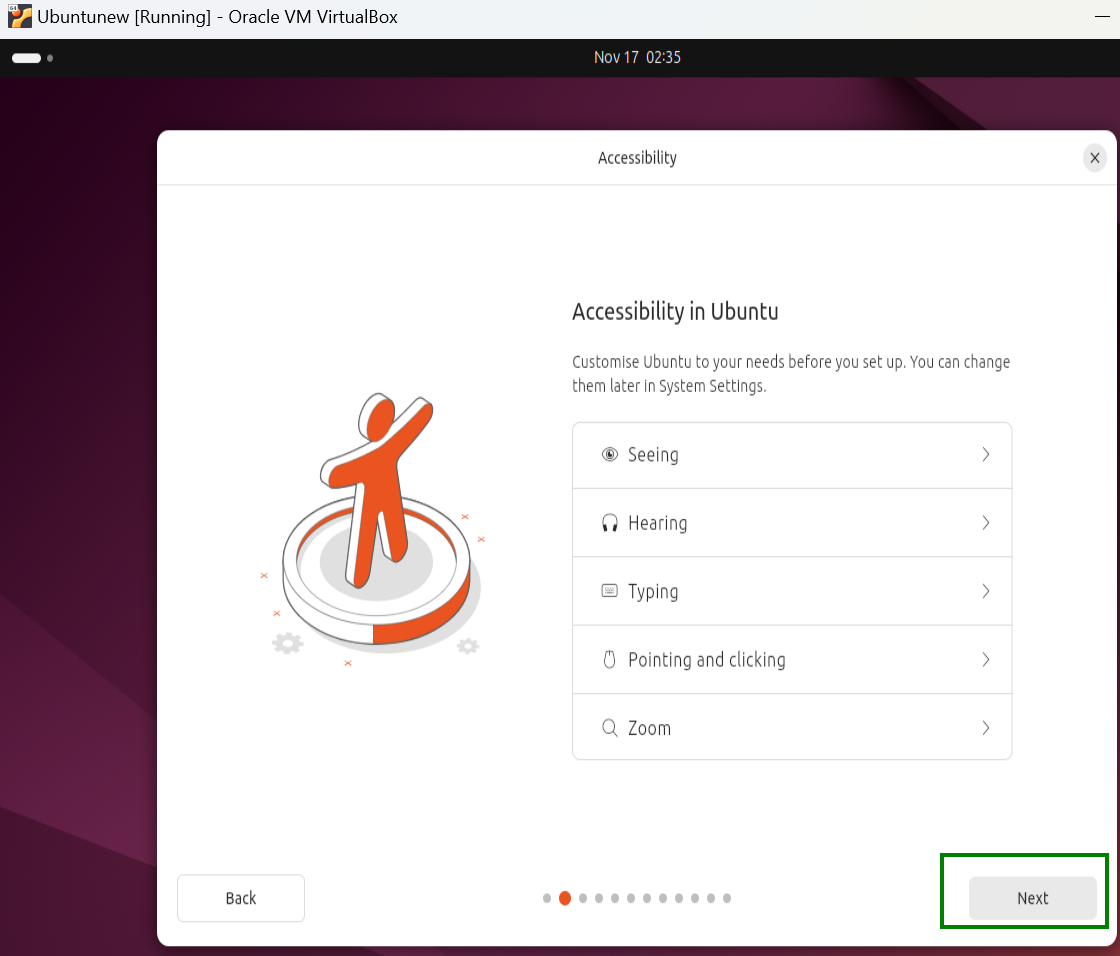
-
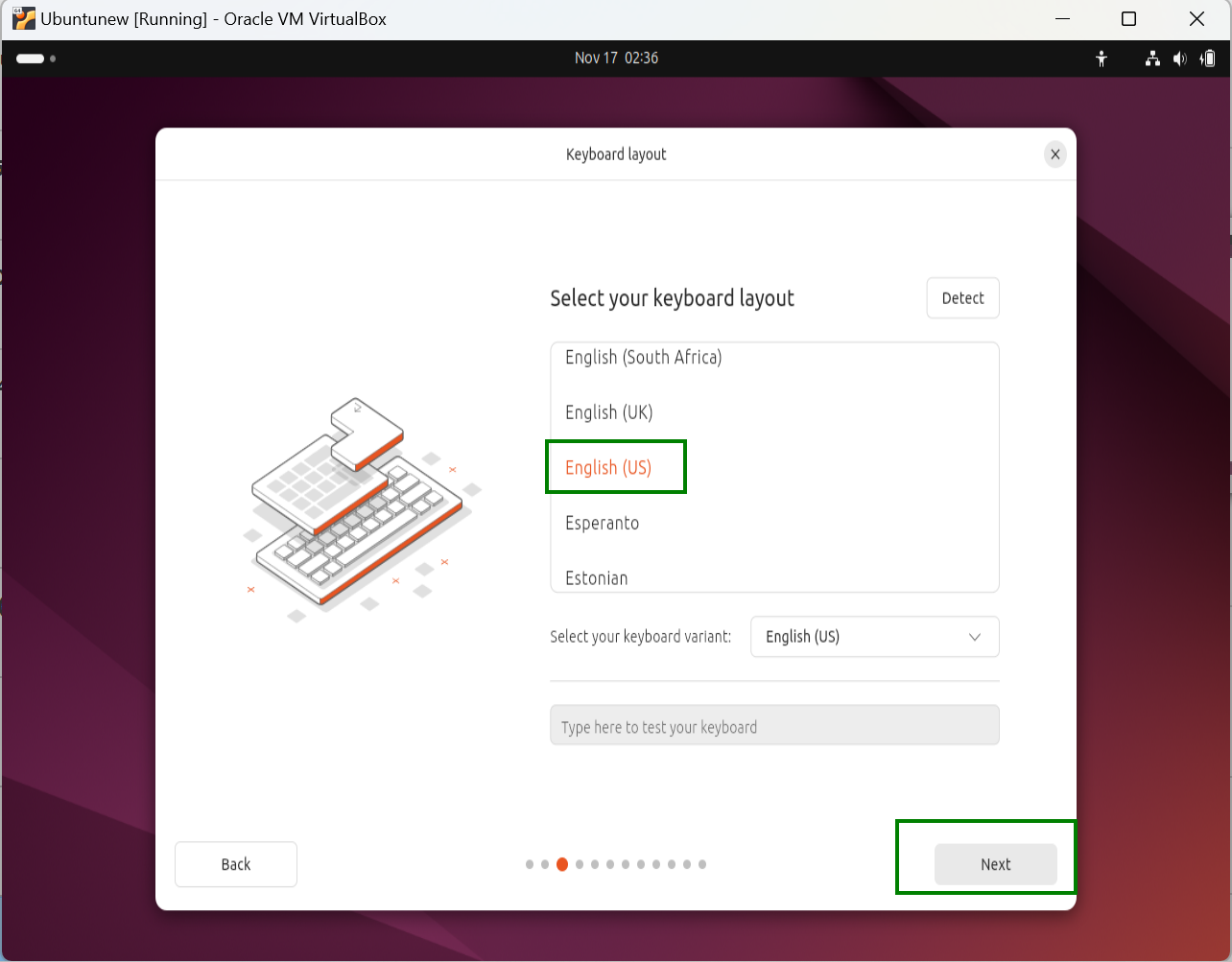
Select a preferred keyboard layout and click Next
-
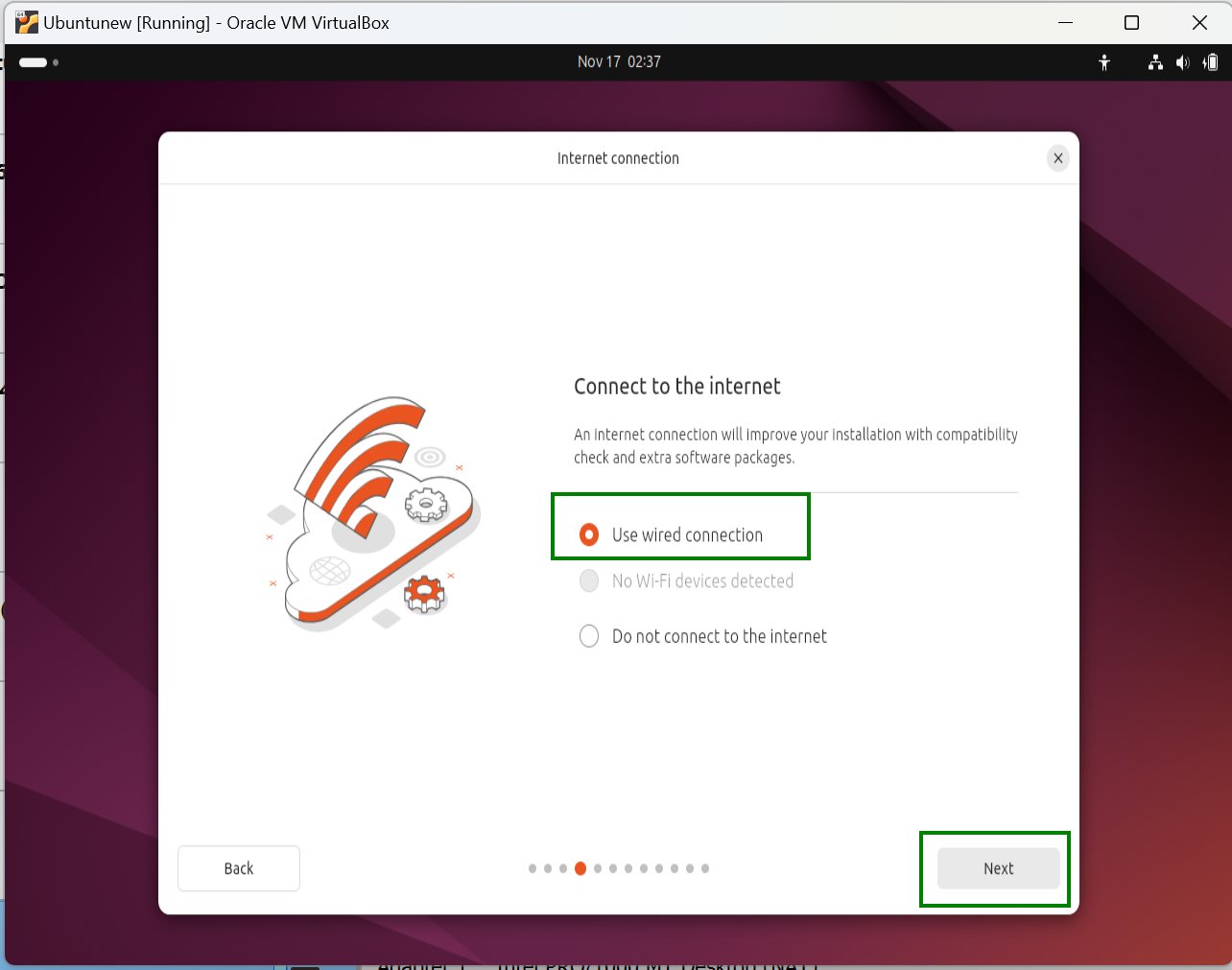
Select Use wired connection and click Next This will enable access to the internet for all necessary downloads during the installation process.
-
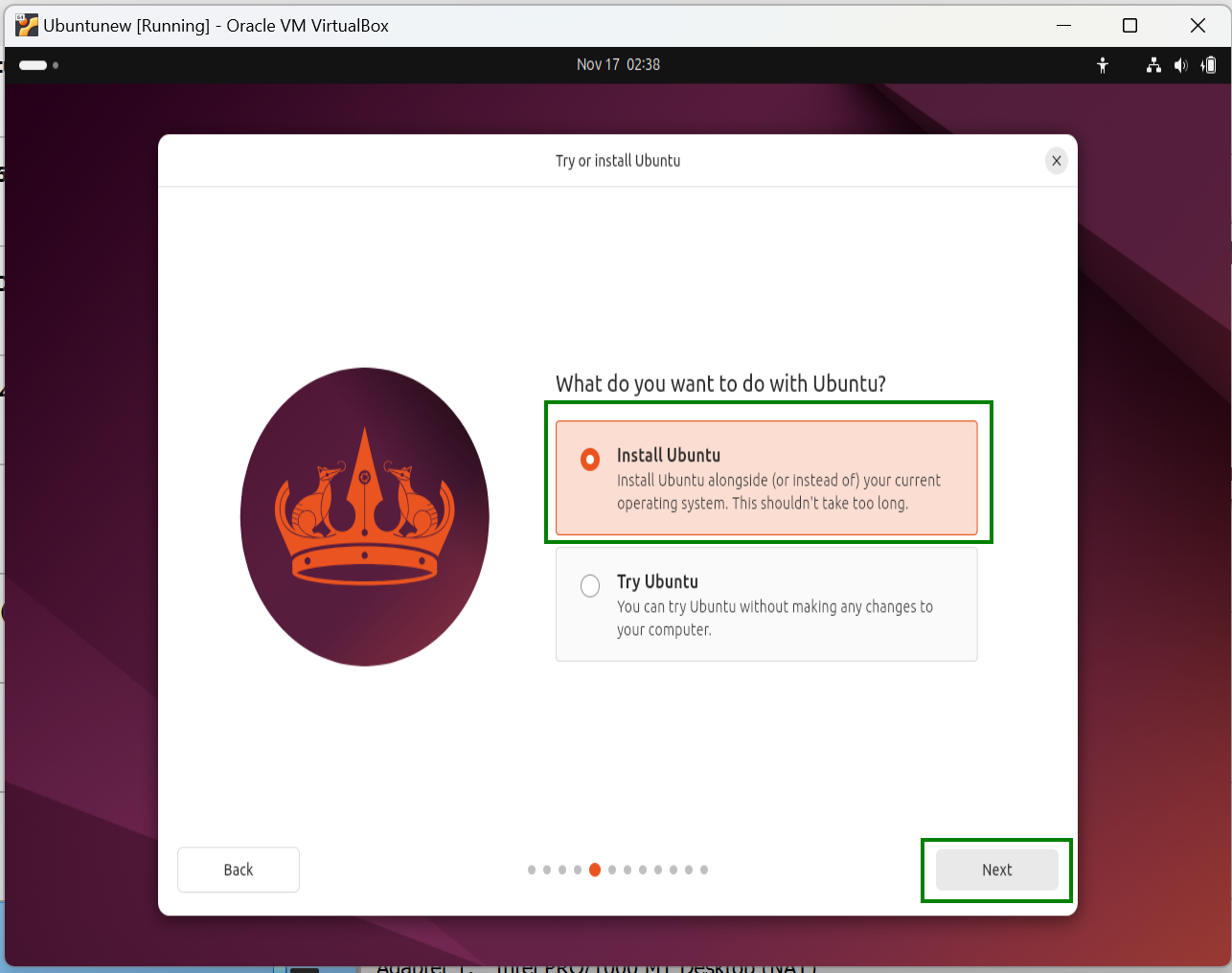
Select Install Ubuntu and click Next
-
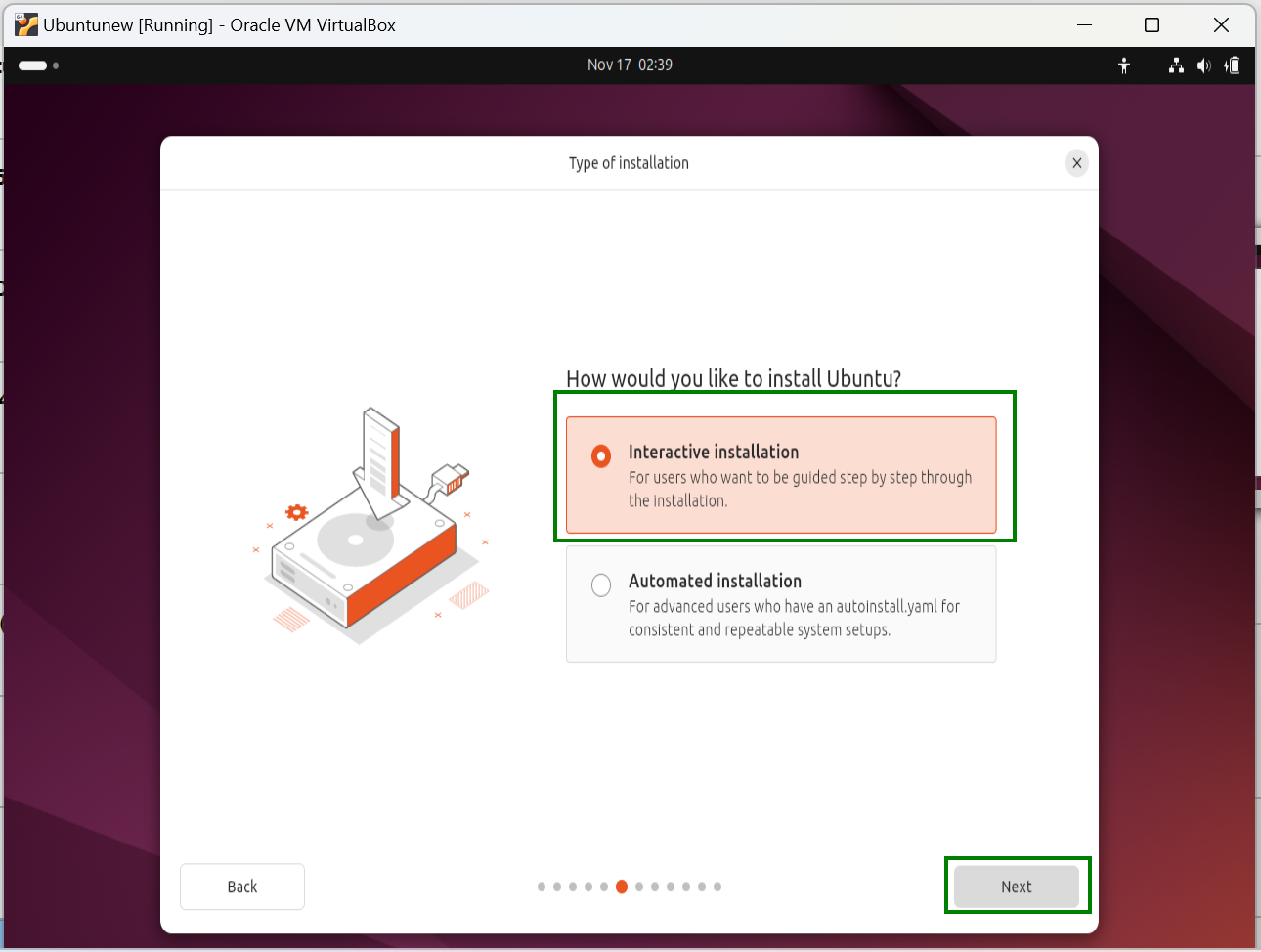
Select Interactive Installation and click Next This ensures you get instructions as needed during the installation process.
-
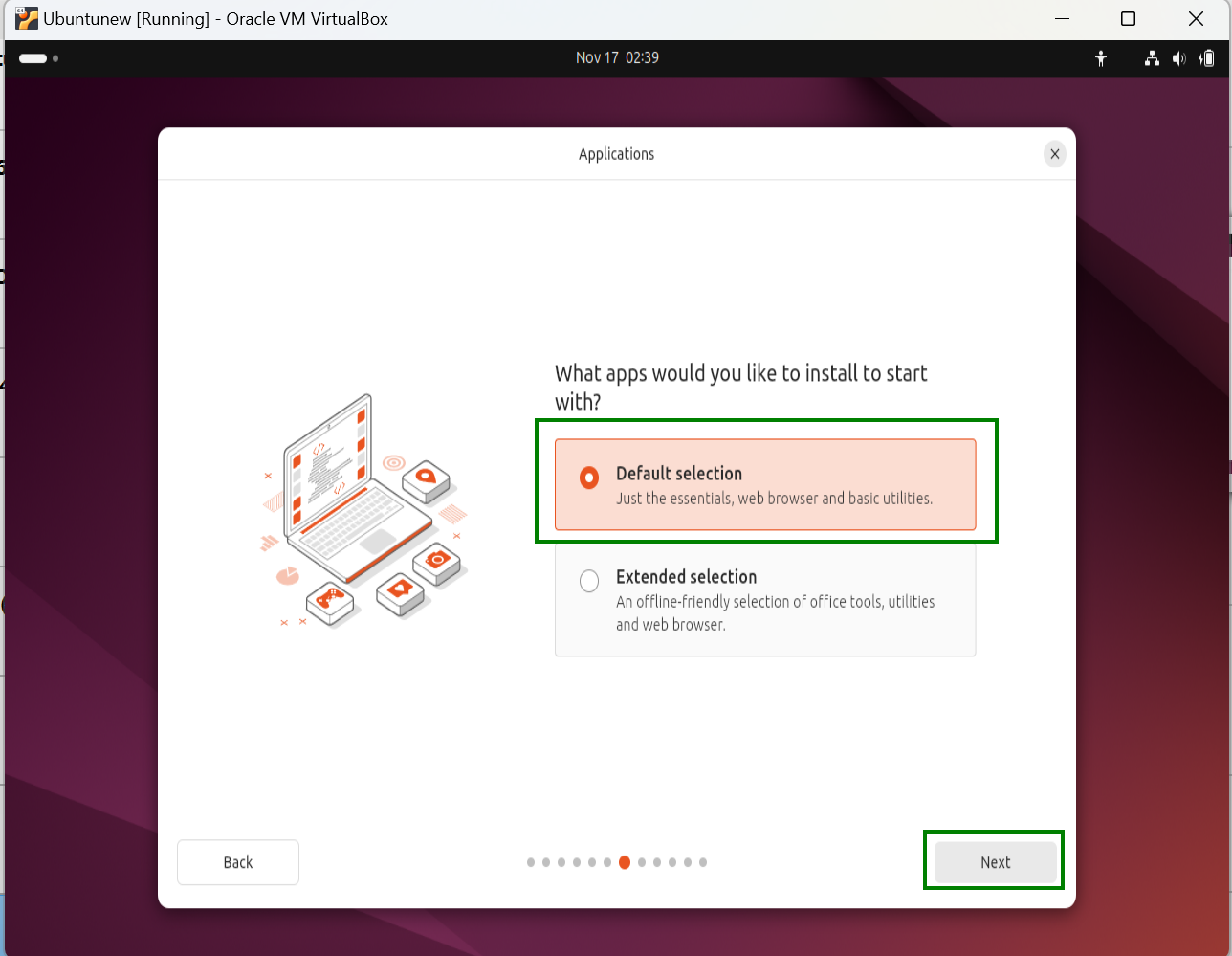
Select Default selection and click Next
-
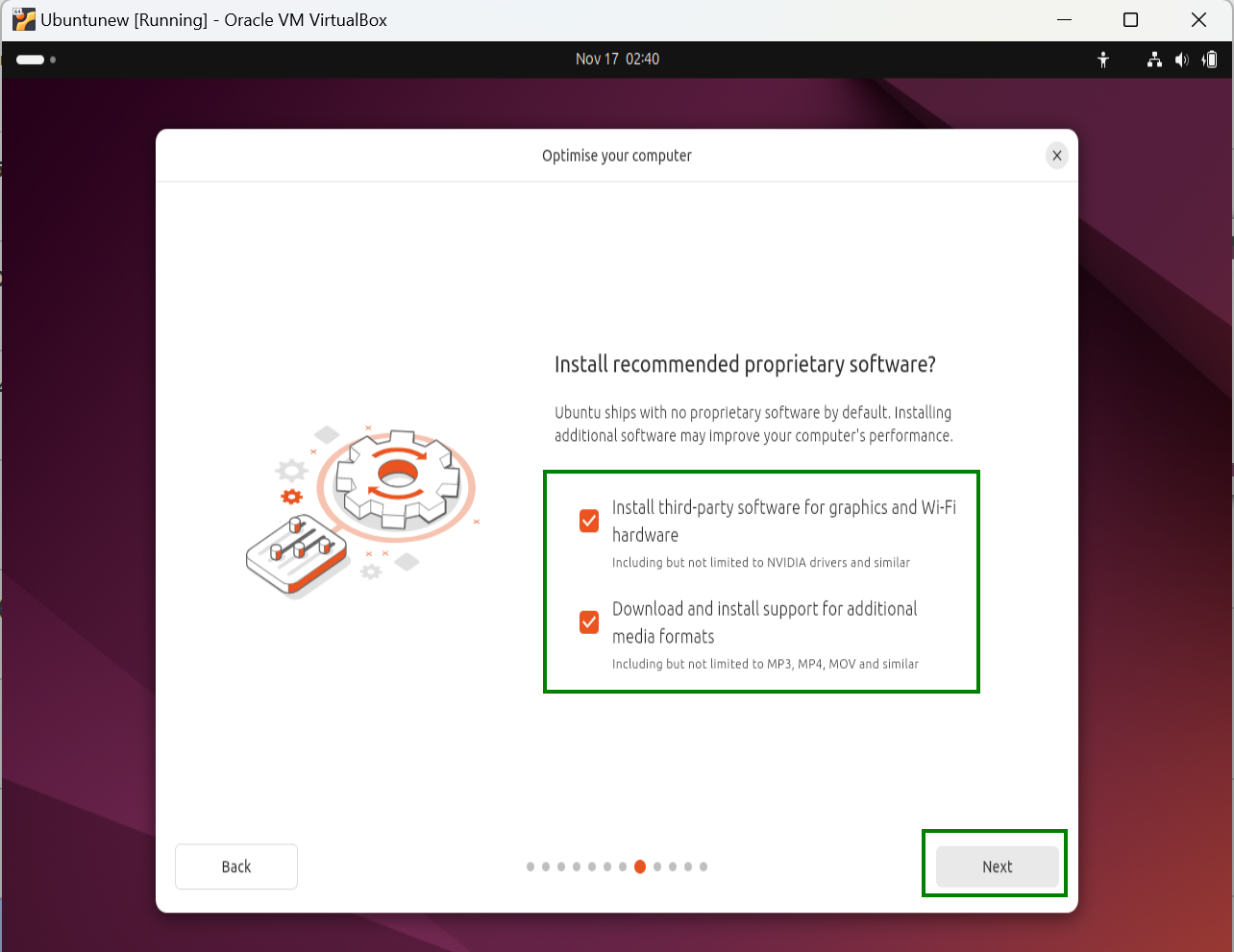
This step is optional but it’s a good practice to install recommended software and click Next
-
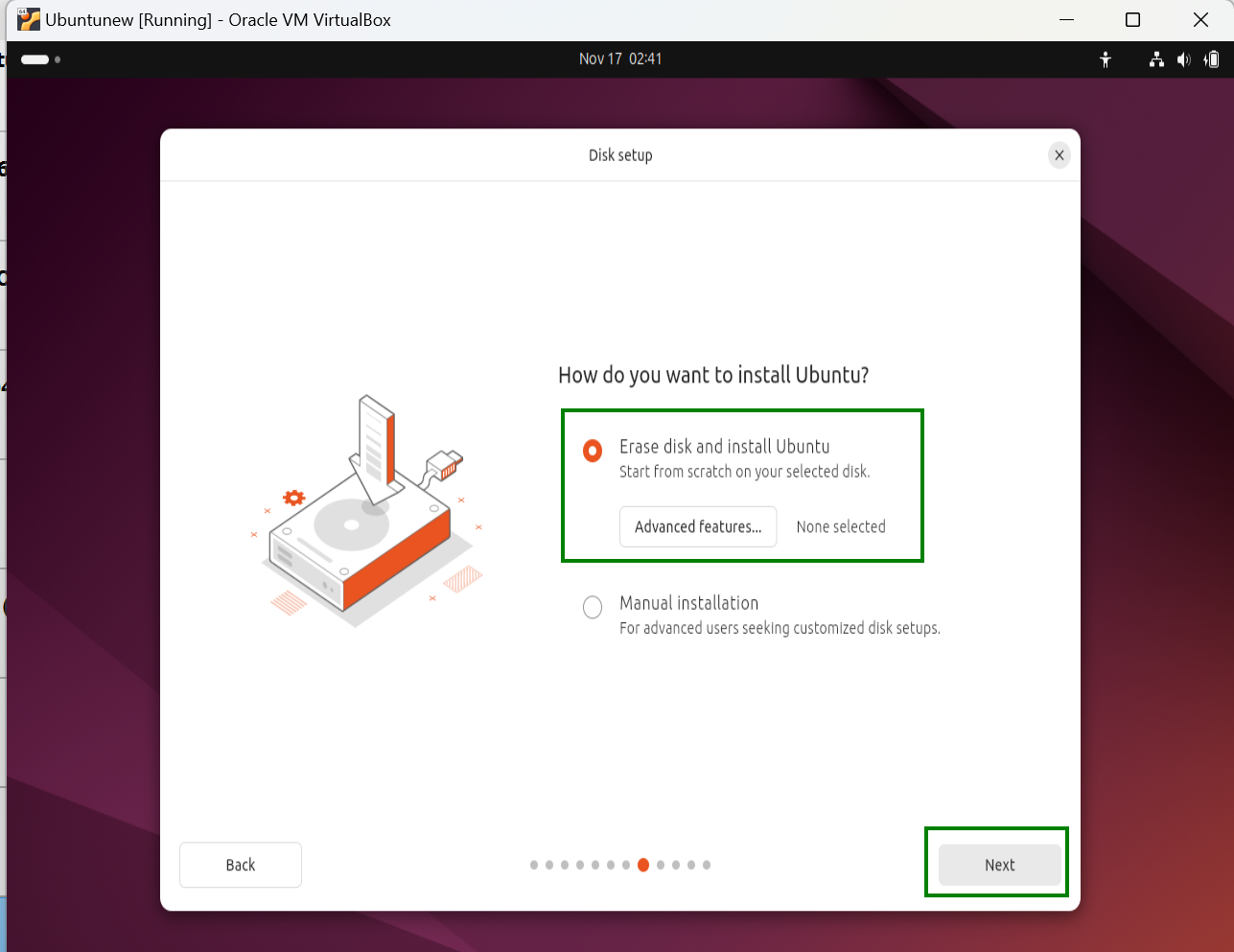
Select Erase disk and install Ubuntu and click Next
-
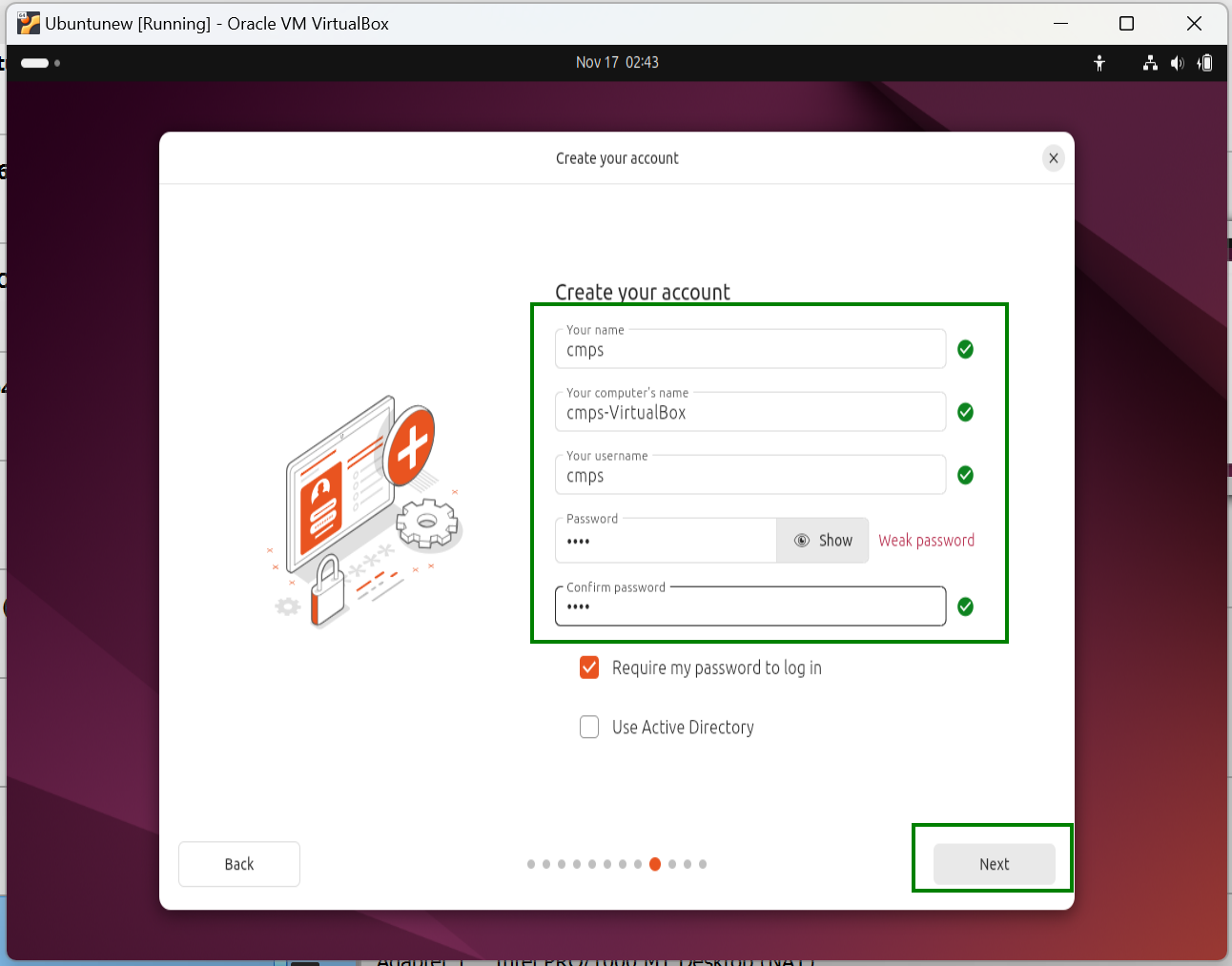
Enter the required details as instructed and click Next
-
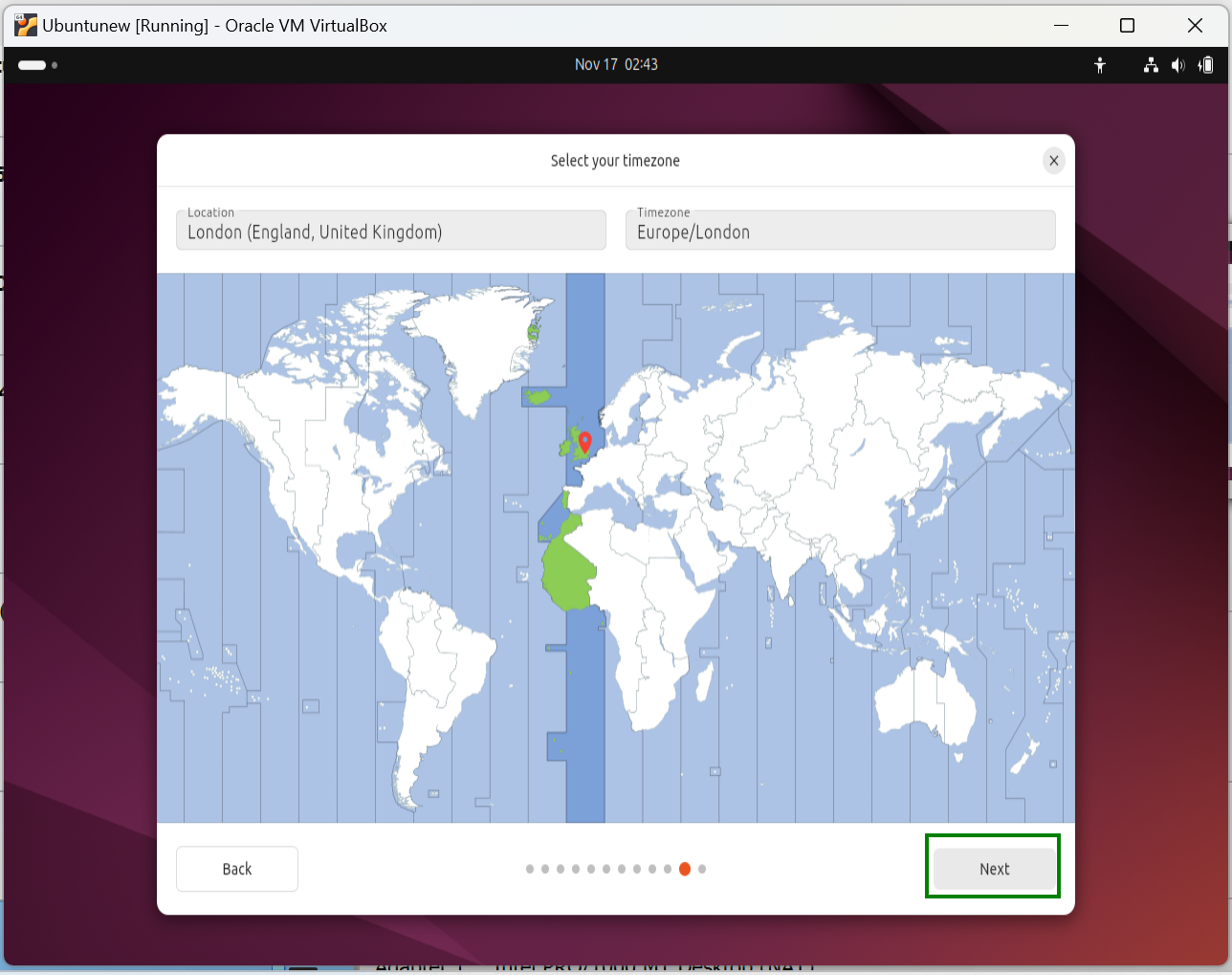
Select a timezone of your choice and click Next
-
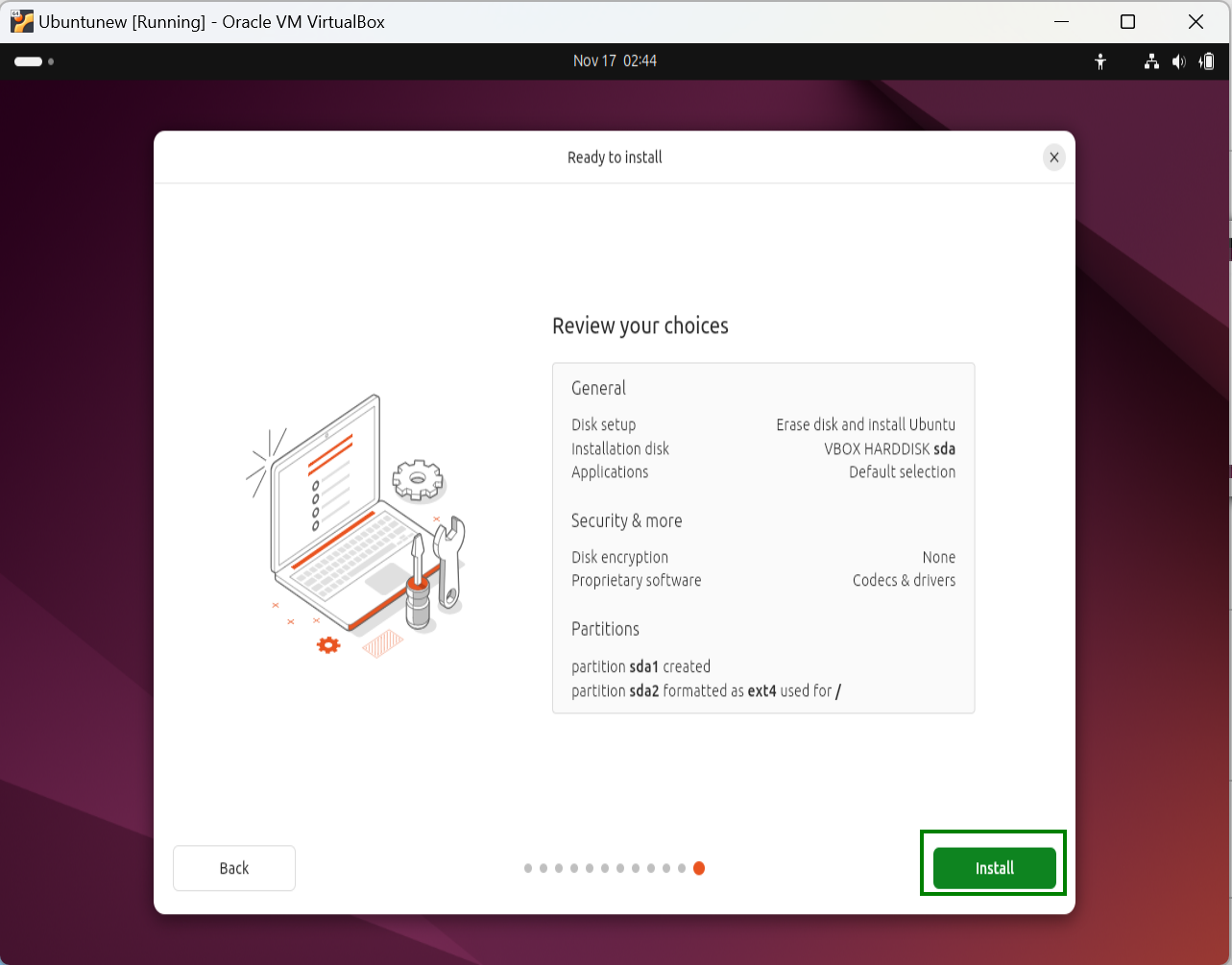
Review your setup and click Install to proceed with the installation.
-
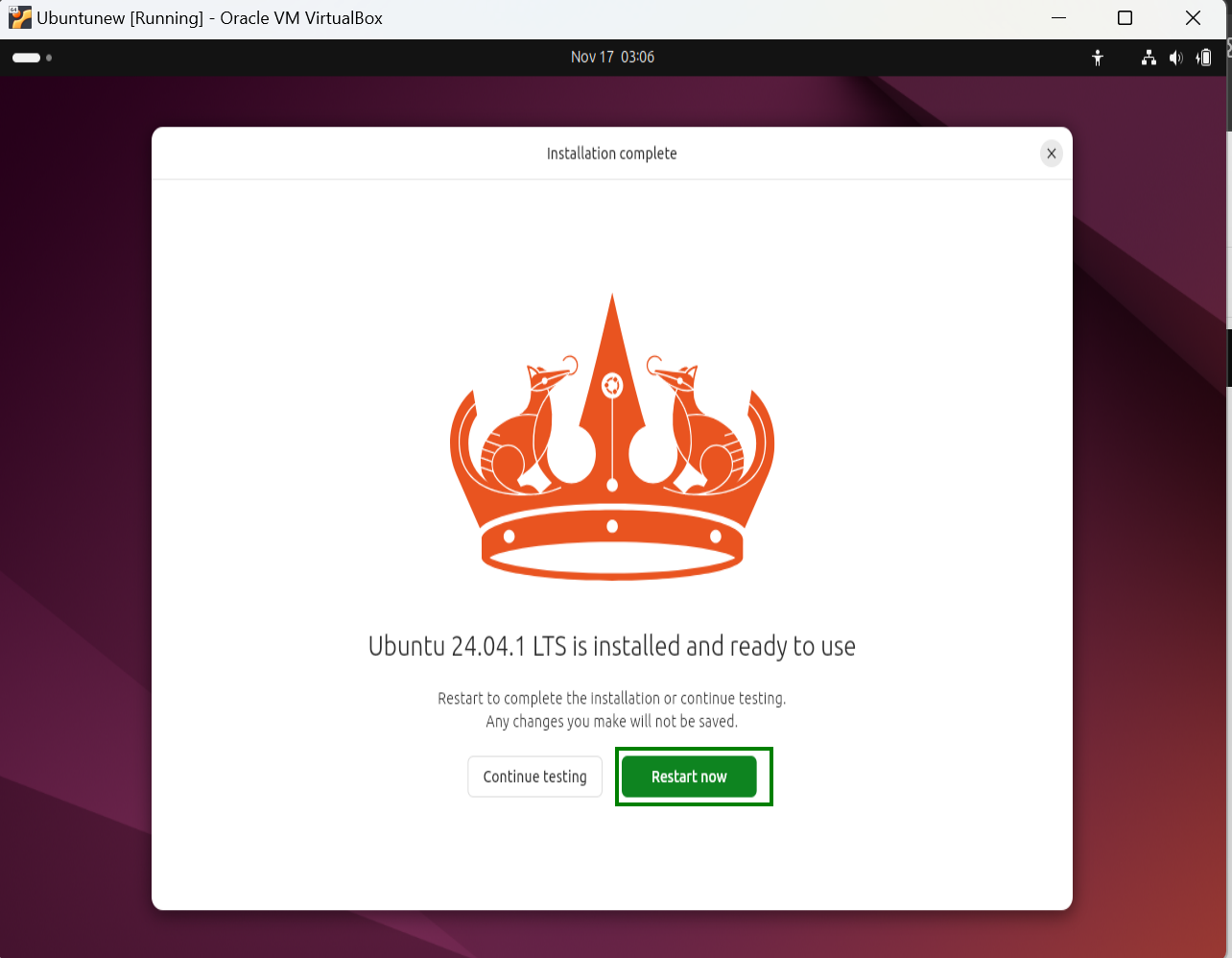
Click Restart now to finalize the process.
-
COMMON PROBLEMS/ERROR
- Ubuntu 24.04 is not starting completely
- Ubuntu 24.04 is freezing or working slow.
Reason
Ubuntu 24.04 unlike other versions requires more memory to function correctly.
You’ll need to increase the base memory more if the issue persists after using the one suggested in the above screenshot.
 NMAP FOR BEGINNERS