SETTING UP A WINDOWS 10 VM
Creating windows10 virtual machine requires the following steps
- Creating an iso file using the media creation tool
- Setting up the virtual machine
- Installing the Operating system
WINDOWS 10 ISO CREATION
Run the downloaded media creation tool as an administrator
click accept to proceed

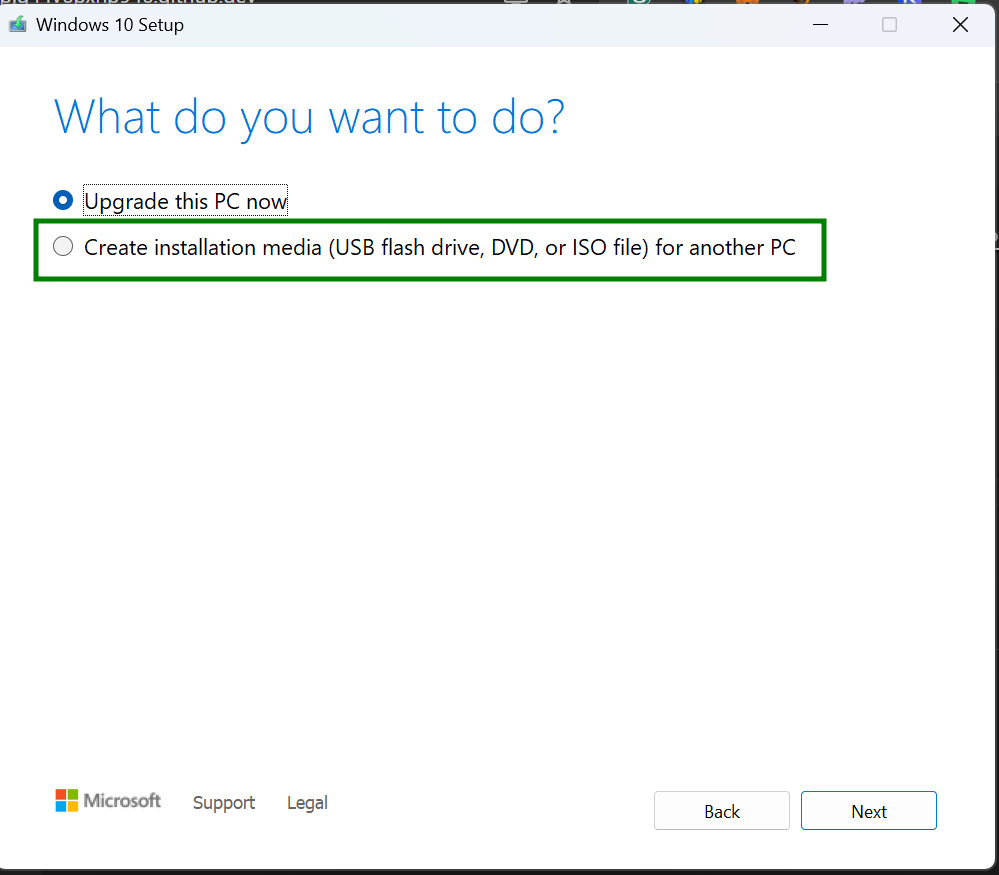
select "Create an installation media (USB flash drive, DVD, or ISO file) for another PC
click "Next"
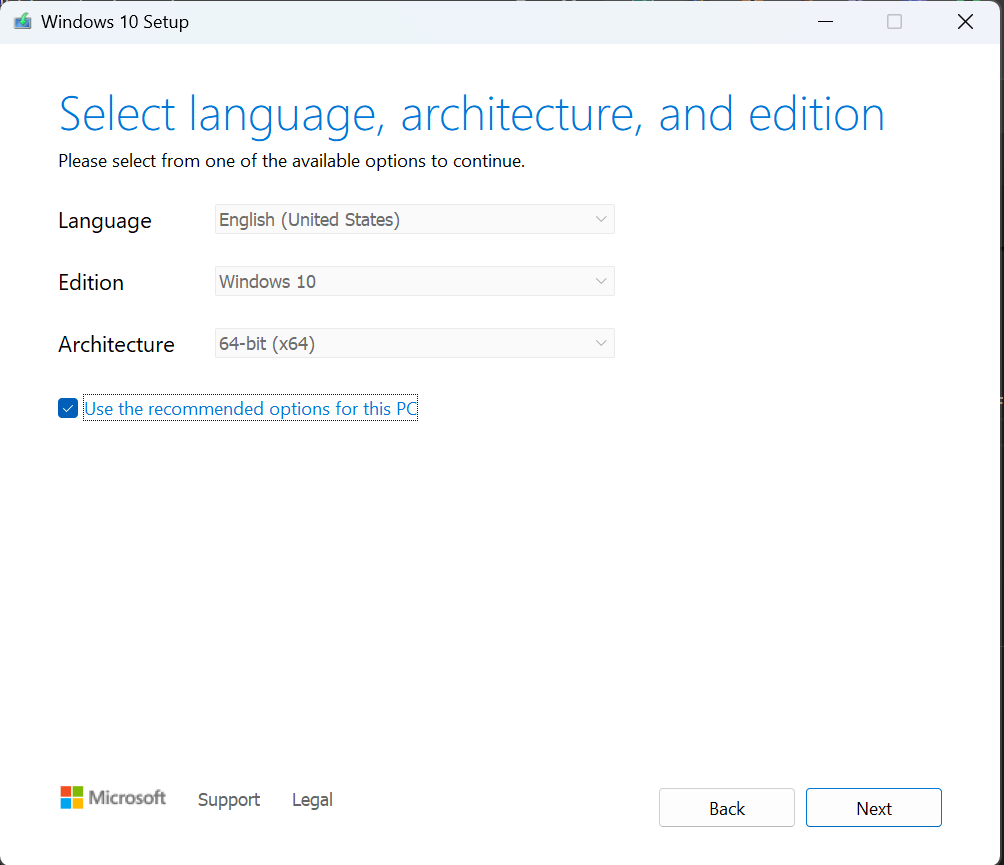
Ensure windows 10 is selected
click "Next"
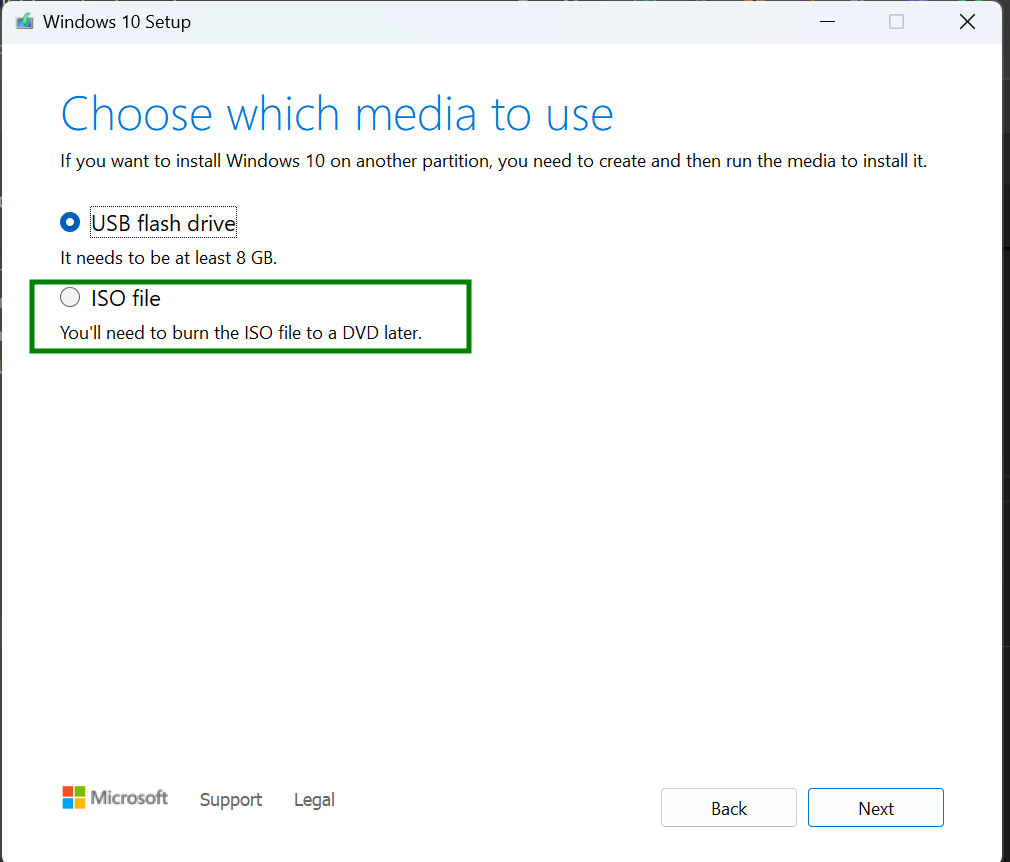
Select "iso file"
click "Next"
Select the location to save the file
Wait for the file creation to complete
click "finish" upon completion
VM SETUP ON VIRTUAL BOX
Open your virtual box
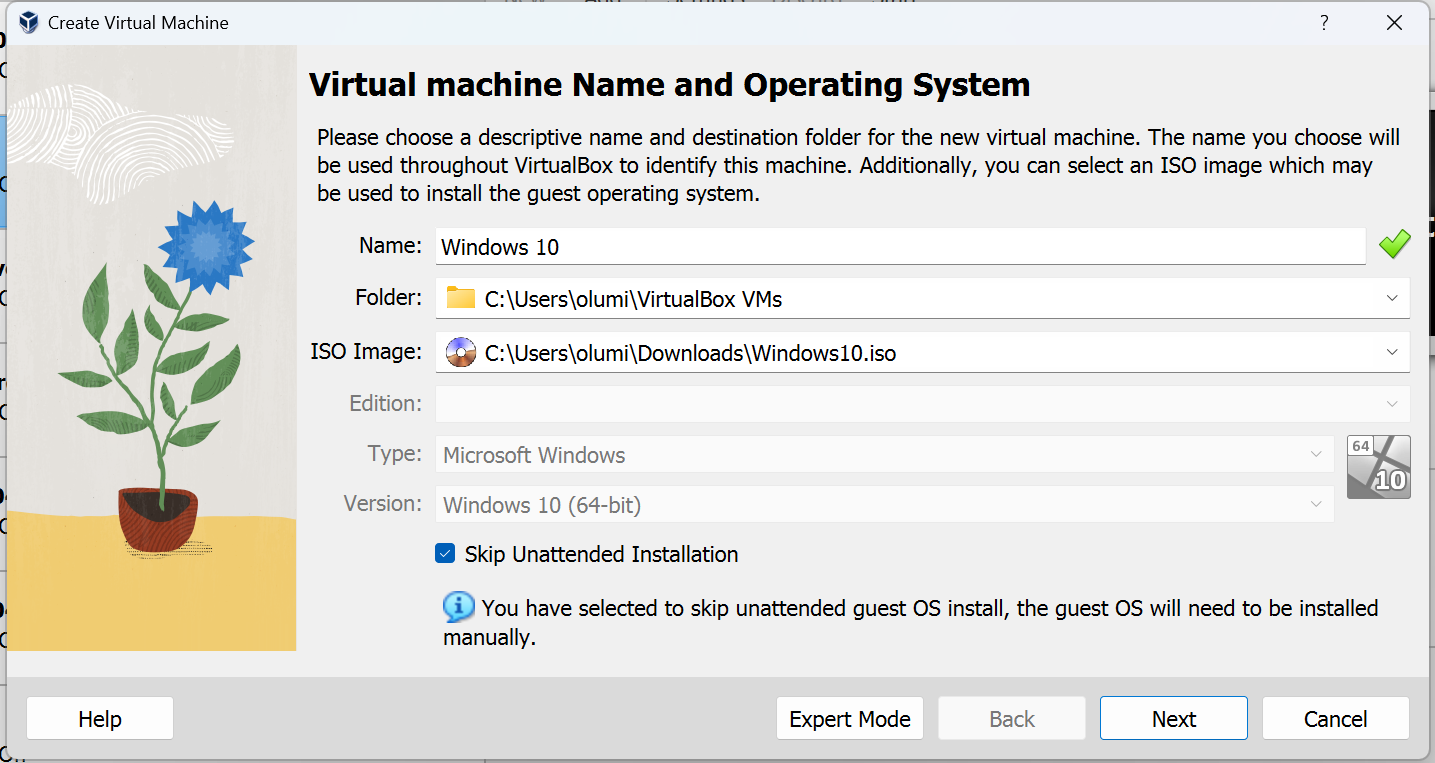
Click on "New"
Enter the name of the VM
Select the iso file created as ISO image
Check "Skip Unattended Installation (This gives you more controll over the process)
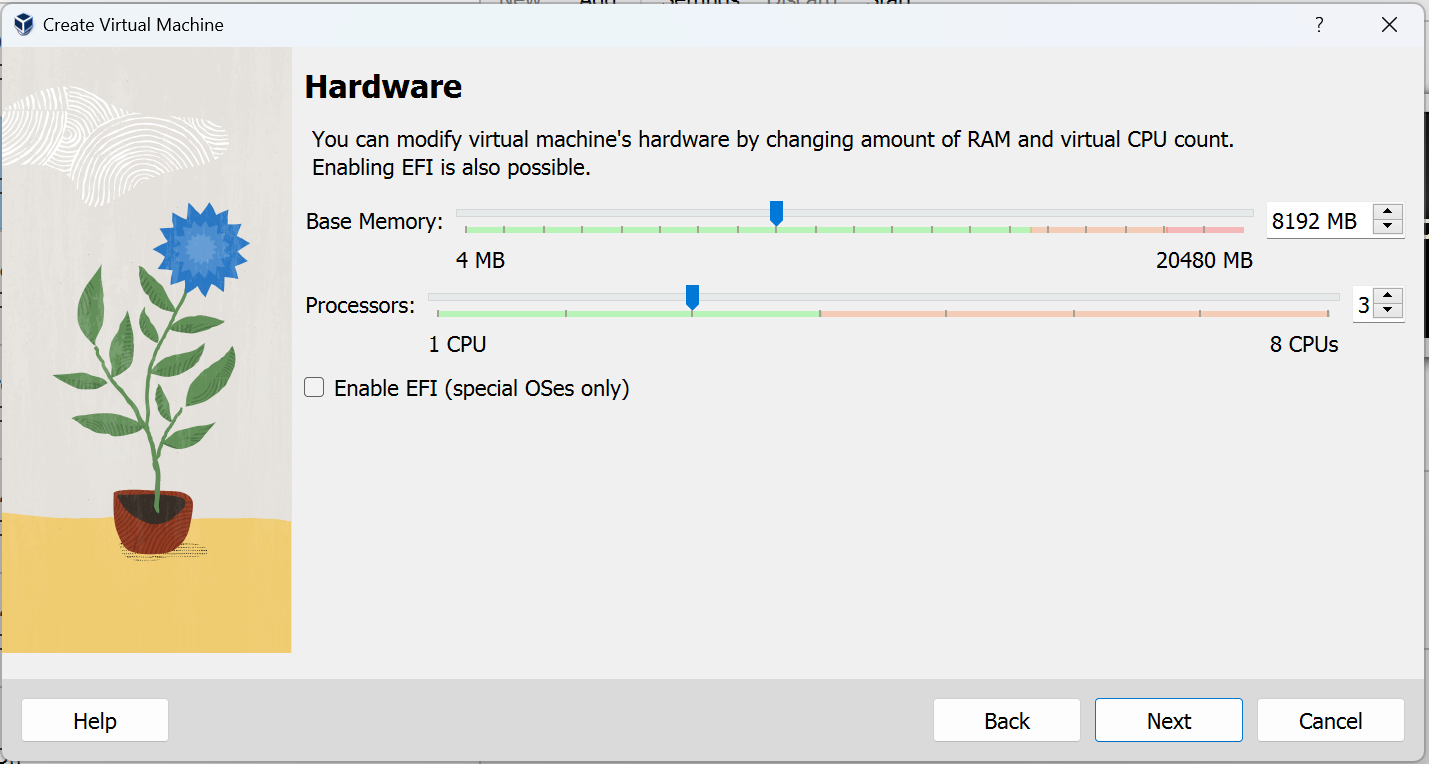
Base Memory Allocation
Give the vm sufficient base memory
Allocate at least 2gig ram
click "Next"
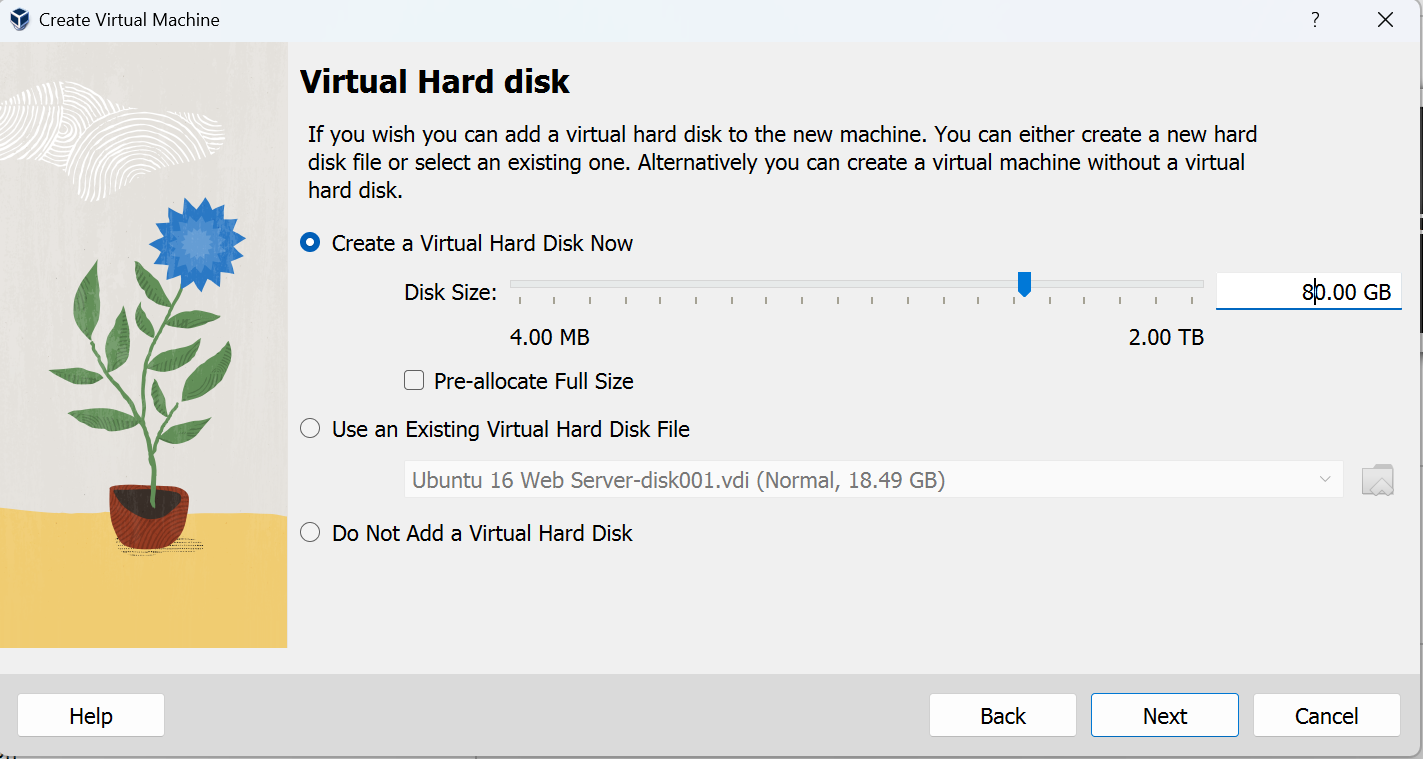
Virtual Hard Disk SetUp
Assign enough disk size. Atleast 50gig. We are using 80gig in this example
Click "Next"
Review and Complete Setup
Review the setup
Click "finish" to complete the setup.
Motherboard Configuration
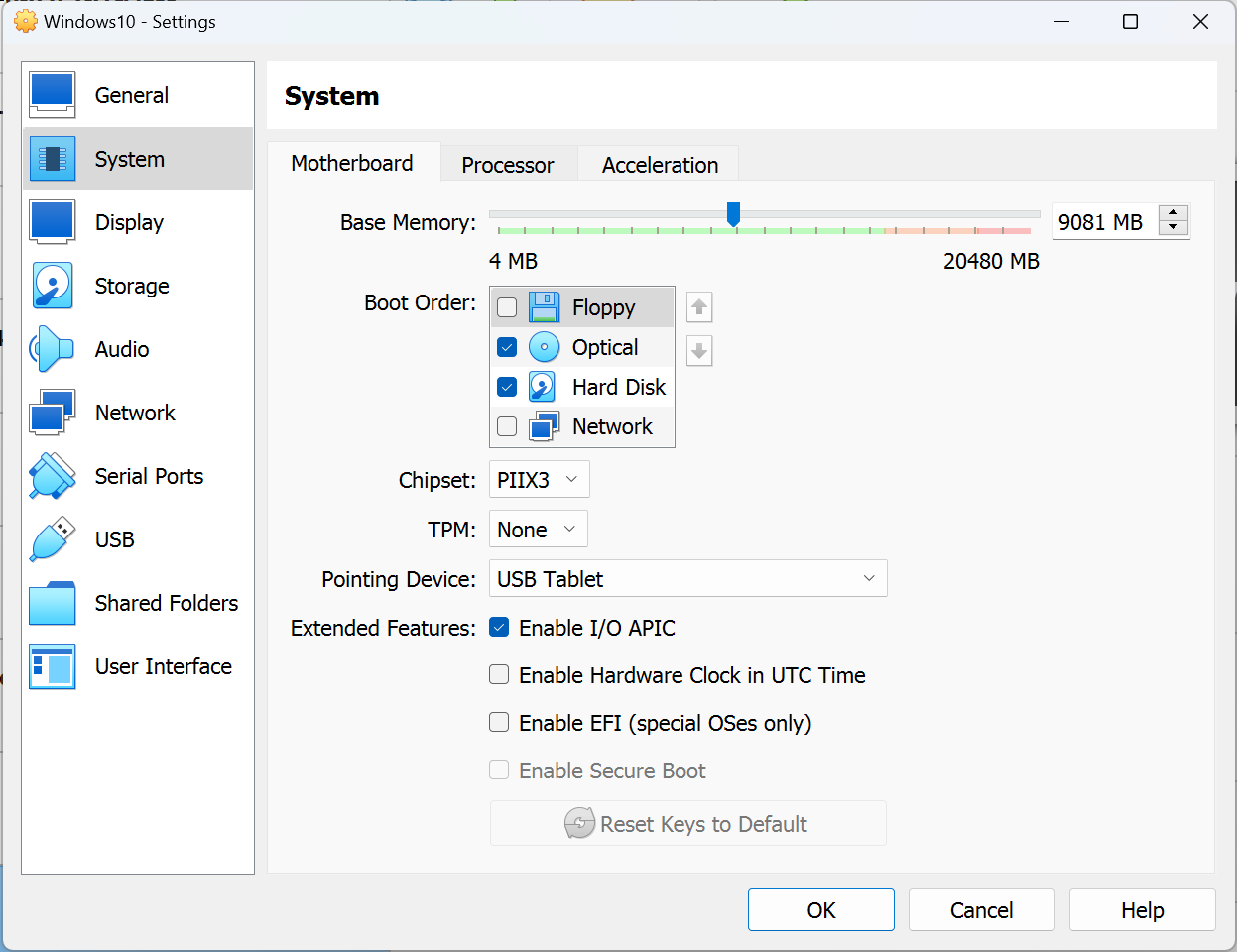
Click "Settings"
Click "System"
Click "Motherboard"
Uncheck "floppy" in Boot order.
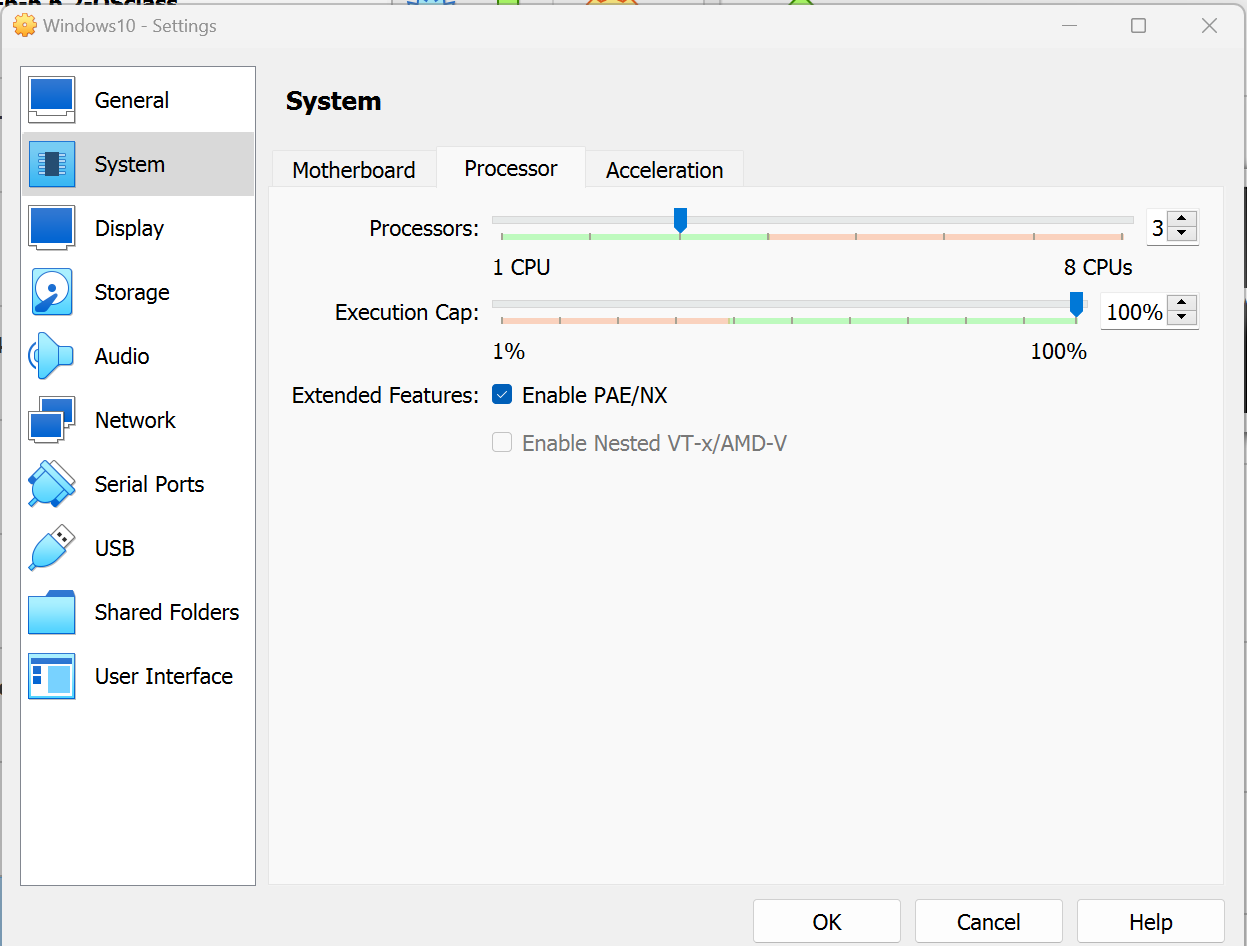
Processor Setup
Click on "Processor"
Enable PAE/NX
Display Settings
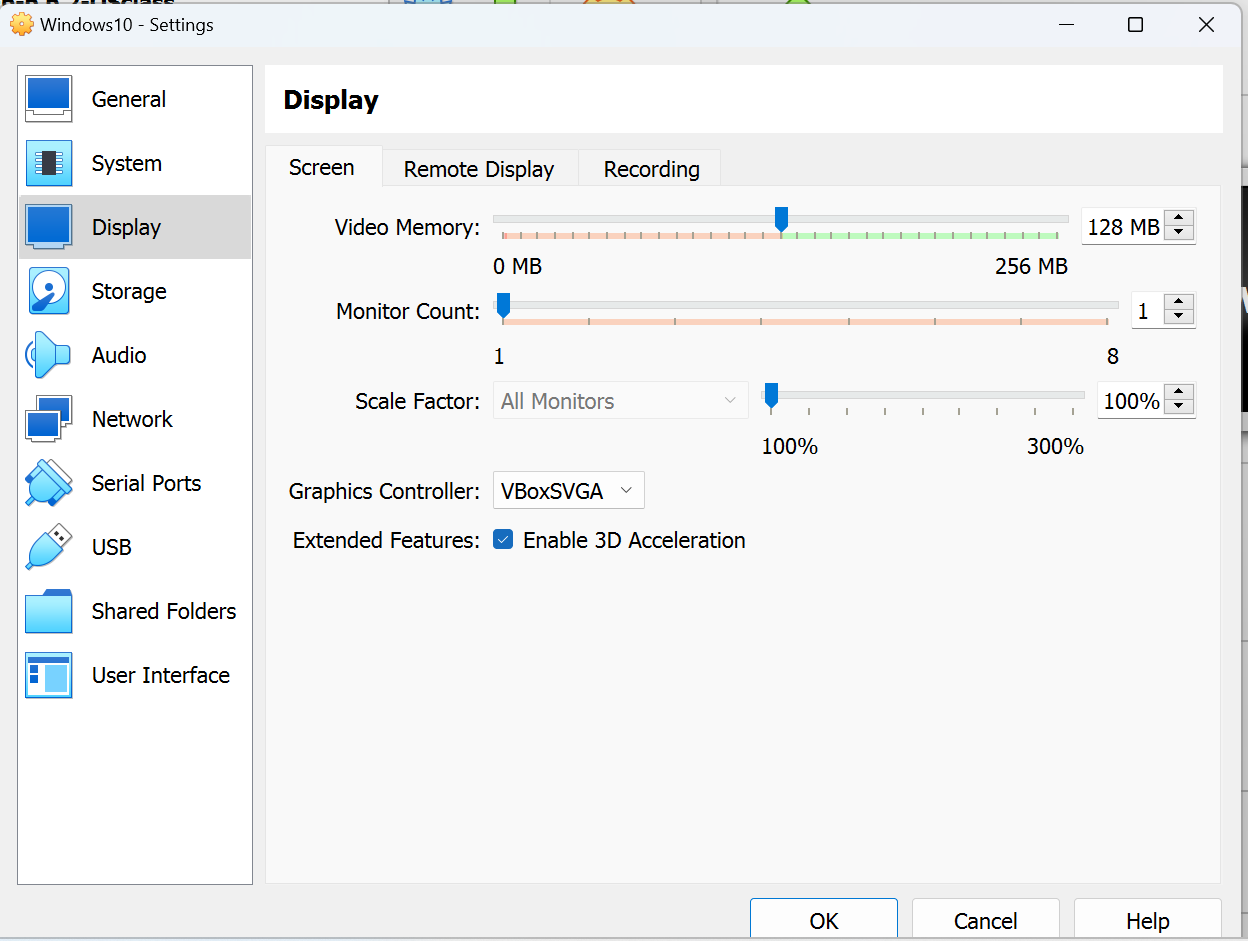
Click "Display"
Drag the video memory to 128MB (minimum)
Check "Enable 3D Acceleration"
Network Configuration
Enable two network interfaces
Set the first as "NAT" to permit internet access.
set the second as "Bridged" to allow access to the local network
OPERATING SYSTEM INSTALLATION
Start The Virtual Machine to Begin The Operating System Installation
Language Selection
Select your desired language
Select your desired Time and currency format
click next
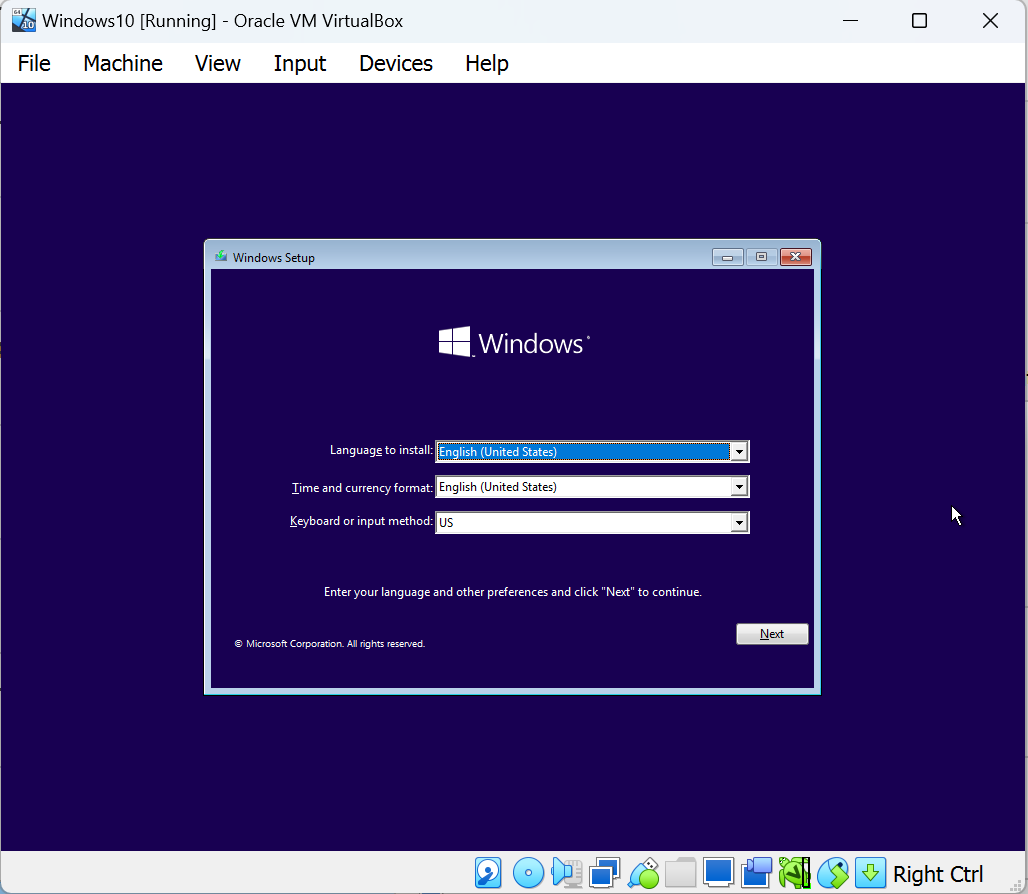
Click "Next" when the window appears
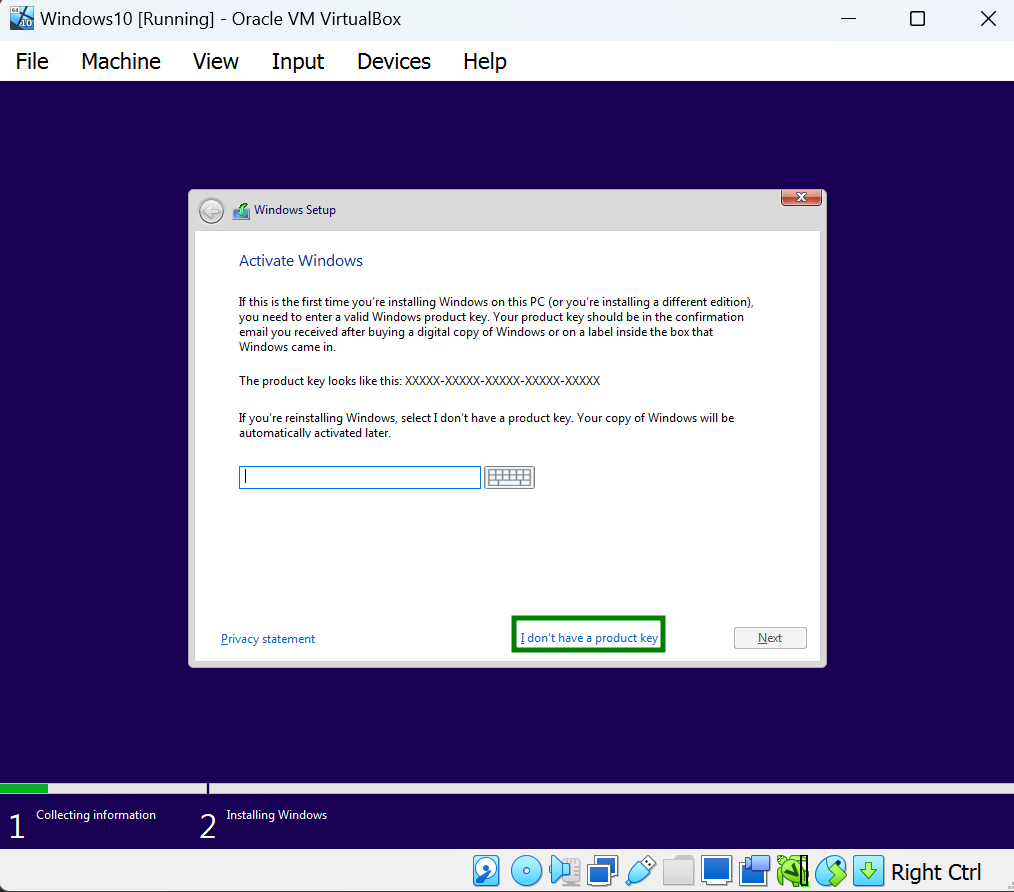
Select "I don't have the product key"
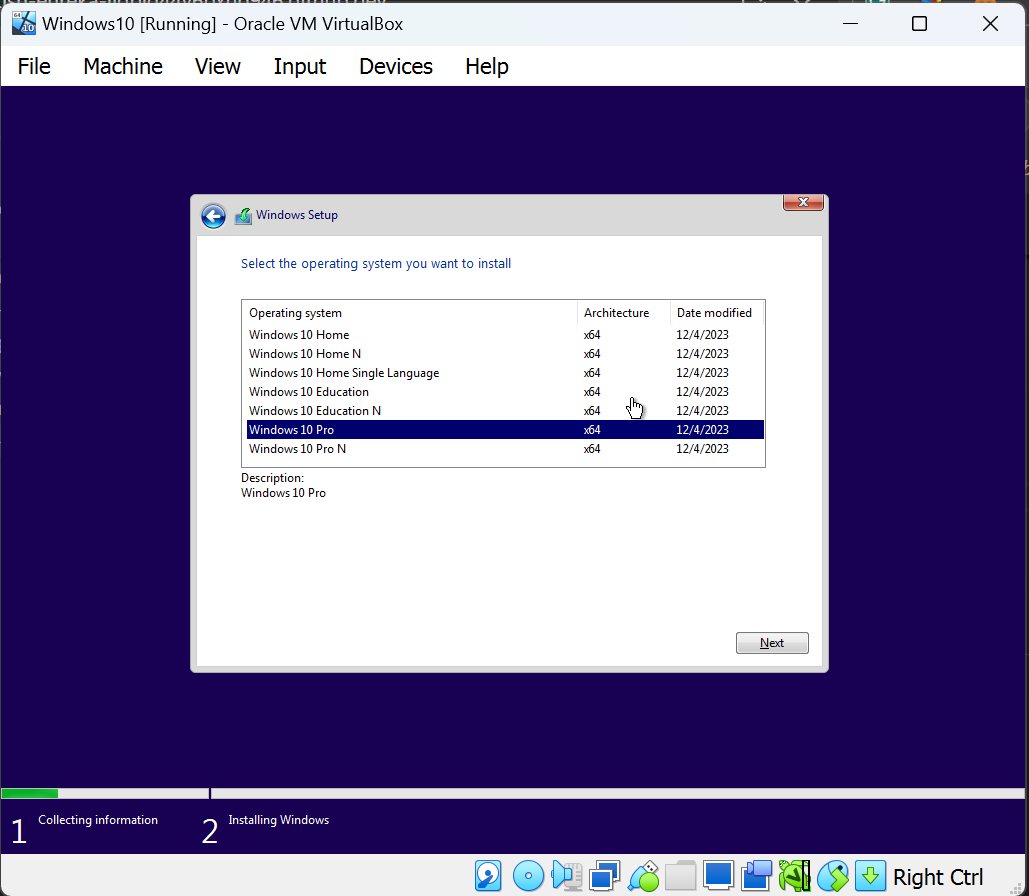
Windows Package Selection
Select your desired Windows10 package. We are using Windows10 pro here.
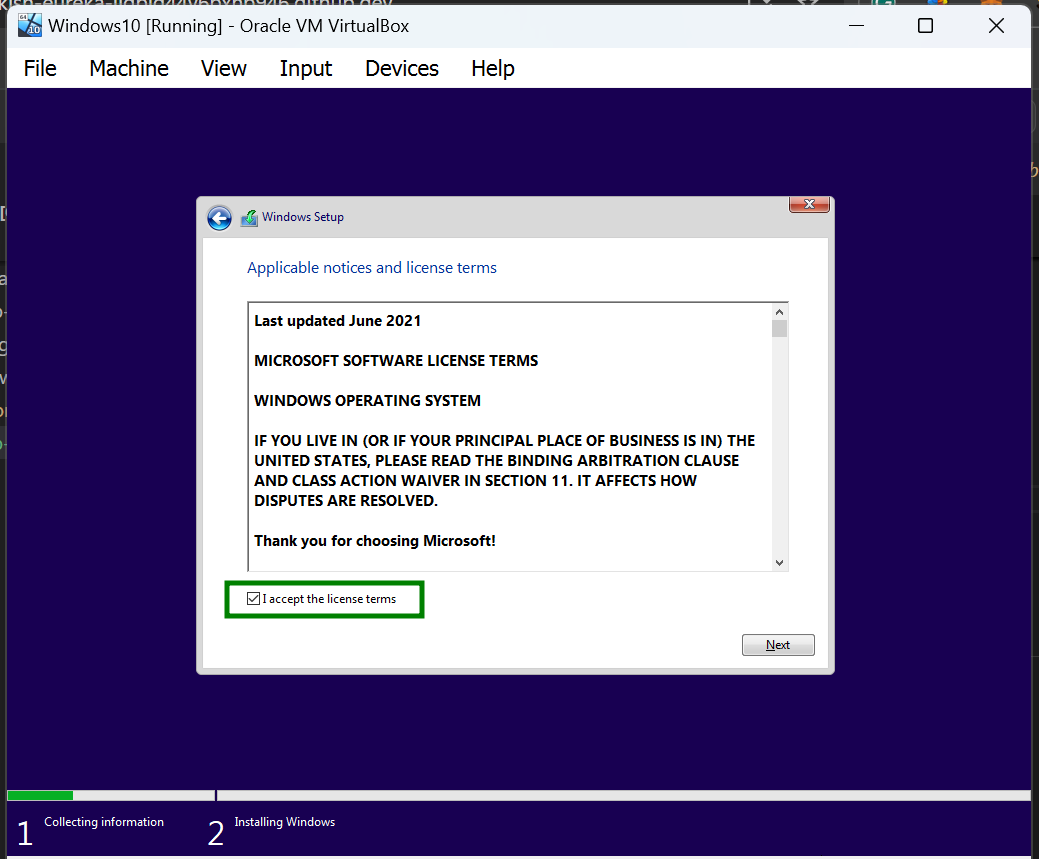
Licence Agreement
Accept the license agreement
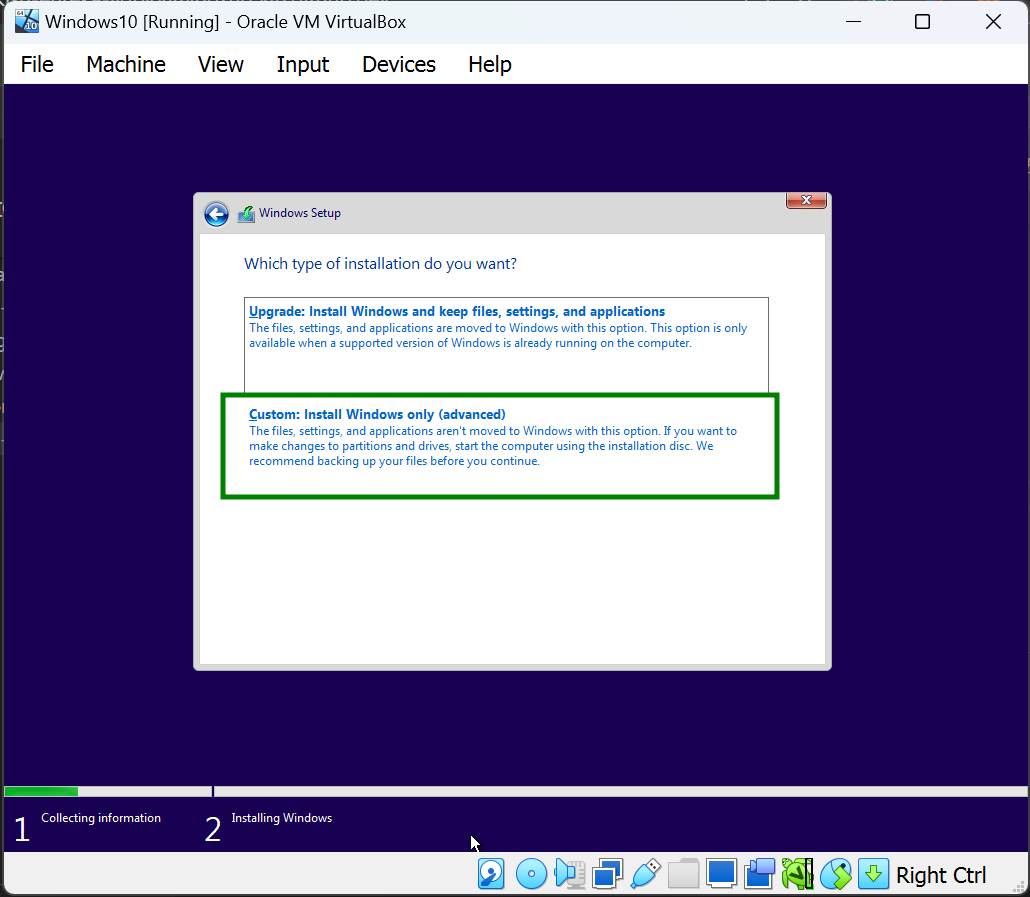
Installation Type Selection
Select Custom option
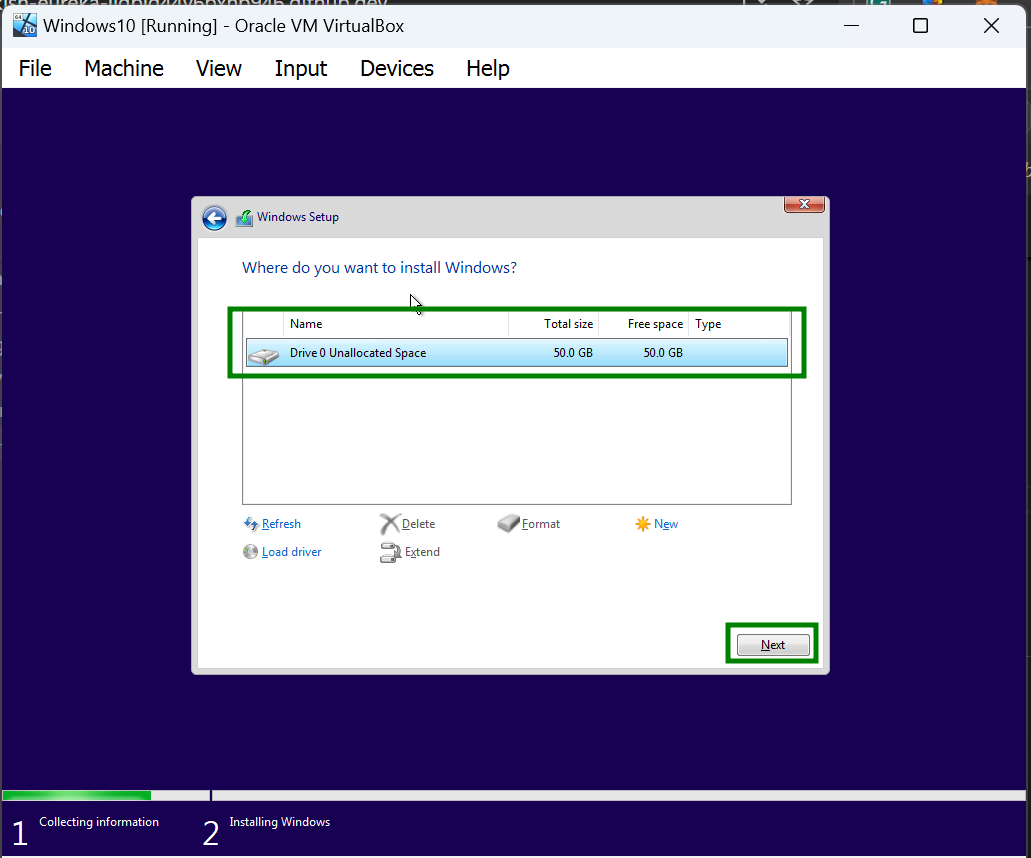
Drive Selection
Select the drive for installing the OS

Click "Next"
Wait for the installation process to run and finish
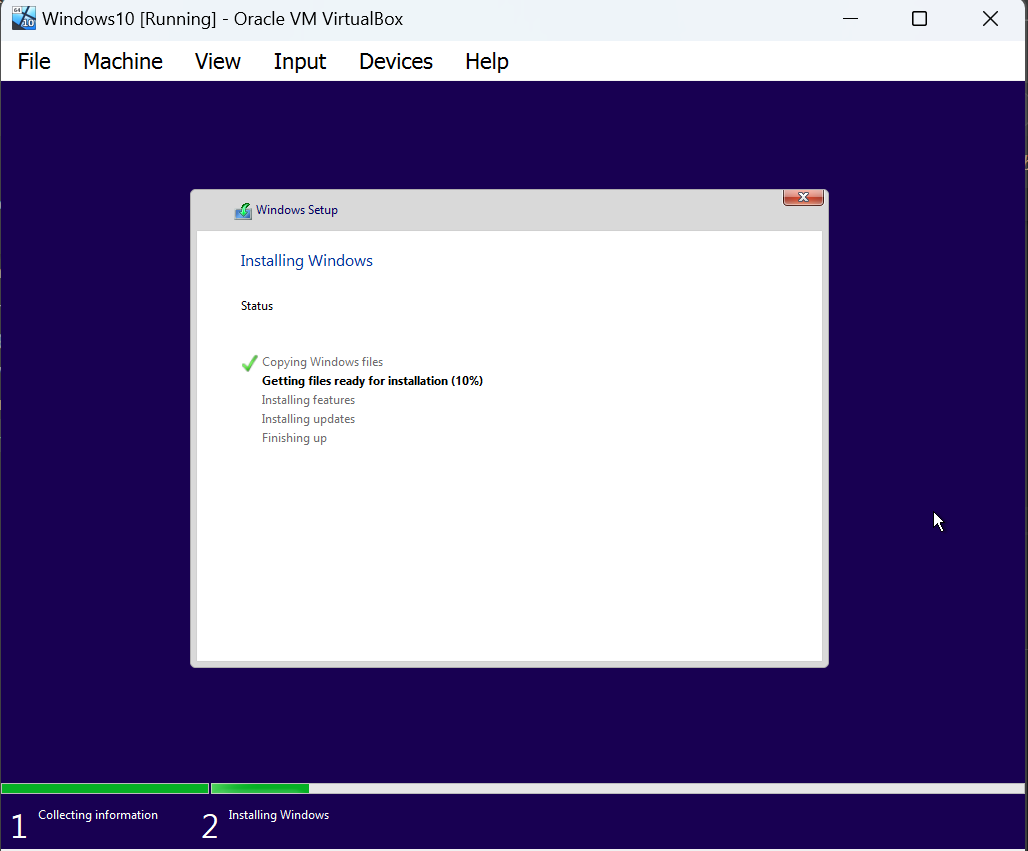
Completion
The VM will restart. When prompted to press any key to install from cd, ignore it.
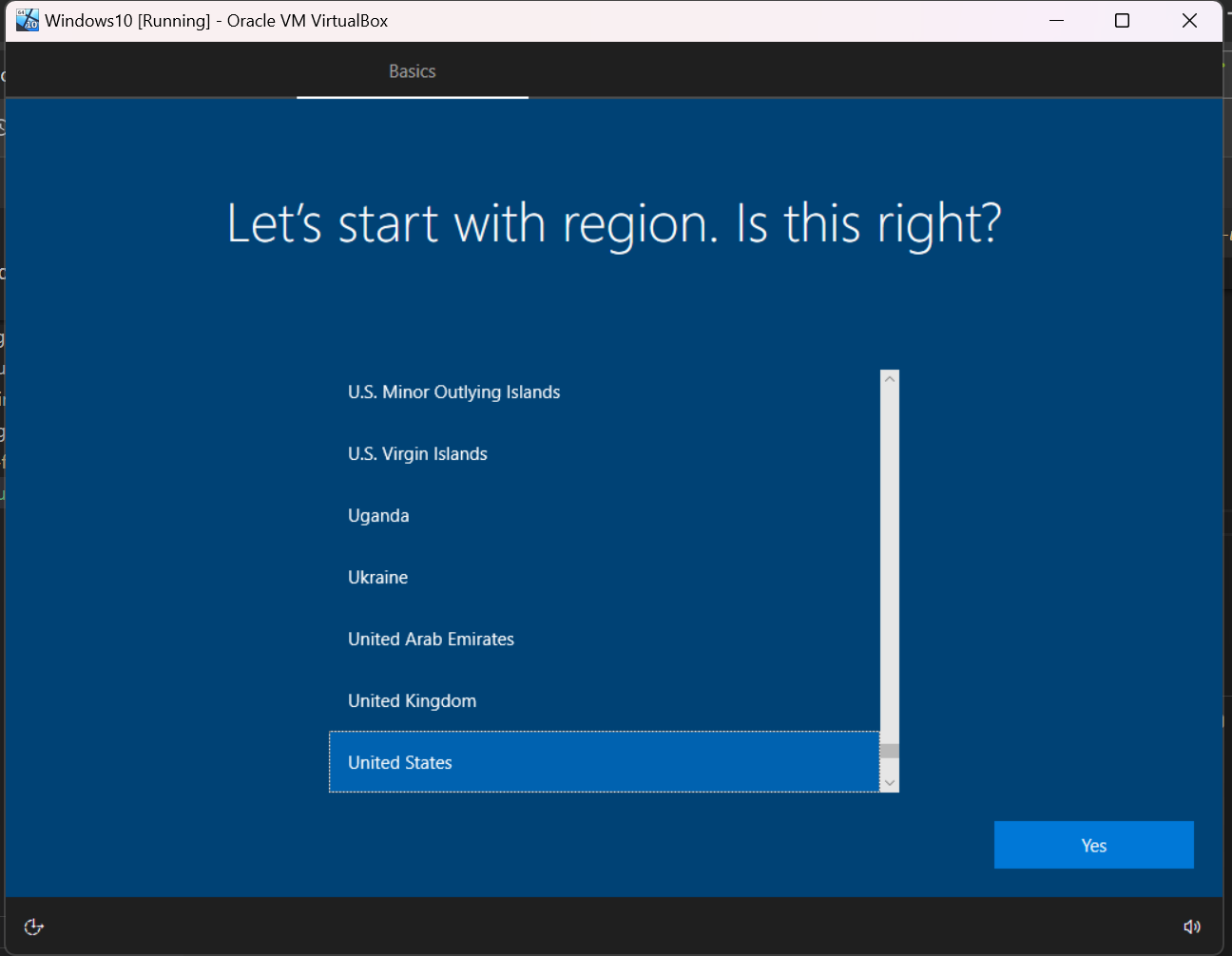
Select your region
click "Yes"
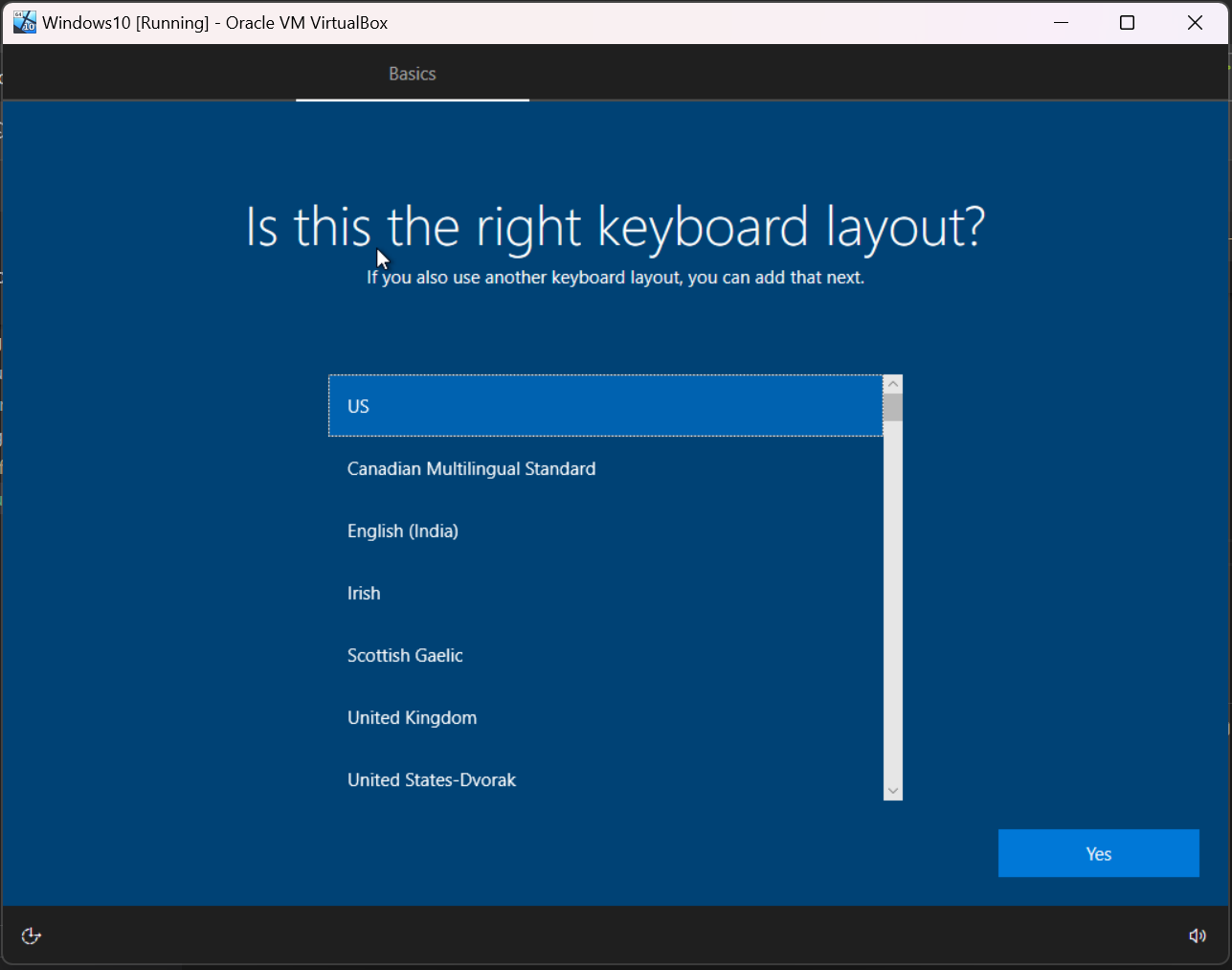
Select your desired keyboard layout
You can add a second keyboard layout(optional)
Select your desire setup
Enter your microsoft account email or create new one
Complete the puzzle challenge
Setup a pin
Skip or setup experience settings
 Setting Up a MacOS Virtual Machine