
INSTALLING CORTEX ON UBUNTU 22.4
CORTEX
AUTOMATED INSTALLATION
NOTE: For seamless result, run script on a freshly installed ubuntu 22.04 server.
See HERE for details on how to install ubuntu 22.04 server vm.
IMPORTANT For the script to run effectively, your server must meetup with the minimum requirements
4 CPU
16 GB RAM
Open your Ubuntu 22.04 server and run the following commands.
sudo apt update
ADD DOCKER GROUP
This step is important to prevent the installation from failing and returning the error group docker does not exist
Run the below commands in your terminal to add docker group.
sudo groupadd docker
sudo usermod -aG docker $USER
newgrp docker
CONFIRM GROUP ADDITION
Confirm group existence by typing the below command in your terminal.
groups
GIVE PERMISSION 777 TO /usr/bin/ TO ALLOW ALL USERS TO READ AND WRITE
This step is important to prevent the error error: cannot create /usr/bin/floss permission denied
Run the below command to grant permission
sudo chmod 777 /usr/bin/
RUN THE AUTOMATED SCRIPT PROVIDED BY THEHIVE
wget -q -O /tmp/install.sh https://archives.strangebee.com/scripts/install.sh ; sudo -v ; bash /tmp/install.sh
A warning might pop up
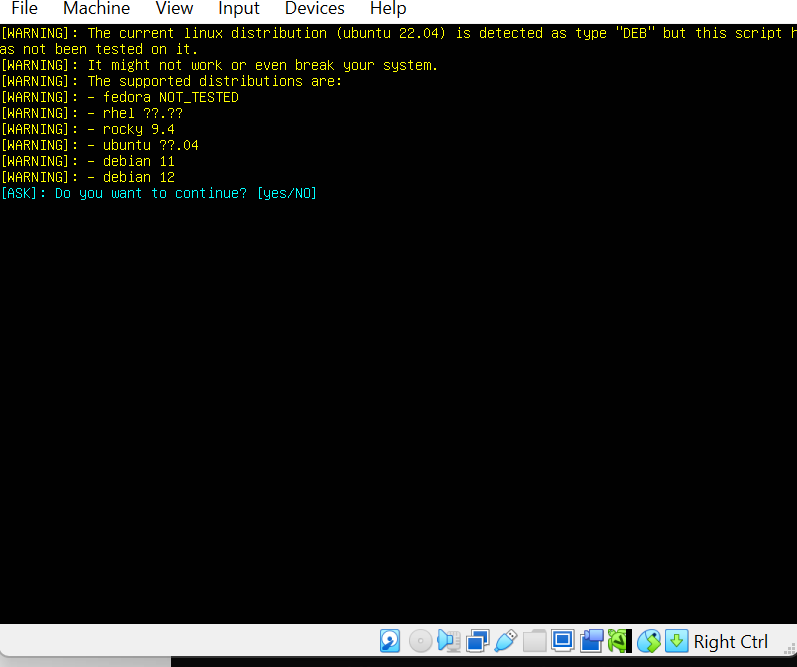
Type **yes**
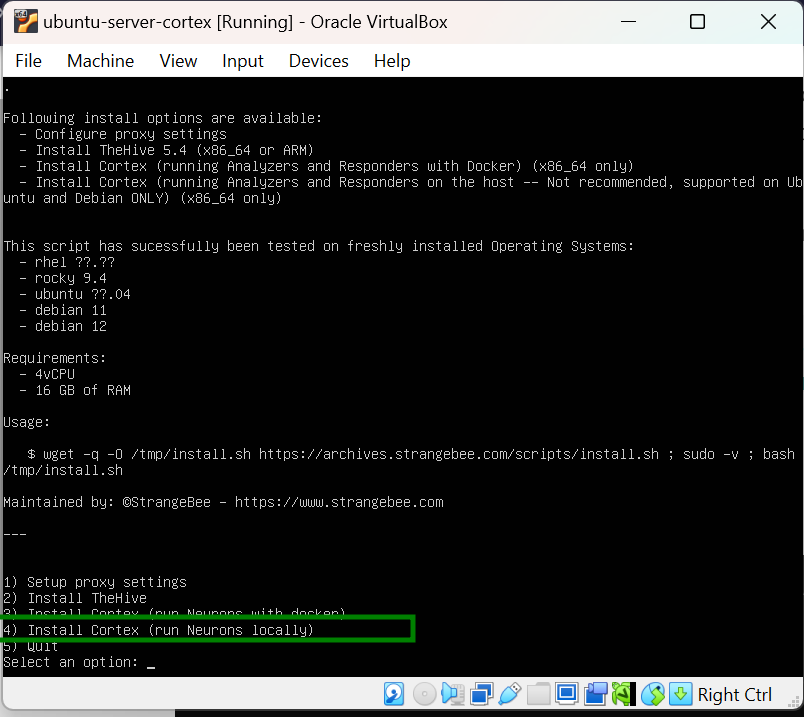
In the installation option displayed, select Install Cortex(run neuron locally)
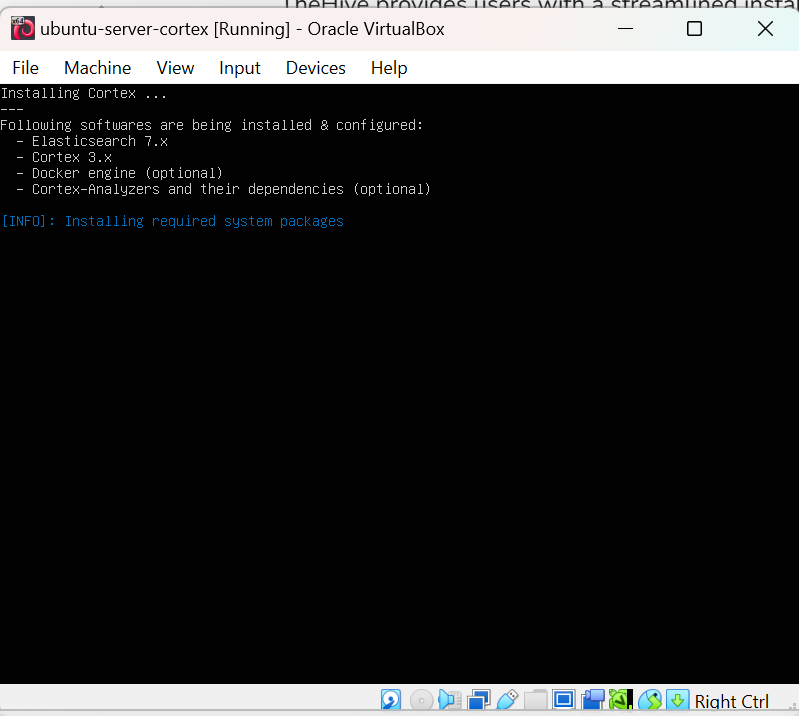
Allow the automated installation take place.
Access cortex dashboard using the provided login data
NOTE:
- If you have added a static ip address to your ubuntu 22.04, access cortex dashboard by typing the ip address and using port 9001 example: http://192.168.4.1:9001
- Ensure you put the vm for accessing cortex on same subnet 192.168.4.0/24 as the one setup for cortex
SETUP THE DESIRED LOGIN DETAIL
HAVE FUN!!
 Digital Image Analysis with Autopsy