
INSTALLING CENTOS ON VIRTUALBOX
CENTOS
NOTE: This is an instruction for installing miniaml CentOS version 7.9.
Download Minimal CentOs 7.9 HERE.
IMPORTANT The resource allocation might vary depended on intended use. This will be used for running thehive4 later. So we are allocating enough resources for that purpose.
Base Memory - 14GB
6 CPU
STEPS
VM Setup
On your virtual box click “New”
- Enter a name for the vm
- Select the downloaded iso as ISO Image
- Set the base memory to 14000
- Set CPU to 6
- check "Skip Unattended Installation"
- Hard disk volume - 70GB
Start the vm by clicking Start
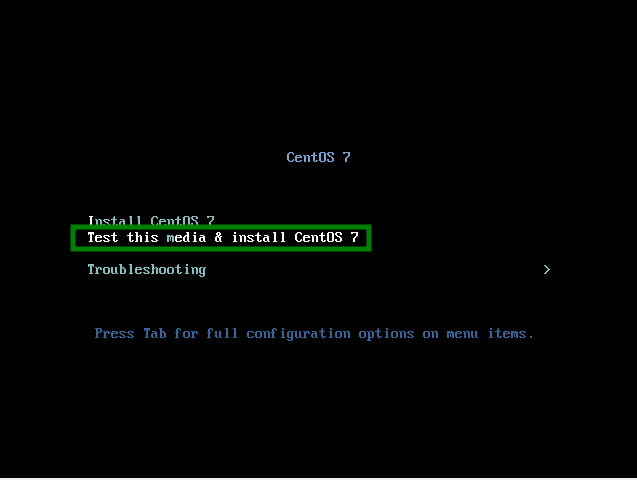
Installation Choice
Test this media & Install CentOs 7
Choose Language
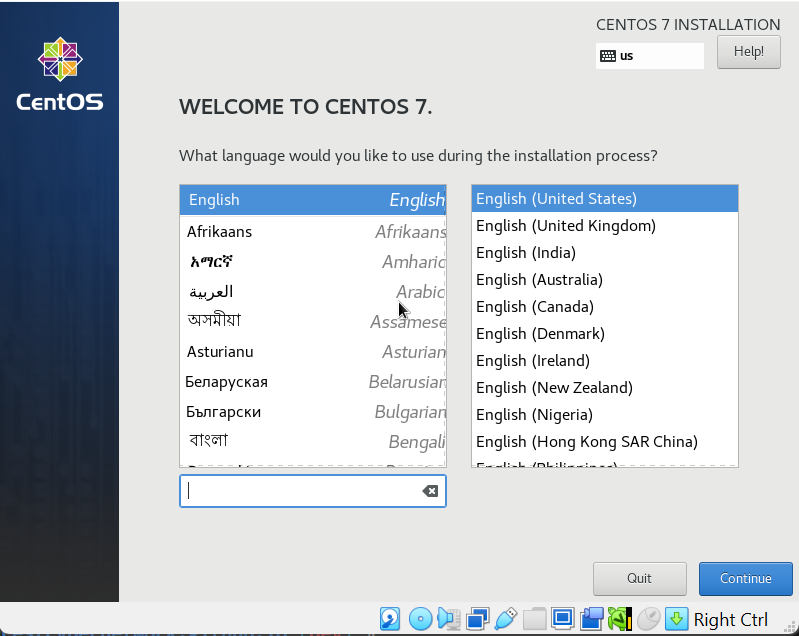
Start Installation
Before you can start installation, you have to configure every required parts.
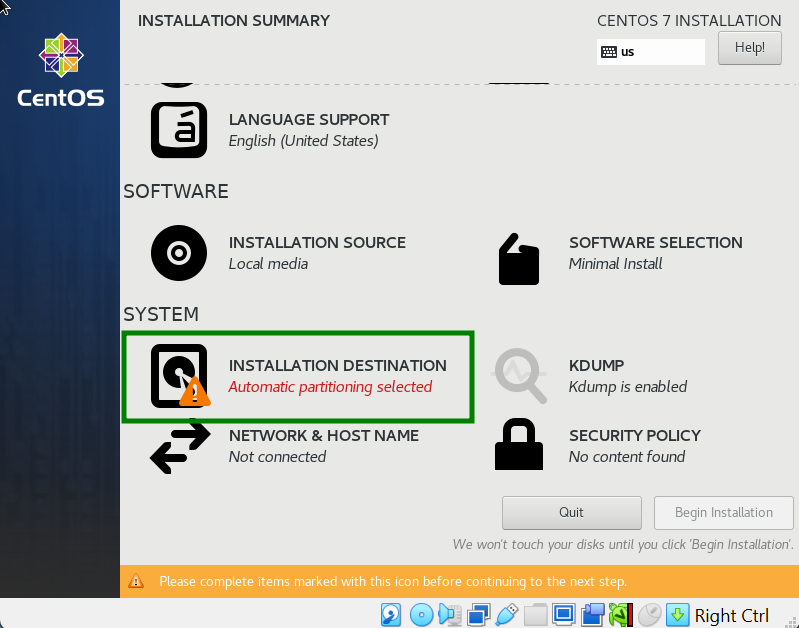
Setup Installation Destination
- Check "Automatically configure partition" If not already selected
- Click "Done"
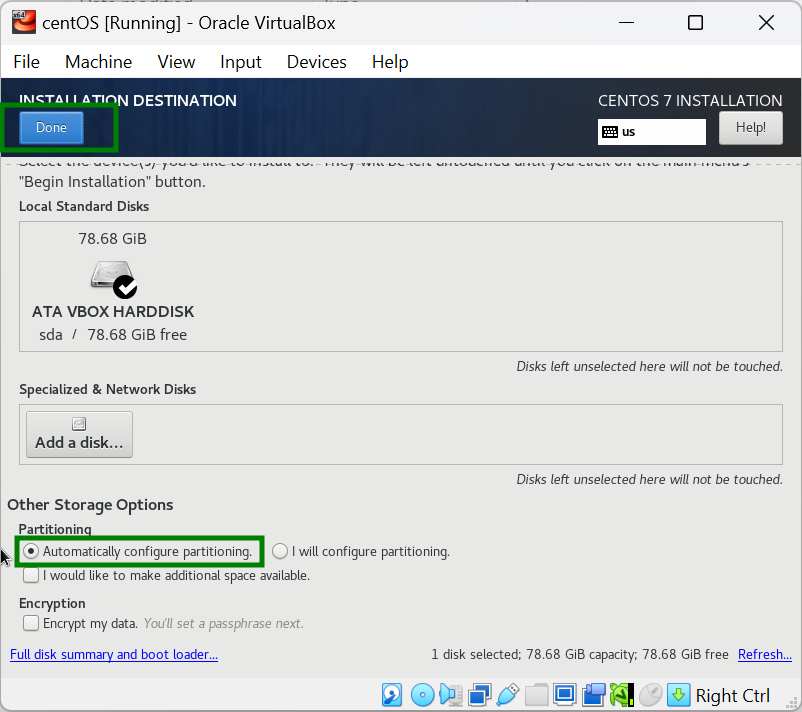
To proceed, click
Start installation
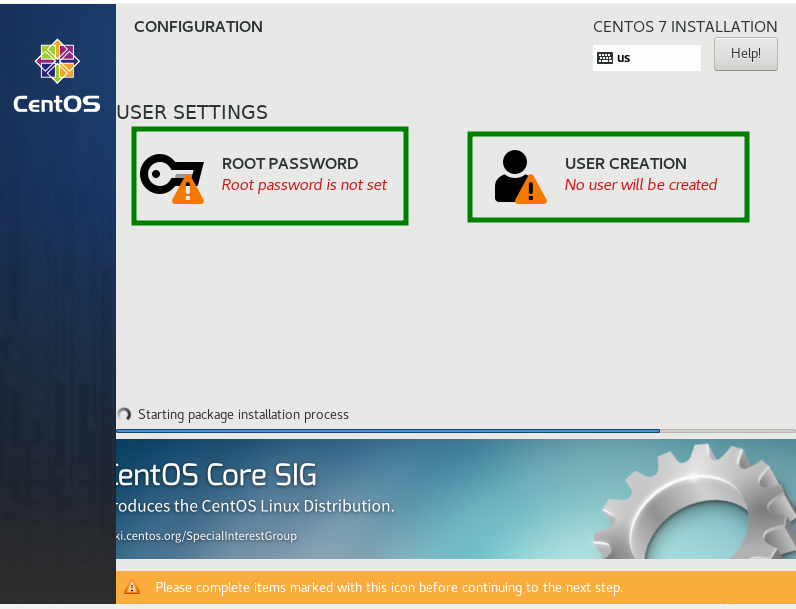
Set the root user password and create a user
Reboot the vm after installation is complete.
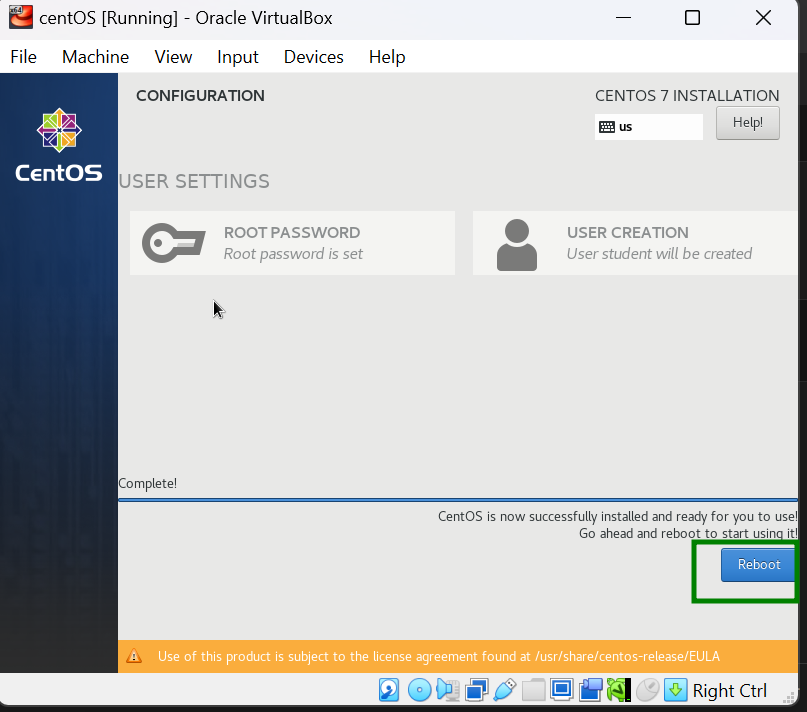
Stop the VM before it completely reloads.
NOTE: If you allow the reboot to complete, it will attempt booting from the cd inserted and that might restart the installation process.
POST INSTALLATION
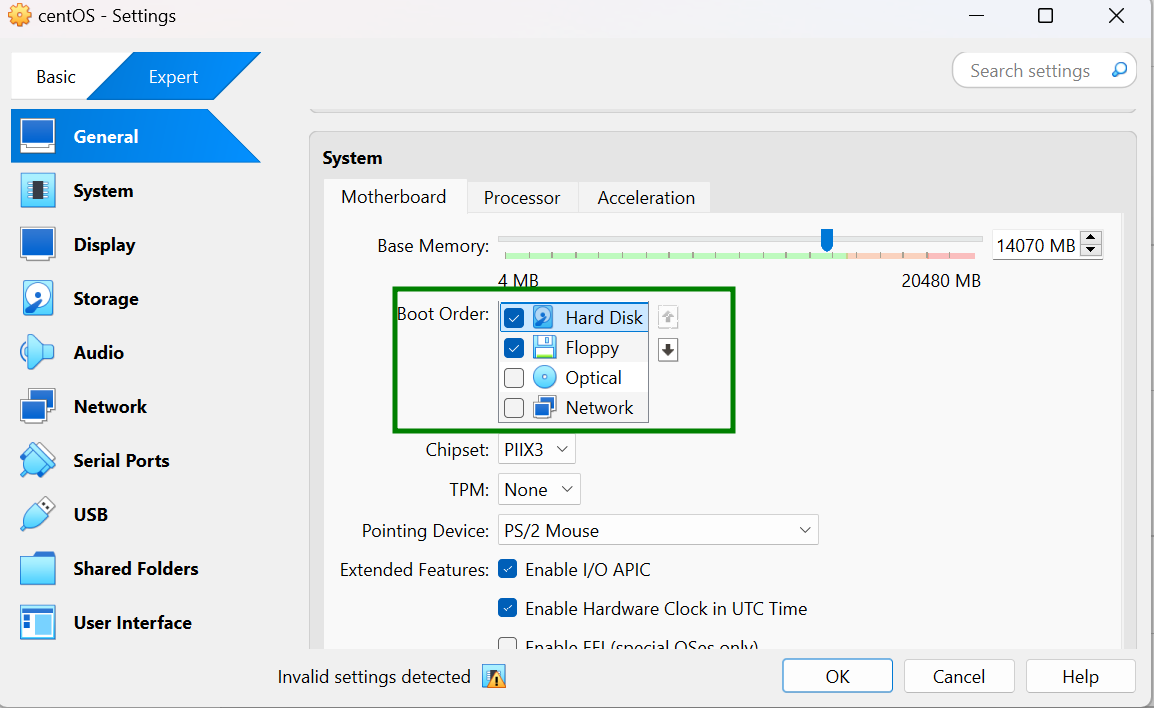
Boot Order Change
Click "Settings"
Change the boot order as shown below
Start the vm. NETWORK CONFIGURATION
NOTE: For the intended use of the vm, two network interfaces are configured.
Identify Network Interfaces by running
ip a
Enter the below command to setup the network
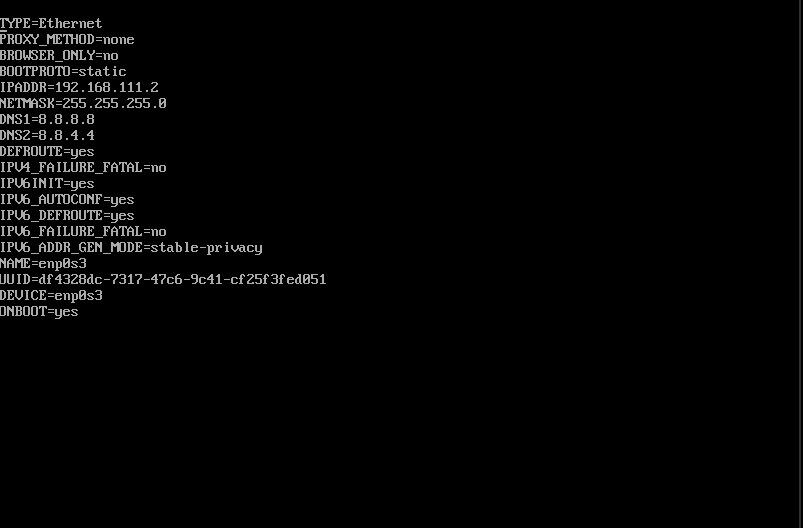
sudo nano /etc/sysconfig/network-scripts/ifcfg-enp0s3
Enter The Network Configuration
Static IP Address Setup
Dynamic Address Setup
sudo nano /etc/sysconfig/network-scripts/ifcfg-enp0s8
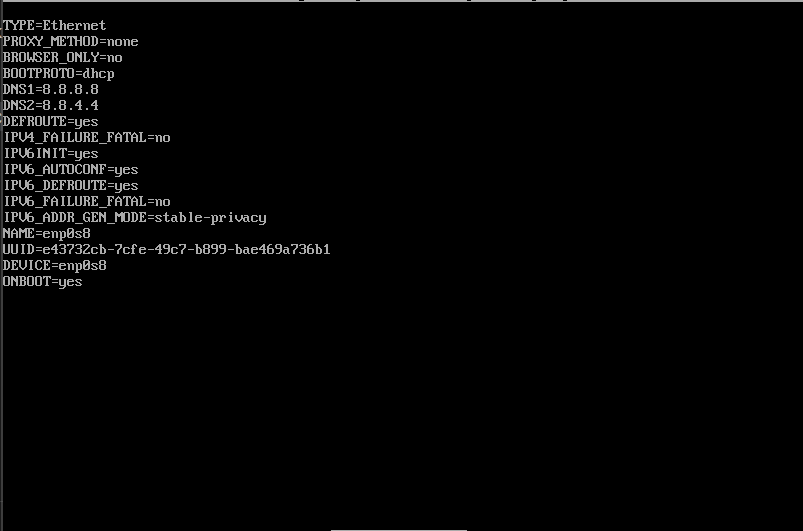
REPO ADDITION
NOTE: CentOS 7 has reached end of life. If you don’t add the required repo, you’ll find it difficult to download anything or run an update of the vm.
Backup existing
sudo mv /etc/yum.repos.d/CentOS-Base.repo/etc/yum.repos.d/CentOS-Base.repo.bak
Add the repo
sudo vi /etc/yum.repos.d/CentOS-Base.repo
Press "i" to start editing
Configuration
[base]

name=CentOS-7 - Base
baseurl=http://vault.centos.org/centos/7/os/x86_64/
gpgcheck=1
gpgkey=file:///etc/pki/rpm-gpg/RPM-GPG-KEY-CentOS-7


[updates]
name=CentOS-7 - Updates
baseurl=http://vault.centos.org/centos/7/updates/x86_64/
gpgcheck=1
gpgkey=file:///etc/pki/rpm-gpg/RPM-GPG-KEY-CentOS-7


[extras]
name=CentOS-7 - Extras
baseurl=http://vault.centos.org/centos/7/extras/x86_64/
gpgcheck=1
gpgkey=file:///etc/pki/rpm-gpg/RPM-GPG-KEY-CentOS-7
Save and Exit
:wq
Clean and make cache then update the VM
sudo yum clean all
sudo yum makecache
sudo yum update -y
ENJOY !!!
 Installing MISP on Ubuntu22.4