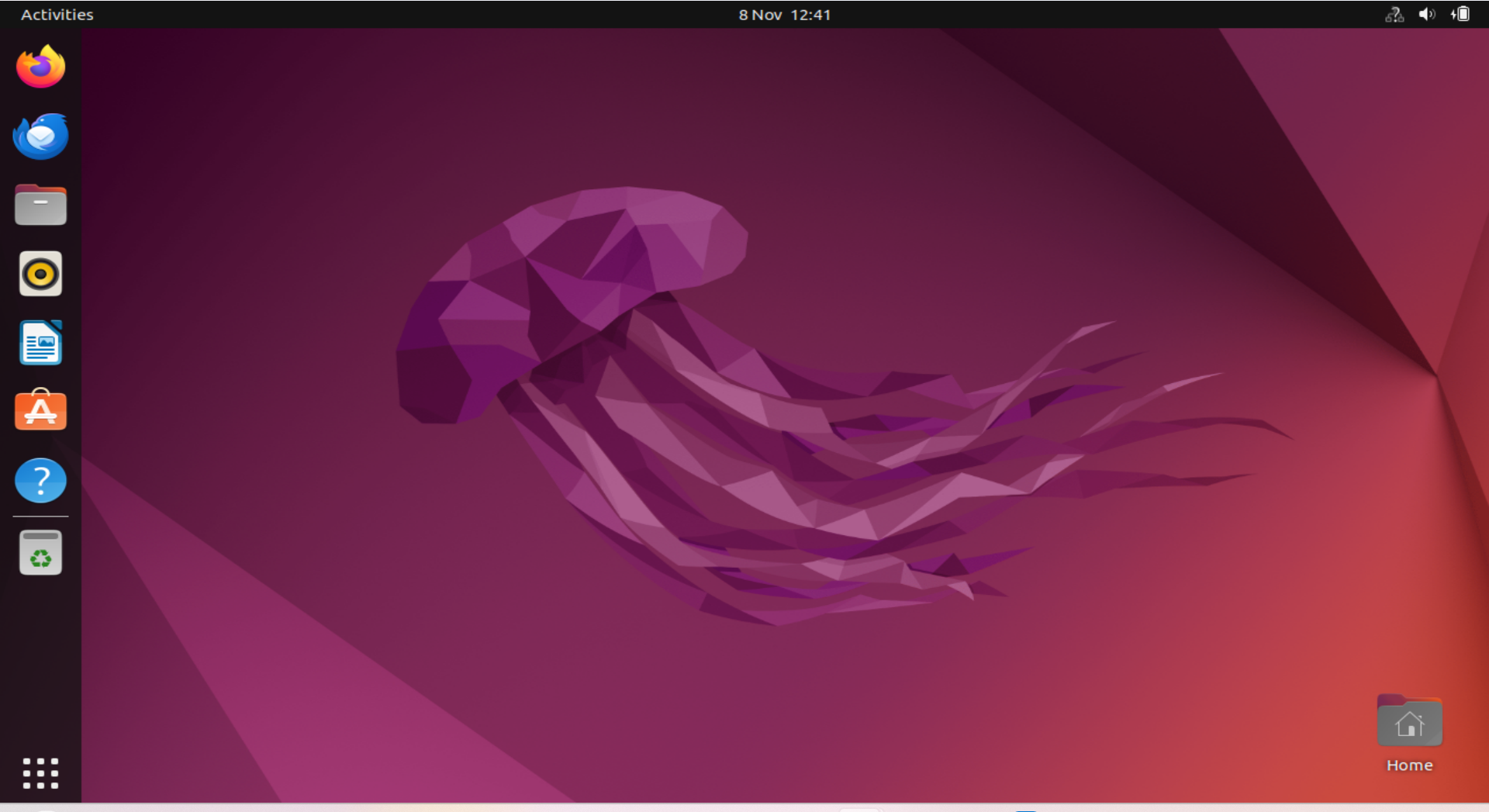
CONFIGURING YOUR UBUNTU DESKTOP VM WITH A STATIC IP ADDRESS AND DNS SERVERS
AIM OF CONFIGURATION
- To allow the Ubuntu desktop connect with a configured gateway router on a private subnet.
- To enable internet access through a configured gateway router.
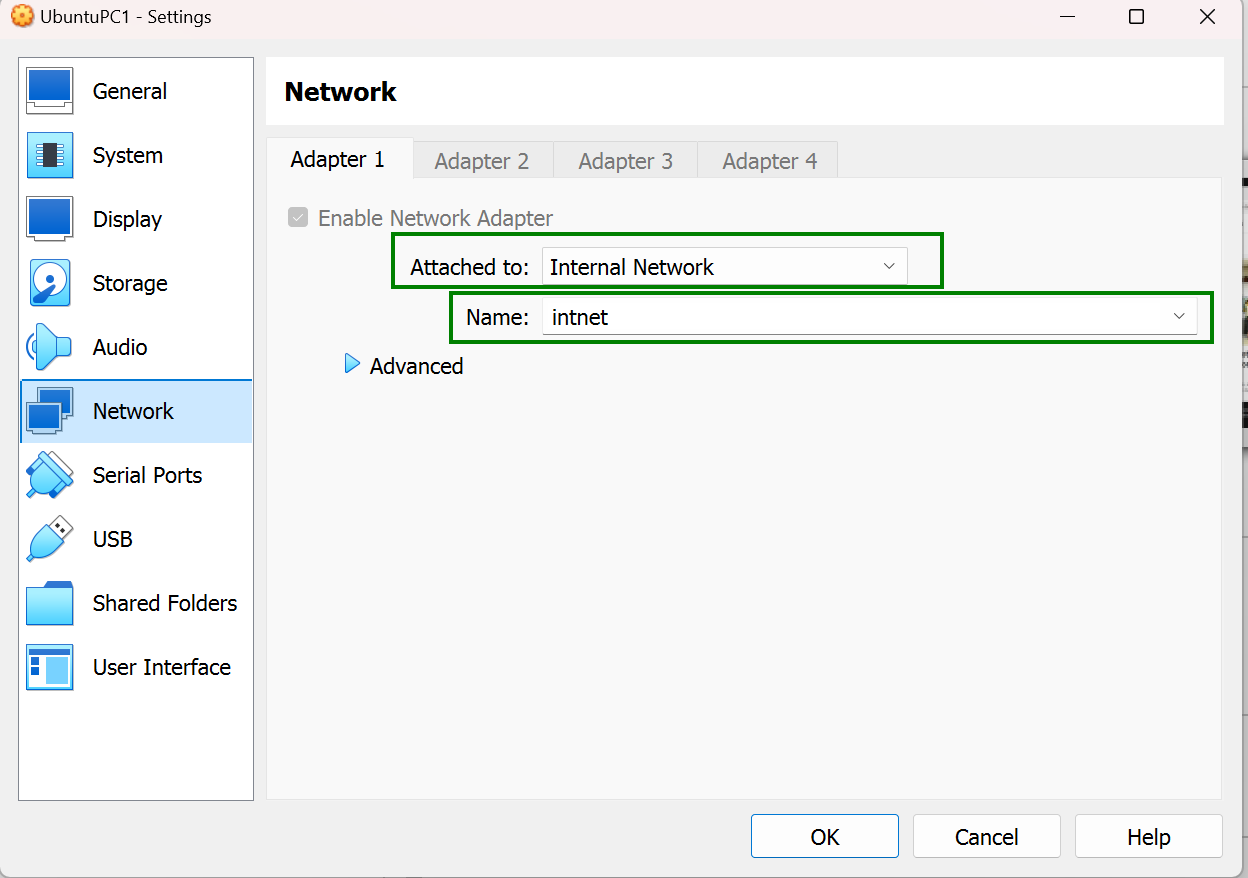
Step 1 Set your network adapter to use Internal Network
- Click on the Ubuntu Desktop VM and click on settings
- Select Network to display the network adapters.
- Change the settings as shown in the below screenshot.
- Click Okay and start the machine.
Step 2 Assign a private IP address and DNS server to your Ubuntu desktop.
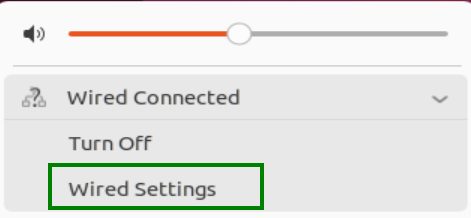
- Click on the network icon

- Click Wired Connected and select Wired Connection from the dropdown list.
- Click the settings icon
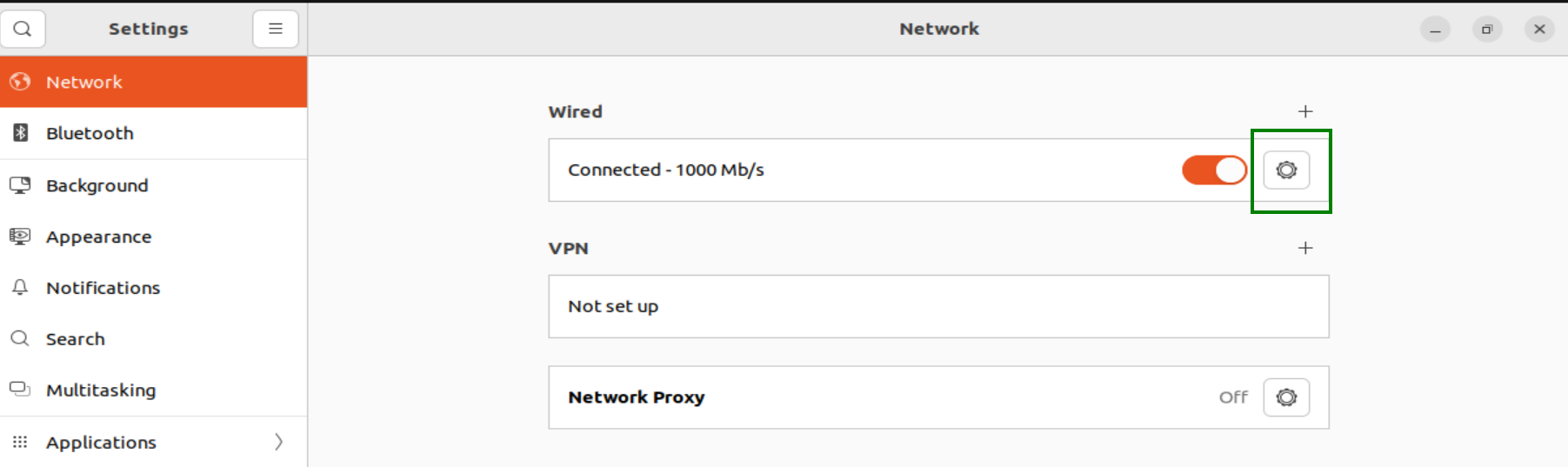
- Click on IPv4
- check Manual
- Enter your private IP address, netmask and gateway address.
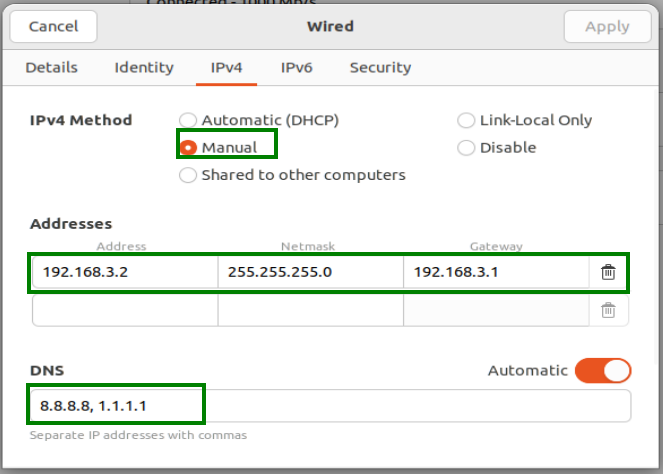
TEST CONNECTIVITY Ping the gateway router using the command ping “connecter gateway router ip”
COMMON MISTAKES
- Wrong gateway address configuration
- Wrong
SOLUTION
- The gateway address must be same as the address of the gateway interface on the gateway router you aim to connect with.
Example: The gateway interface has: 192.168.59.1 as address, you must use same address in this Ubuntu Desktop configuration.