
INSTALLING WAZUH AGENT ON WINDOWS
INSTALLATION OPTION There are two installation options available for windows users:
- GUI (Graphical User Interface)
- CLI (Command Line Interface)
GUI Using this method requires three steps
STEP ONE: Installer Download
- Download the Windows Installer
STEP TWO: Installation
-
Launch the installer.
-
Accept the license and agreement then click Install
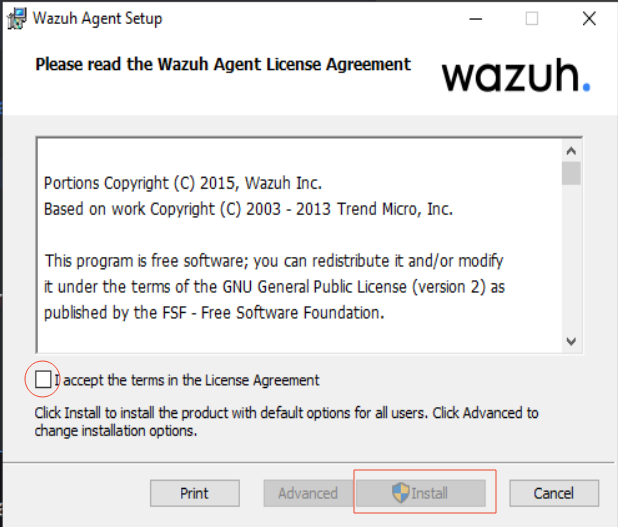
-
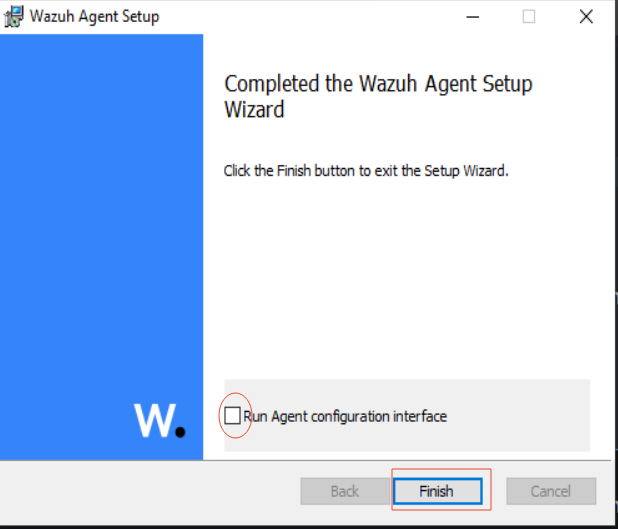
When the windows to complete the setup pops up, tick the Run Agent Configuration Interface box then click Finish
-
Click Yes When prompted *If you want to allow the application to make a difference.
STEP THREE: Configuration
-
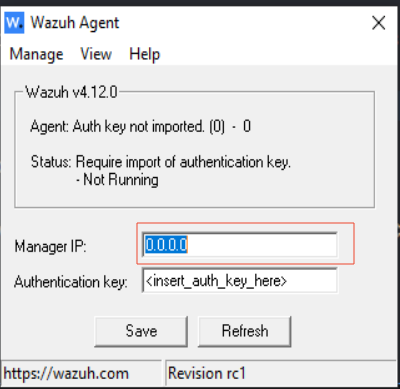
Enter the wazuh manager ip in the provided space to allow agent’s communication with the wazuh manager and click Save.
-
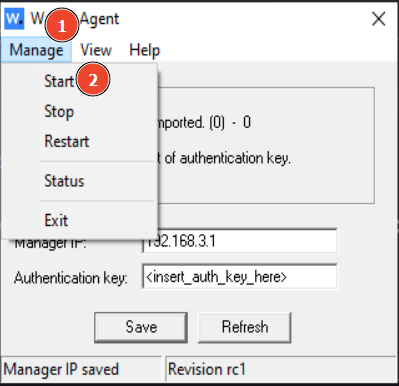
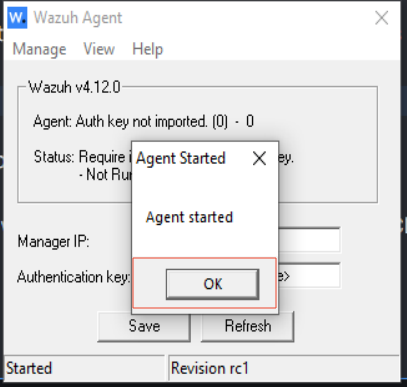
Start the agent. Click Manage then click Start to start the agent
CLI This method follows two steps
STEP ONE: Download the installer using the link to the official Wazuh website provided above
STEP TWO: Installation There are two available installation methods.
METHOD ONE: USING CMD
- Press the windows key on the keyboard
- Type cmd
- Run the program as administrator by clicking Run as administrator
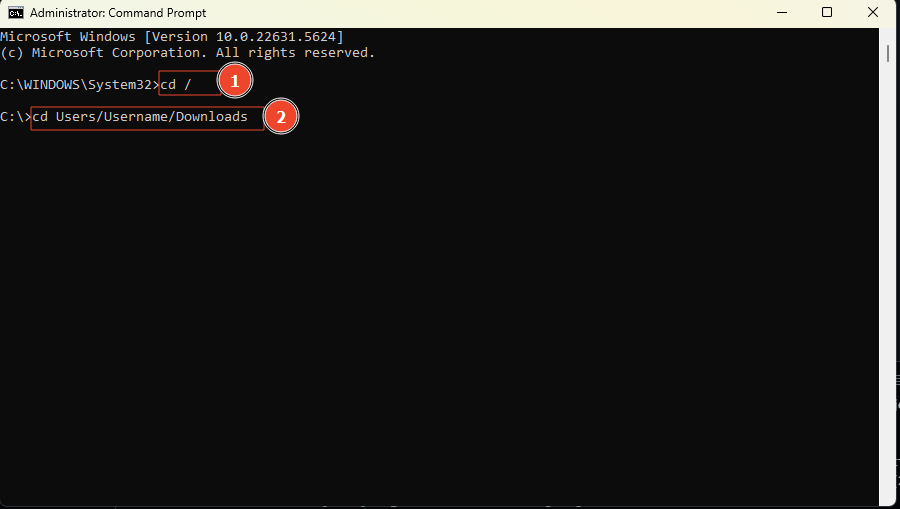
- Navigate to the folder where the downloaded installer is stored
example: If the file is in the download folder, you can navigate the folder using the below command. Replace Username with your pc username.
- Enter the below command to run the installer
wazuh-agent-4.12.0-1.msi /q WAZUH_MANAGER="IP ADDRESS"NOTE: Insert the wazuh manager ip address where “IP ADDRESS” is written.
METHOD TWO: USING POWERSHELL
- Press the windows key on the keyboard
- Type powershell
- Run the program as administrator by clicking Run as administrator
- Navigate to the folder where the downloaded installer is stored. Follow the navigation step used in the cmd terminal
- Enter the below command to run the installer
.\wazuh-agent-4.12.0-1.msi /q WAZUH_MANAGER="IP ADDRESS"
NOTE: Insert the wazuh manager ip address where “IP ADDRESS” is written.
ENJOY !!!